

Technology Bundle
 Listen to this article
Technology resources for deafblind individuals.
In 2020, individuals from the reference group consistently highlighted to Deafblind Australia the priority and importance of training in the use of technology.
DBA is appreciative of the feedback from the 2020 reference group and since then has been working to provide technology training.
What kind of training are we providing?
Firstly, one on one, in person training, training facilitated online, and videos for individuals to watch themselves.
The training videos will cover many different aspects of technology.
We hope that you will enjoy learning many new things from these training videos.
This project is funded by the Australian Government Department of Social Services go to dss.gov.au
Description: Title appears “Deafblind Australia presents: Deafblind Assistive Technology Overview”. Ben appears with glasses and a beard against a black background, signing in Auslan. Throughout the video, he points to photos of various devices displayed in the top right corner.
“Hi, this video is about deafblind assistive technology.
Deafblind Australia has been working on a project, planning to roll out workshops all over the country but, unfortunately, with the emergence of the Covid-19 pandemic, many of these workshops had to be cancelled.
We’ve also heard from deafblind community members that online workshop platforms such as ‘Zoom,’ don’t really work very well for the deafblind community when discussing topics like technology. So given the situation, we decided to postpone the workshops and focus instead on producing this video resource covering information about the variety of assisted technology that is available in Australia.
This video will cover a range of technology that is available from a specialist business named Quantum. Quantum’s business is focused specifically on low vision and braille technology. They have offices in Queensland, New South Wales, Victoria, and South Australia. For those living in W.A or Tasmania, similar devices to what is covered in this video are available from a business named Vis-Ability. Vision Australia also sells the products covered in this video throughout the country.
If, while you’re watching this video you see a specific device that you’re really interested in, you can contact Quantum to arrange for a visit to your home or workplace, possibly with an occupational therapist, in order to assess which technology will best support your access.
What is assistive technology?
Assistive technology is a very broad term. It can mean anything from simple technologies like a magnifying glass right through to sophisticated technology like a self- contained braille computer. Both of these devices are examples of assistive technology.
Assistive technology can also mean software that is added to a computer, or tablet device, to allow for magnification voiceover, or braille connectivity. Deafblind people primarily use three types of software for their accessibility.
Sometimes people will use a combination of all three.
This video will cover a variety of technology, and if there’s any devices that you’re interested in learning more about, you’ll find contact information at the end of the video.
Magnification
Magnifiers such as the one in the picture, are simple and easy to use.

(Generic image of magnifying glass)
Portable.
You can put it in your bag and take it with you to the shops.
They’re great to help people read things either while shopping or in the home. For example, there’s a variety of magnifiers available, and it depends on how strong you need the magnification to be. There’s mild magnification, and very strong magnification. You could also have either, the traditional type of magnifier, or a stand electronic magnifier which can be used for reading documents. Both are available.
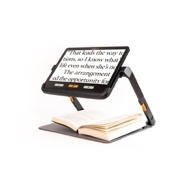
(Generic image of a stand electronic magnifier)
Simple magnifiers, like the ones pictured, can provide up to 12 times magnification.
Digital magnifiers look similar to an iPad or a tablet.
(Generic image of an iPad)
It’s a square device that can be pointed around to magnify things in the environment. Because these devices are digital, they’re capable of very strong, very intense magnification.
Some also have added functionalities, such as the ability to change background colour [and] to change font colours. These are available on some devices.
Some digital magnifiers also have a separate camera that can be used to see things at distance and display them on the screen. It’s great for looking at an interpreter at distance for example, or if you’re doing something like applying make-up, it can make it much easier to see what you’re doing.
Some magnifiers have screen reading technology built into them. So, for example, if I was trying to read some text that I couldn’t really see, I could take a photo of it with my magnifier, and then have it read the text out to me. That voice over technology is also able to be streamed into a cochlea implant or a hearing aid.
This device is called an ACE sight.

(Generic image of product)
It has a camera mounted in a headset that allows us to have a very expanded, magnified view, right in our frame of vision.
It’s great for watching sport, or theatre, or an interpreter in a conference, or forum type environment.
The picture can also be modified on this device. You can control how strong the magnification is, as well as things like colour contrast as well.
Computer software
When deafblind people work on computers, they often need the screen to be magnified, and there’s a couple of ways that this can be done.
The 1st is using the inbuilt features of the device itself, and the other way is to download separate software and install it on the computer. In terms of which program is right for you, it depends on whether you’re looking for magnification, screen reading, or a combination of both.
Some popular software in the deafblind community includes
‘ZoomText,’ is a very popular program because it includes both magnification software, and screen reading software.
It provides up to 7 times zoom, without distorting or changing the font, so the writing remains clear, and easy to read, even under strong magnification.
When using ZoomText, you can move around and navigate the computer with either the mouse or the keyboard.
It’s very easy to use. ZoomText, is also great because when you’re typing under strong magnification, it stays centred on the cursor, helping you to remain oriented on the page, and not get confused as to where you are on the screen.
Sometimes ZoomText, or a program like it, doesn’t provide enough magnification, or you might be using a laptop where the screen itself is small.
Another option for magnifying the image is, to use a second monitor and connect it to the computer through HDMI.
In this way both the computer, and the monitor will display the same information, but the monitor will be greatly magnified. A setup like this is great for participating in Zoom meetings, or watching anything that’s being interpreted online.
Braille
There are a variety of braille devices out there, and most of them can be connected to a smartphone, or tablet via Bluetooth technology. Once connected this means that the user has full control over the device, using only the braille display. Braille has several benefits.
The 1st is that it is a quiet, and totally private way of receiving information. You can be reading your braille in public and no one is aware of what the information is that you’re taking in.
If you’re doing public speaking, or giving a speech anywhere, having your prompts, and your notes in braille is a great way to check where you’re up to, to make sure you don’t miss any information, all without having to stop or interrupt your speech. For people who are fully deafblind, braille skills mean that they can retain their access to information and communication with the wider community.
We’ve talked a little bit about pairing braille displays with smartphones and tablets, but there is another device that gives all the benefits of pairing a braille display with a computer without the computer.
This device is called an ElBraille, and it is a fully functional laptop computer all housed within the construction of this braille display.

(Generic image of an ElBraille)
It’s the same size as just a braille display, but has the full functionality of a laptop computer.
More information:
Quantum Reading Learning Vision
This project is funded by the Australian Government Department of Social Services go to dss.gov.au
Description: Vanessa, with long hair, appears on the right side of the screen, discussing her BrailleNote. On the left, Ben, an Auslan interpreter with a beard and glasses, signs in Auslan.

(Screenshot of interpreter on left and presenter on right)
“Hi, my name is Vanessa Vlajkov from Perth.
The main communication I use is called a BrailleNote.
It has changed over years to upgrade over time, but mainly it’s still the same looking machine, only it’s gotten a bit fancier over the years.
I started learning Braille when I was four, but I didn’t get my first BrailleNote until I was, seven. I think I was given BrailleNote from the Education Department because as I was in School, I didn’t need to buy myself one. So, I was provided with one from school, until I graduated, and then I used funding to buy my own.
They come from an organization called HumanWare. With my BrailleNote which is called a BrailleNote Touch Plus, the latest version, I do everything from texting to emailing, social media, Uni assignments and everything else you can think of it. It has a connection through Bluetooth with my phone, and can also be connected to iPad or other devices.
So, when it’s connected, I use it as a display so everything that appears on the ‘i-device’ appears on the Braille for me.
So that’s how I communicate with the world.
When it doesn’t work there is no world for me.”
This project is funded by the Australian Government Department of Social Services go to dss.gov.au
Description: Jennifer appears on the right side of the screen, wearing a red jumper and discussing her Roger pen. On the left, Ben, an Auslan interpreter, signs in Auslan.

(Screenshot of Jennifer in home office)
“Good morning my name is Jennifer Weir.
I am vision and hearing impaired from Usher Syndrome.
I’m going to talk today about the Roger Pen which is up here on my computer.
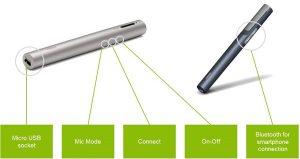
What is a Roger Pen?
(Image from hearingchoices.com.au)
A Roger Pen is a device that, using FM and Bluetooth technology, will transfer sound from a television, computer, a radio or even a conversation, directly into my cochlear and hearing aid.
I received my Roger Pen after having a cochlear implanted, and a new hearing aid, and I required to have good streaming capability, due to my volunteer work and lifestyle. It was about 15 months ago.
The first thing I use my Roger Pen mostly for, is using it with my computer. It streams the conversation from a screen reader directly into my hearing aid and cochlear. Which makes it much easier for me to be able to do work as I can’t see very well.
The next thing I use my Roger Pen for is listening to the television and the radio. It streams directly into my cochlear and hearing aid. I can control the sound and the volume and it also enables me to turn the sound down to zero while everybody is doing something else, and doesn’t want to watch, or listen to what I’m listening to. It’s great.
The other thing I use the Roger Pen for is going to board meetings and any other form of meeting. I turn the microphone on, I put it on the table in the direction of where the conversation is coming from and the Roger Pen will pick that conversation up and stream it directly into my cochlear and hearing aid.
It will also switch to the next person that starts speaking, in other words the next loudest voice.
It works most of the time.
It’s very, very handy as meetings can be quite difficult, at times.”
[Jennifer demonstrates the use of a Roger Pen in receiving instructions from her golf coach, while hitting a golf ball]

(Screenshot of Jennifer
hitting a golf ball)
[Golf caddy speaks]
“Okay Jennifer, address the ball.
Close the club slightly,
bit more…
bit more…
fraction more…
that will go,
fine.”
“I just hit a ball, and my caddy has given me directions directly through the Roger Pen to my hearing aid.
He’s standing quite a distance away for safety reasons, so I use this when I’m playing golf.
The Roger Pen is also useful when having one-to-one conversations with other people who use Roger Pens and are extremely hard of hearing. This is great in a social situation because you can be having a quiet conversation by your Roger pen with someone else and understand what is being said.
I hope you have enjoyed looking at this video.
For further information on the Roger Pen just Google Roger Pen Australia there’s information on that site.
Thank you”
More info: www.phonak.com/au
This project is funded by the Australian Government Department of Social Services go to dss.gov.au
Description: Paola appears on the left side of the screen, wearing a dark blue jumper and a long side plait, giving a speech about Deafblindness. On the right side, a PowerPoint presentation is linked to her speech.

(Screenshot of presenter on left and information on right)
“Hello everybody. My name is Pala Avila, this is my sign name. I am a deafblind woman. I’d like to just start by extending my thanks to DBA for inviting me to be here and present today, and to present about my experience as a deafblind person.
I think it’s really valuable for people to hear the deafblind perspective, and I think this is a great opportunity for everyone in the workshop to understand not only what deafblindness is, but how to work most effectively with deafblind people, especially online. So, the objectives of my discussion today are outlined here;
Objectives
1, What does deafblind mean?
2, Different vision types for deafblind people.
3, Technology
4, Questions/Answers
Initially I’d like to just take us through a definition of deafblindness, and then I’ll show some examples of the various eye conditions that deafblind people may have, and that’ll really help with your understanding, because I can sit here and talk about this stuff in theory as long as I want, but it’s not as impactful as showing you those sorts of images. I’m also going to talk about technology as we know everyone is obsessed with technology these days, and that definitely extends to deafblind people, but some pieces of technology are really difficult, but technology can be a great way for people to overcome barriers too. So, we’ll talk about that, and finally we’ll have some time for questions and answers at the end.
Outcome
By the end of this presentation, you will be able to understand more about deafblindness, the communication methods and how better to work with us using technology.
So, the outcome for today’s workshop.
After the presentations today, I’m hoping that you’ll have an improved understanding of what deafblindness is, and the different ways you can communicate with deafblind people, and I also hope you’ll have a better understanding of how to work effectively with deafblind people online, using some different pieces of technology.
These two words deaf and blind. I’ll talk about them separately.
First of all, deafness and blindness.
“Deaf” in the dictionary
-Hearing loss -half deaf -difficult hear
-Profoundly deaf -deafness -hearing impaired
-Hard of hearing -fully deaf -Deaf or deaf
-Oral -severe hearing loss, etc
Deafness, as it is defined in a dictionary, is quite extensive in its definition. A lot of it might use terms such as; hearing loss, or somebody being profoundly deaf, hard of hearing, half deaf, somebody might have deafness or they might be described as being fully deaf, difficulty hearing, a hearing impairment.
You might see ‘deaf’ written with both a small ‘d’ and a capital ‘D’. There’s many, many varieties of hearing loss. All of these sort of related concepts fall under the idea of what we term “deaf.”
“Blind” in the dictionary
Unable to see because of disease or a congenital condition or injury.
-vision loss -difficult seeing -blindness
-totally blind -vision impaired -unsighted
We find a similar scenario when we talk about blindness, and the dictionary definition of it. There’s a lot of different terminology associated with the concept of blindness. You might see things like: impossible to see, or congenital conditions, injuries related to vision.
You also might see terms like, vision impairment, is also a common phrase as is blindness. You might call someone, un-sighted. So, there’s a whole bunch of terminology that falls under “blind.”
We need to then combine these concepts of deafness and blindness, and they can’t really be separated in the deafblind context, but I’ll unpack that more in a minute.
The “hearing world,” (or what we would term “hearing people”).
We often find that hearing people who go blind, have a very different cultural experience of that, than a deafblind person would. The experience of a deafblind person is, that their deafness and their blindness cannot be separated. It is a singular and unique disability.
This can become quite problematic when somebody is becoming deafblind, because they have to do quite a lot of learning, relating to how they’re going to communicate once their senses have declined. I’ll go into that in a bit more
depth later.
Common words used in the Deafblind community;-
-DeafBlind (DB)
-Usher Syndrome (Usher)
-Retina Pigmentosa (RP)
Most of you in the room would be familiar with the term deafblind, I’m sure, but within that community, there’s some terms that you will see quite frequently. The first is, deafblind being shortened to just “DB,” an initialization. You also hear the term “Usher,” or Usher syndrome, and lastly Retina Pigmentosa, which is often shorten to “RP.”
These are the most commonly used terms relating to deafblindness.
What does ‘Usher’s Syndrome’ mean?
I’ll speak more specifically about Usher Syndrome now, (which is the condition that I have). Usher Syndrome refers to a person who has a vision impairment that manifests as tunnel vision, but I must say at this point that, this is not uniform for everyone with Usher Syndrome. Some people
have quite a large frame of vision, for others it’s significantly reduced. Some people may see tunnel vision, or spots on their vision.
It’s widely varied, but the term ‘Usher Syndrome,’ as well as a diagnostic category, is also a way that people define themselves, and see, self-identify in the deafblind community. You don’t really see that, as much, in the hearing world, so Usher is just a diagnosis there, but for deafblind people it can be an identity as well.
Retina Pigmentatosa (RP)
Retina Pigmentatosa is another word used for ‘Usher Syndrome’ and it is often used by medical professionals.
Retina Pigmentosa or “RP,” can sort of be used interchangeably with Usher Syndrome, but most people choose to use the term “Usher” for their identity, although they might have been diagnosed as having Retina Pigmentosa in the past. “RP,” is quite a medical term, some people do still use it, but most people who have Retina Pigmentosa would self-identify especially here in Victoria as having Usher syndrome.

(Screenshot of slide)
This slide unpacks the 3 different types of Usher Syndrome. Here in Australia, we have these 3 types, the most common,
(I believe there’s up to like 21 different classifications of Usher worldwide), but I’m going to talk about these 3 here, because, they’re the most commonly seen in Australia.
Myself, I have Usher Syndrome Type 1. My partner who also has Usher Syndrome, he has Type 2. So, we both have Usher but quite different types. For people with,
We often find people with Usher Syndrome Type 2 are quite strong oral communicators, and they come to learning Auslan and sign language later in life. Some people are interested in learning it, some people tend to put it off. For me, I was diagnosed at 7 and I feel like I really should have started learning to use braille early in my life, but I put it off, I put it off, and now that I look back, I think I might be a bit past my ability to learn it easily, so I wish I’d learnt braille sooner.
Just to backtrack a little about my personal story. I was diagnosed as deaf when I was 18 months old and then at 7 years of age, I started to experience issues with my vision and I started to lose my vision in chunks, sort of every seven years. My right eye at this point is pretty much fully blind, and that’s due to macular degeneration in my right eye. It’s like I have a black fog over my whole field of vision.
My left eye does still have some sight in it. I have cataracts which is very, very, common for people with Usher Syndrome. I know there is a surgery you can have to remove cataracts, but I don’t know how helpful it would be for me, and it could actually make some things worse, or at least that’s what I’ve heard. I know that cataracts are quite common in the hearing world, and that people have that surgery and it doesn’t cause them many problems, but I have heard of stories of people with Usher Syndrome having their cataracts removed and experiencing some negative outcomes from that, so I’m a bit hesitant. As I said I’ve got the black fog in my right eye, but then in the cataract eye, my left eye, it’s a lighter colour fog.

You can see here the two different diagrams. On the left, we have a normal functioning eye, so most people here, you can see the back of the retina, this is everything functioning normally in that first picture. On the right, this is similar to someone with Retina Pigmentosa or Ushers. You can see the pigments there, and how that can block the vision from functioning.

Again, on the left we have a photo of a back of a normal retina, and in the photo on the right, you can see all the black splotches there. It may start with only a few of these splotches, and then over a number of years, the splotches spread, and if there’s too many of these, particularly around the centre, then that can cause total blindness.
It’s quite sad that there is no surgical intervention possible for this. I know that there is research in this area happening, at the moment nobody knows how to approach Retinitis Pigmentosa. They’re thinking that it might have to be a gene therapy or something targeting DNA, but I don’t want to go too deep into that now, but as it stands, no surgical intervention. We hold out hope that people may find a cure, but it is just hope.

(Screenshot of slide)
I’m going to show some images now that sort of replicate different kinds of vision that deafblind people may have, depending on their condition. This sort of replicates how people normally see. We’ve got a building, we can see the restaurant there, we can see the sunshine, we can see the little bits of shade from the buildings and shadows. It’s quite a nuanced image.

(Screenshot of slide)
RP Vision.
This photo, you can see the dark and black splotches around the exterior of the image. This is how most people with Usher syndrome, or Retina Pigmentosa see the world, so you can’t see all the buildings as we could before. There’s some areas of white grey, and black fog, around the outside of the image. Some might be small spots, some might be very thick sections, can also be different shapes obscuring people’s vision. It looks a bit like a tube. Some people, their vision is a bit like looking through a drinking straw.
Remember, not everybody with Usher Syndrome has the same vision, and this brings up an interesting point. Anytime you meet someone with a syndrome, or a deafblind person, don’t assume that you know what they’re going to need. Some people need you to be close, to communicate. Some people need you to be further away. Some people need to hold your hands to track your signing. Some people will need you to just sign in a slightly elevated position, not in front of your face, which I’ll talk more about in a minute.
If I sign in front of my face, my skin is the same colour on my hands, on my face, and it can make it really difficult. Like if I hold numbers up like this, it’s hard to see my hand, unless I move it down, so that it’s in contrast against my clothes, and now it’s much easier to pick out. So, you don’t want to be signing up in front of your face.
For me as a person with Usher, my vision is pretty much one-dimensional. With normal vision, you would describe it as 3-dimensional. You can see contours in a floor, for example, or you can see textures, whether something’s wet, or shiny. You could see changes in elevation, you could see something like sand on a surface, there’s all that sort of detail in your vision.
For me it’s 1-dimensional. I can’t see if there’s a contour. I can’t see if something’s flat. It makes me quite nervous when I’m walking places, because I always assume that I’m going to know where the lines are, I’m going to know where the topography changes, and that’s not always the case.
So, this is something a lot of people encounter when they have Usher Syndrome. They can be quite tentative in their walking or use something like a white cane to get a bit more of that information about what’s going on in the environment around them.
You might remember I mentioned cataracts before and the white fog that comes with that.

(Screenshot of slide)
This picture is a good example of what that looks like. It’s quite blurry and there’s only a small portion of the picture that can be seen.

(Screenshot of slide)
Something that’s quite common for people with Usher or Retinitis Pigmentosa, and it’s certainly true for me, is issues with glare. A lot of people with Usher Syndrome wear sunglasses, specifically to counteract that glare, but it can be a huge barrier to communication.
If I want to talk with my friends or people in the community, if they’re standing with a window or something behind them, it’s impossible for me to communicate. The glare blows out into sort-of a white-out, and the person is just totally black. So, I can’t have anyone with a window at their back if they’re communicating with me. It poses a lot of problems in a car. For example, if I’m trying to talk to my partner, and he’s there and he’s got a window behind him, in those situations where the glare is really problematic, I will hold the person’s hands so that I can track at least where they are in the signing space and that can help me to follow what they’re saying.

(Screenshot of slide)
The other thing that we have problems with a lot, as people with Usher syndrome is, let’s say for instance, we’re in a restaurant, we’re eating and we’re having a great time and then when we go outside it’s very bright. The time taken to adjust from a dark environment, to a bright environment
can be, you know, 1 to 5 minutes depending on the person.
And the same is true when we reverse the situation, if you’ve been outside and then you go into a dark environment, it can take up to sort of 5 minutes, for your eyes to adjust to the new lighting environment.

(Screenshot of slide)
Then we have total blindness, just the absence of vision whatsoever. Some people can get to this level of blindness progressively over time. Some people are born with this level of vision right from the jump, so it’s very, very, varied. And I stress this again, that the Usher community and the deafblind community at large, is so varied. Many deafblind people also have issues with glaucoma macular degeneration. There’s a whole range of eye conditions that people might be living with. So, again this shows what I’m talking about. The time that it takes me to look up here and figure out what’s on each slide is the result of this very limited tunnel vision that I only have in my left eye. So, thank you for bearing with me.

(Screenshot of slide)
People in the deafblind community use lots of different apps to help them communicate in the community. I’ve listed some of the common ones here. The first one is-
Buzz card, I’ve got the photo up here, on the slide as well, so you can have this on your phone. It’s got the right contrast and thick text that I need, to be able to see it. This is really good for communicating with people out in the community, even if they have a problem seeing that, it might be an older person, this has got some nice big thick texts easy for everyone to read, and for me it’s easy for me to see it, as well, as we have our conversation back and forward. Deafblind people often use a darker or a different coloured background, not a white background, maybe orange or blue, but with a thick black text on it, that would be my preference, and a larger font size as well.
The second app on the list here is called-
My Ear
This is quite a new thing, but a lot of deafblind people are using it, as well as deaf people. The way this works is, let’s say you’re out somewhere, you’re getting the bus somewhere. If the door opens and the bus driver starts talking to you, I might not be able to understand them, but I can hold my phone up, and this app will automatically, like it would with close captions, convert that audio into text. It’s quite amazing. Then it also gives you the option to change font size, to change the background, and font colour. It’s a really amazing app, but it’s not entirely accurate.
There’s about, I would say, 20% of things that get missed, and that could be because the person has a strong accent, or it could be that there’s a lot of environmental noise that’s interfering with the app, but it’s much, much better than nothing. So that’s a really valuable app to have on hand as well.
FaceTime/Duo. FaceTime is a pretty common app that everybody has or, Duo is the other one, I think, that’s like Google’s version. Using video chat, most people in the deaf or deafblind community use that, but unfortunately this isn’t available for all deafblind people, and I’ll speak a bit more about why in a moment. The next app is-
Skype
It’s been very, very common for a number of years now. Deafblind people use this often in place of the phone. If I needed to make a phone call to a hearing person, for example, I could use Skype to use the video remote interpreting service. I could give them the number, they’ll make the phone call, and then I can sign to them when they talk. The interpreter signs to me, when I sign the Interpreter speaks to the person on the end, so that was a way to get around making phone calls.
The other one I’ve got listed here is-
ConvoAu
This is similar to Skype, but it is a little bit different. Let’s say for example, I’m out at the shops and I need to speak to someone, I can use this app to pull up literally an interpreter out of my pocket, on my phone and I could say, “Hey, let this person know I need a haircut. I want my fringe trimmed,” and we can use this almost like an interpreter in your pocket.

This slide lists some other technology that deafblind people use. Everything up here is pretty common. You know iPhones captions,
iWatches
These watches and vibrating alarms are quite useful for doorbells and things. It’s great being able to use something like an Apple watch, where you can just get convenient alerts. You don’t need extra equipment, or to be looking at your door every 2 seconds to see if someone’s there. You can also use them for waking up, things like that.
Microphones and FM systems
Microphones and FM systems are quite common for people who are primarily oral communicators in the deafblind world. They use microphones to cut out some of the background noise. Again, people who are mostly oral communicators sometimes use FM systems, especially when they’re working on a computer, or if they’re do attend something online, they’ll have like a little pendant that they can connect, or a microphone they can give to a teacher, or someone leading a workshop, which then allows spoken words to come immediately into my listening device, and that cuts out a lot of the background noise, makes it a lot easier to follow.
Android apps and systems
Android apps and systems are quite common. People use computers and laptops, and they use vibrating alarms. So, something like a baby monitor, or a fire alarm, a doorbell. All sorts of different alert systems that use vibration.
Hearing aids/cockle implants are quite common and then,
braille reading devices as well.

These are some programs that deafblind people commonly have issues using the first one there is,
Zoom
Depending on how many people are on the zoom call, let’s say, for instance there’s 20 people in a zoom meeting, and we have an interpreter included among that list. Normally in meetings, we’ll have two interpreters, who’ll swap every 15 minutes. Often if I’m in a large Zoom meeting the Interpreter can be very small on the screen and very, very difficult to see.
Generally, if there’s only about 10 people, the screens aren’t as small, and they’re easier to see. We can pin the interpreter’s video, which will make it nice and big, and that’s fabulous, but when we do that, we’re then left out of the rest of the conversation. Just because we’re deafblind, doesn’t mean we don’t want to be involved, and see everyone else who’s in the room, same as you. You would want to feel part of the group, not just staring at the one screen all the time.
Another issue for people with Usher Syndrome using these sorts of programs, and I should just side-track here and say thank you to DBA for letting me be part of this program, I was involved in a DBA program that was meeting on Zoom and I’d never used that program before. It was very, very new to me.
When I got it set up, I could see what was going on, but tracking the icons on the screen, and the different buttons was very difficult. I had a CommGuide come and help me, I’ll speak more about what a communication guide is soon, but they showed me where things were in the program. They showed me how to download what I needed, how to pin a video, how to turn off my own video, how to turn the camera on and off, how to type in the chat. I had to sort of have a one-on-one tutorial and this was because the communication guide working with me had great Auslan skills and could explain everything I needed to do.
It was a great experience, having that person there to help me, and it allowed me to really use Zoom, and get involved, to the point where I’m quite comfortable using it myself now. But, again, Zoom is a problem for people who have lost significant amounts of vision or approaching total blindness.
In terms of someone at that point, navigating a program like Zoom independently, I don’t think that would be possible, they would need to have a Commguide with them. Also, if they can’t see what’s happening on the screen, they need an interpreter there, because we must remember the Commguide cannot take the place of an interpreter, and I’ll explain more about that later. Many people with Usher Syndrome or other types of deafblindness still have issues accessing Zoom, because of the same issues we have accessing Commguides and interpreters.
Skype is also quite a problematic app, similar to what I discussed with Zoom. Knowing where the icons are, how to navigate the screen, that can be really difficult. I personally have a bit of a hard time with Skype, and it’s because of the colour scheme. Everything’s white, and then the icons have like only a subtle change in colour.
Also, sometimes the interpreter that I’m accessing on Skype, won’t have a dark coloured background. That’s really important in order for me to be able to understand them well. If their background is bright, it just makes the whole thing unusable. Also, sometimes it’s difficult to understand a person’s particular signing style, if they’re interpreting for me on Skype. I can be locked out because of that.
FaceTime
I have used, and the success is dependent upon where I’m using it. If I use FaceTime when I’m outside, no good. If I’m in the house I’m in more of a controlled light environment, then it’s better, but again it depends on the Wi-Fi speed. If it’s too slow, it’s impossible to watch someone signing.
Microsoft teams
The biggest problem I have with Microsoft programs is, it’s just relentless and constantly updating. It feels like, every time you learn something, an update comes along, and then it changes, and then you have to wait for the Commguide to come, and show you how to navigate the app now that it’s changed.
Google Hangouts
This is another one that’s been quite problematic for me, just because I find the interface really hard to navigate visually. Most people with Usher Syndrome, most deafblind people have issues with these sorts of apps, with different colours, or with too much information on the screen, or interfaces that don’t make visual sense, or wrong -coloured backgrounds. Sometimes the text is just laid out in a way that’s very difficult for someone with a vision impairment to navigate.
There’s a lot of issues that can pop up. It’s also important to remember, that a lot of deafblind people have issues with English, because for most people, it’s their second language, and also people might be navigating the information in braille, which can become really extensive, and tiring if there’s too much information there. So, it’s important to keep things in short, sharp, chunks of plain English, wherever possible.

The difference between interpreters and Commguides is something that I alluded to before, and I’ll unpack that here.
So, for interpreters, like what Ben’s doing here, this is their job: transferring language from one language, into another.
The Communication Guide, or Commguide, can sometimes assist within formal interpreting, but they’re also responsible for physical guiding, for driving, transportation, taking people to different activities, helping them orient themselves to spaces, and make sure that they’re safe in an environment. The Commguide is also responsible for really becoming a person’s eyes, and ears, to ensure that they can be involved in the community in the way that they want to.
Deafblind people rely on Commguides a lot, and they can also support us with how to use different pieces of technology. Without Commguides, I wouldn’t know how to use any of my technology. It would be impossible to navigate any of it.

Okay we’ve got time for questions and answers, but I think we’ll do that a little bit later.”
[Presenter, Paola, takes a break and then clip resumes as she comes back into view.]
[Host speaks]
“Okay welcome back everybody.
Just during the break I’ve had a question for Paola. I have somebody asking via Zoom. Freida is asking if there’s any courses in relation to becoming a Commguide, and whether you know if they’re available, and if they’re available remotely. So, I’ll hand back over to Paola. Thank you.”
[Paola speaks]
“Thank you, that’s an interesting question. My advice really to anyone looking to get into working as a Commguide is to contact, Able Australia. Many people have begun their careers in Commguiding at Able Australia and there’s a few options, really there’s not one pathway into this sort of work. There’s no formal course either, most people begin with an Auslan qualification, be that Melbourne PolyTechnic or at R.M.I.T, somewhere like that, and then you can also go to Able Australia to have activity training, to sort of partner up with a deafblind person, see how you go.
Really there’s not just one process involved in doing this type of work. You could contact different deafblind organizations to find events that are going on, and you could get involved and have a look that way, and see if the work might be something you’re interested in doing, because we have to remember, that this is not the sort of work you can learn about just theoretically, you have to get involved. You have to do some practical work as well. You can also contact deafblind Australia. They have different information, different contacts that they could hook you up with as well, if you’re interested in that kind of work.”
[Host speaks]
“From Zoom, Freida, says she has Cert. 2, 3 and 4 in Auslan. She knows all about Able Australia, and used to volunteer at deafblind Victoria.”
[Paola speaks]
“Amazing congratulations on your study, that’s really wonderful that you’ve gone through those certificates. Might be worth, maybe, visiting physically, some different deafblind organizations or activities that aren’t connected with Able. Like you mentioned DBV, maybe popping in there, Deafblind Australia. Depends on where you’re located, but you might be able to go visit some spots.
You could also, maybe, use social media or something. There’s a lot of deafblind people on Facebook, you could post on there that you are interested in doing some Commguiding and you want to volunteer to build your skills up. There’s also an organization named Hire Up. They have some Commguides there, but really, I think the best piece of advice I could give you, is to meet with some deafblind people, do some volunteering, and go to some different events and check it out that. That be the next best step for you.”
[Host speaking]
“Thank you, Paola. Frieda says she just wants to get more skills so she can contribute to the deafblind community, and she is getting one-on-one Auslan tuition from June Stathis, and Rosette Busch, but she says to say “thank you for answering our questions.”
[Paola speaking]
“Fantastic, good luck and hopefully we’ll see you out and about in the future.
I might just speak a little bit more about communication guides, or Commguides, because Commguides are really a big part of the deafblind community. It is really important for Commguides to have Auslan skills. I may have mentioned this before, but really, there are 2 types of Commguides.
There is what I would call more of a helper model, and more of an empowerment model. Now as to which one is the best fit, it depends on who the deafblind person is. Some people need a lot of help, some people are more independent,
and they are keener to roll their sleeves up and do it themselves.
Some deafblind people might have additional physical issues, or physical disabilities, and they might need the Commguide to do a lot of, what I would call, helping. So, helping with toileting, or bathing, or ordering food, getting shoes tied, things like that.
There is another type of deafblind person who’s more independent, and really that type of person will prefer to be taught how to do something. Like I showed you before, with the buzz cards, somebody might be confident to communicate themselves in that way, but it is still worth having a Communication Guide there just to keep them safe.
Let’s say, for instance, I go up and I order, and I use my Buzz card, and then the waiter comes along and they bring me a hot drink, but I am not aware that it has been placed on the table. The Commguide could let me know, alert me to where the drink is, so that’s part of keeping me safe.
Really, that is a big part of a Commguide’s role, is safety. So, being knowledgeable about OHS, what to look out for, as far as safety hazards in an environment go. That is really, really important. As I have mentioned before, it is really important when you meet deafblind people, that you don’t assume that we are all the same.
Some people might be very independent some less so, and it’s best in these situations just to ask the person what they need and how they prefer to be supported, but when we’re doing that it’s important that we use language that doesn’t throw the responsibility all the way back onto the deafblind person.
We do not say things like,
“Are you okay? Are you okay? Or can you see me in this? When we use language like that, we are making it seem like the deafblind person is the one with the problem, but really, it is the lack of access that is the problem.
If the access was provided appropriately, it would be easy for deafblind people to be involved, so we can ask these things, and ask for information in ways that don’t disempower the deafblind person or make them feel ‘less than.’ I can tell you one story about when I went for an eye test. I went there and I had these drops put in my eyes, I have to do this every few years just to check the extent of my tunnel vision. Now, back at the time, I did not have a Communication Guide. There was an interpreter there though, and that was great, this is about 10 years ago this took place.
So, I went to the eye hospital, and I got the drops put in and they dilated my pupils, and I said to the Interpreter,
“Can you ask the reception where the women’s bathroom is please?” So, they asked, and then they told me, they said,
“It’s straight down the corridor, then you take a left,” and I thought, “Oh, that’s easy,” straight down the corridor, then left.
So, off I went straight down the corridor, took the left turn, and then hit a step that I didn’t know was there, right before the door, and I fell down the step, and into the door. Luckily, I didn’t have glasses on at the time because I probably would have broken them.
Now this isn’t the interpreter’s fault, again their job is to interpret what the receptionist said, and that’s what they did, but thinking back, I should have had a Communication Guide with me because, even though the Interpreter, interpreted what was being said, it wasn’t all the information I needed. There was an important extra piece I needed to know about the environment to keep me safe, but even when you have a Communication Guide, they’re not with you all the time.
We might not have enough funding to pay for every time we need a Commguide, or they might not be available when we book. I learned from this experience, that in the future I also have to take responsibility for asking for the information I need. So, I could ask the Interpreter, “where is the toilet?” And then say, “is there anything else I need to know? Are there steps? Is there anything that could be a danger or a threat to me?”
We can’t always think we can rely on Commguides. We need to take a little bit of personal (pardon me), accountability for our safety, and it’s really important that people who work with deafblind people, or people out there in the community understand the difference between Communication Guides and interpreters.
I can talk a little bit more about technology in this space.
You might recall, earlier in the presentation, I was talking about some apps and programs that deafblind people have issues with using. I owe a massive debt of gratitude to the Commguides, that show me how to use these programs, but it’s also important that people running meetings, on online platforms, know how to do so in a way that works for a deafblind person.
So, very simply this could start with things like, having a dark
background, making sure that the interpreters are appropriately attired, and that they have long sleeves, dark clothing, with no logos or patterns on it. It’s important that the interpreter’s clothing contrast to their skin colour, and that they have good lighting where they are as well. You want the lighting coming from above, or off-centre, ideally not blasting right up in the face.
It’s also important to make sure that the onscreen interpreter is close enough to their camera so as not to appear very far away. We really only need to see the top half of the person’s body if they elevate their signing space slightly. Also, when the interpreters need to swap over, they will often let you know, “okay we’re going to have an
interpreter swap,” but online, the deafblind person will then need to pin the second video, the second monitor.
In the deaf community, these sorts of online things tend to just steamroll along at an excellent rate of knots, but if you’ve got deafblind people in your meeting, you need to allow that extra time for the people to pin videos that they need to do. It’s also important in meetings like this, to let the people know who’s speaking, when they’re speaking, and this is quite a difference between the deaf and deafblind community.
In the deafblind world you can’t really catch who’s speaking on screen, so it’s important to say your name before you contribute, so that any deafblind people can follow what’s happening.
It’s as simple as just saying,
“Ben speaking, look I think this…” or
“Janet speaking, I have a question…”
Sometimes the Commguides will also let me know who’s come into the meeting. They might let the deafblind person know where the audience’s attention is directed, as well. Different pieces of environmental information like this come via the commguide, that could be like sounds in the room, people coming in, and out, things like that.
Another thing I should mention. In the zoom waiting room, for people who have difficulty seeing, such as someone with Usher Syndrome, let’s say I’m in a zoom waiting room, I don’t have a Commguide with me, because they weren’t available. I might be looking to see if the Interpreter has arrived. When the Interpreter arrives (and apologies folks, this is for a physical waiting room not an online one), so if I’m in a physical waiting room waiting for the Interpreter, often what happens is the Interpreter will arrive and say,
“I’m here for the deafblind person,” and if they know me, they might come up at this point to let me know that they’re here. They can place their hand on my shoulder, or on my arm, or on my leg.
It’s important that they place their hand, but don’t tap. If you tap, then I can’t orient you in the space. I don’t know where you are every time your hand comes off me, but if you place your hand and leave it there, either on my leg or my arm, I can follow the line of your hand, and your arm up to where you are, and orient you in the space.
In the case of an interpreter who’s never met me before, would be a good idea that they got there early enough to be able to have sort of a warm-up conversation with me. That way I can let them know about my communication preferences and what I need. I can ask them to take their rings off for example, or let them know that I need you to sign slowly.
It’s a good point actually, rings and jewellery are really distracting visually, so always best if interpreters aren’t clad out in earrings and rings and things of that nature.
I think it’s really important for organizations like the NDIS to improve their understanding over what it is that deafblind people need. The NDIS is really impossible to navigate at the moment, but we rely on it for our funding, for interpreters and Commguides. That is our Lifeline, to being involved in the world, to being involved in the community.
Unfortunately access to Interpreters and Commguides for deafblind people, is not as easy as it is for say, the deaf community. I might get a NDIS package that has plenty of funding for Commguides, and interpreting hours in it. Might have a good allocation for, let’s say classes and training in how to use my technology. Might also have funding included in it, to make my home safe, and accessible, to make modifications to the lighting, or to the physical layout of the
home, and these might be modifications to do with access or safety, making sure that the house isn’t too dark for instance.
So, a plan like this would include everything that I needed to not feel disabled. Unfortunately, we know that NDIS has this big fixation on reasonable and necessary supports, but they don’t understand the extent of support that is required for a deafblind person. They also don’t understand the impact that not accessing information has on deafblind people.
I really think the NDIS could benefit from a more holistic understanding of the deafblind experience. Same could be said for interpreters. Most people just focus on their Auslan, making sure that’s great, but they don’t think about all the other aspects of their job: their clothing, their positioning, their attitude, how they ask questions, what language they use, all these things, can have a big impact.
Some people will be offended if you ask them, “can you see me?” It’s the same as asking a deaf person, “can you hear me?” It’s like going up and saying, “can you breathe?” It’s like, get out of here, stop throwing it all back on me!
So, I think the NDIS need to improve their knowledge of deafblind people, as do the interpreting practitioners among us, and I think also, councils and people like that, particularly if they’re doing road works.
It’s really important to let deafblind community members know that this is happening. Ultimately, it all comes back to as simply as saying, ‘deafblind people need information,’ and that’s why you need things to be appropriately coloured, you need things to be appropriately positioned, it’s all about
access to information, and ultimately the safety
that comes from that.
It’s about making sure that everyone has the right colours they need to be able to see things, making sure that the interpreting workforce is big enough to support the people that need it. I’m hoping with the recent announcements to the free Tafe courses changes that. We will finally grow the Interpreting workforce for deafblind people, but we also need for the Commguide workforce to grow, and for that workforce to grow the Auslan skills are of primary importance.
I’d just like you to cast your mind back to the type 3 Ushers that we talked about earlier, where people have a very sudden, and immediate vision and hearing loss. This can have quite a profound impact on people’s mental health. They find themselves, all of a sudden, having to engage with medical personnel and all sorts of different things.
I would reiterate again, that I think learning Auslan is so, so important for people in that situation. It really is just one of those vital skills, even though it mightn’t seem like it, acquiring that skill, will at least give you the opportunity to communicate with other people after your hearing has completely declined.
If anyone’s got any questions don’t be shy, I’m more than happy to answer anything that anyone would like to know more about.”
[AI voice speaks]
“Is there a hereditary link to Usher’s Syndrome?”
[Paola speaks]
“I’m glad you asked me that question. That’s a really important bit that I left out. You are correct, Ushers is a genetic condition. It’s interesting, in my family there’s no precedent, there’s no one in other generations, but I met a geneticist once, who was saying that the weakness in the gene often comes through the father’s side. They can have a genetic weakness that is passed from generation to generation. In my family that doesn’t seem to be the case. So, the answer is that yes, it is, but in my family no, it wasn’t.
[Host speaks]
“Freida has asked,”
“Will you be talking about haptics today?”
[Paola speaking]
“Oh, I’m happy you asked me that. This is great, see, there’s a lot of things I’ve left out of the presentation, but it’s come up in the questions, so that’s good. For me I didn’t know anything about social haptics, until about 3 or 4 years ago when I went to a presentation. I had a presentation at the NAB, and there were two interpreters there, and one of them offered to use haptics with me and I said,
“What is that? I don’t know what that is.”
They said,
“Look, we can do some different gestures on your arm to let you know about what’s happening in the audience. For example, we can let you know if people are laughing or I can let you know if you’re speaking too fast, and you need to slow down. All these different cues, different ways we can communicate to let you know what’s happening in the audience. We can let you know if they’re bored, if they’re excited, if they’re looking around the place, or if someone has a question, so it’s a way of positioning another interpreter there to give you this information.”
This presentation, at NAB, was my first time using it. It was such a huge auditorium, maybe, I don’t know, 150 people there, so I couldn’t see if my jokes were landing, or if people were engaged in what I was saying. Having this ‘haptic’ feedback was fantastic.
It can happen either on the upper arm or the back. There’s a variety of ways to do it and it was a very new concept for me, but a very helpful one. It means that while I’m presenting, I can get feedback like; you need to slow down, or feedback about what’s happening and I don’t need to interrupt my presentation. This is really exploding and it’s used quite a lot in the community because it works for people, kind of regardless of the extent of their vision impairment, so it’s really popular.”
“Janet speaking.
Do we have any other questions online or in the room?” [pause, while waiting to see if there are any questions].
“Thanks James.”
[James speaking]
“A lot of things now are becoming user friendly for everybody, such as mobile phones. For myself that’s blind, I use my mobile phone as a tool. What’s your thoughts on the NDIS, when they don’t let people purchase phones, as they are an everyday device. Where a lot of blind people, deafblind people, use their phones as accessibility tools.”
[Paola speaking]
“It’s a good question, and an interesting point James. It’s definitely something I’ve had to advocate for, a lot, needing a phone for a variety of reasons. If I could draw the comparison
with the deaf community, some people have received funding for an iPad, or a phone, and I had to explain that I can’t use an iPad, because I only have functional vision in one eye. It’s too big to be useful for me, and I’ve explained that I need a phone with good resolution, a high-resolution screen that I can actually see, and I make the argument that this is part of my accessibility needs, because, let’s say, information is being released, like about a bushfire or about Covid.
This is the only way that I can access that information. Other people might be able to listen to the radio. They can listen to a podcast. They can hear people around them. For me I’ve got one way to access that information, and that’s through my phone.
So, it becomes a vital access-ability link here. There has been a little bit of back and forth, and argument with the NDIA about this, because they don’t necessarily accept my rationale for wanting the phone, but eventually it was accepted, because they understood that I could not use the iPad, and that there was a lot about what I needed the phone for, and the characteristics of the phone itself, that meant that was the right device.
You know, another thing, is that I can’t always have a Commguide with me all the time, and I need to feel safe and
the phone is an important part of that. Really, it’s about your rights to safety, your rights to access the information, and your ability to understand, and connect with the world around you during your everyday life. I think it plays a really important part in that. Did I answer your question, James?”
[James speaking]
“Oh, yes, thank you.”
[Paola speaking]
“Most importantly of all, if there’s one takeaway, If, you want more information, about anything you’ve learned here today, make sure that the information is coming from a person with lived experience. Some courses like what we’ve done here today, are taught by hearing people and they don’t always cover what deafblind people think it’s important for you to know.
I think it’s important that any information you’re getting comes from a person with lived experience, and I would really encourage you all to get some practical experience in the deafblind world, as well. If you have an opportunity to attend a deafblind world workshop, that’s great. It’s great for developing empathy. They’re activities in those workshops where you can experience a little bit of what it’s like to be deafblind and I think you would be quite surprised by your response during those activities, but it’s a great way to help you better understand what it’s like to be without vision and hearing.
I would really encourage everyone here to go and do a deafblind world workshop with Deafblind Victoria if you can, but other than that, thank you for being here.
Thank you for listening to my presentation.
Thank you very much everybody.”
Paola Avila’s email address [email protected]
This project is funded by the Australian Government Department of Social Services go to dss.gov.au
Description: Michelle appears on the left side of the screen, wearing a light grey sweater as she gives a speech. On the right, an interpreter with short hair signs in Auslan against a blue background and switches with another interpreter during the video, who is wearing a dark blue shirt.

(Screenshot of Michelle, left and interpreter, right)
[Michelle speaks]
“Welcome everyone to our presentation, proudly brought to you by Deafblind Australia, and also TachTech which is my business, that I provide one-on-one training.
I want to welcome everyone. Before I start, I must recognize, that we are on the land of our traditional owners. I respect Elders past, and future, and respect the land, to whom we are now on.
I want to welcome you today to our presentation. For those who can’t see what’s happening, I’ve got in front of me, various computers that I hope to show you, and
hopefully encourage you, pardon me [cough], encourage you to actually explore. As well, I’ve got a refreshable Braille Display in front of me, which I will show you in a minute.
I want to also dedicate this workshop today on behalf of a good friend of mine who’s recently passed away, Andrea Sherry, who actually got me started in computers and a lot of work time Andrea spent with me, giving me these, towards some of the knowledge that I have today. So, I want to say thanks Andrea.
Today I’m going to show you a couple of platforms or a couple of different Windows environments. In front of me here, I have a computer which is a Windows HP computer. Quite fast, and also, I have, as I said before a Focus 40, 5th gen Bluetooth and also USB Braille Display refreshable Braille Display.
I want, I’m using my main screen reader on my computer here called, ‘Jaws.’ That’s J A W S. It doesn’t mean that the shark going to attack you. No. It actually stands for Job Access With Speech. JAWS has been around for quite a while, and I’m running JAWS 2022 latest version at the moment. I will just kick JAWS up open for you, so, you can actually have a look, and also, if you are able to hear, have a listen to the synthesized voice. A screen reader basically is what people see, and here on the screen you can actually produce, with either speech,
if you have hearing, or even if you got a little bit of hearing.
I’ll show you a device in a minute, have a little bit of hearing. You can actually produce what’s on the computer, via either Braille. For instance, I will just call up my desktop in braille at the moment.
[AI voice speaks]
“folder view
list,
view
recycle bin, 116.”
[Michelle speaks]
“On my Braille Display,”
[AI voice speaks]
“To end the selected item, press f2.”
[Michelle speaks]
“Thank you. On here, on my Braille Display, I’ve got
‘list view folder,’ and I got my recycle bin, one of 16 shortcuts on my desktop. For instance, if I want to choose a particular item on my desktop”,
[AI voice speaks]
“Zoom 2 of 16,”
[Michelle speaks]
I can either go to Zoom,
[AI voice speaks]
“JAWS 2021”
[Michelle speaks]
“I’ve got an earlier version of JAWS over there…”
[AI voice speaks]
“Microsoft Edge.edmp Brave fair 3.0.
[Michelle speaks]
I’ve actually, I will show that in a minute, I actually have a program that will help to teach you or teach people how to work JAWS. JAWS is actually the main leader in screen reader technology. I said before that I, you can actually, it doesn’t matter if you, have a little bit of hearing, you can still hear the voice, and I’m using a
little device here called a Streamer. A streamer connects without any wires or anything like that to your hearing aids.
If you have hearing aids that are Bluetooth enabled, you can actually, turn your hearing aids to the streamer, and the streamer can actually pick up the voice. Now I’m going to actually make the computer talk. I will hear it through my hearing aids, but you won’t hear it of course, because the speech is off. I’m just going to turn my hearing out, 1, 2.
Okay, I’m just going to now see if I can get the voice to go through my hearing aids, and when you want the thing to work, it doesn’t!

(Screenshot of device)
Ah, okay it wasn’t switched on. Okay. I’ve actually, have my hearing connected to the streamer, and the streamer can actually tell you what’s happening. It doesn’t mind, it
if you can’t hear, you don’t need the voice, you can actually control JAWS completely by Braille.
Now for those people who don’t know braille, there’s a program called Fusion, which is actually, you can control a Braille Display, and also you can control the screen magnification, all in one program.
People asked me JAWS, yes, is quite expensive, but I don’t have any money, or I don’t get a NDIS that will
cover me for JAWS. How then can I work a computer with a screen reader?
Well, there’s a free screen reader that is okay. Not my
most popular screen reader, but it certainly does work.
I’m just going to turn JAWS off for you.
[AI voice speaks]
Unloading JAWS
[Michelle speaks]
“I’m just going to start now, what’s called NVDA. That’s called, Non-Visual Desktop Application. Okay. Now NVDA is now launched, and I’ve also yes, I’ve got that connected to my Braille Display and you can actually download NVDA, and that’s something that I can actually help you with, if you don’t have that sort of um technology, or information. With NVDA, you can also, you know, you can actually read documents with it, your website etc.
Let’s perhaps, go to something like Google. Just something very quickly, ‘Run Windows Run.’ I didn’t realize I still had my hearing aids connected. I’m just waiting for the, I’m not sure, actual fact, we’re not connected to the internet, are we? I’ve just realized that, but you can actually…
[AI voice speaks]
run dialogue type, the name of a pro.
[Michelle speaks]
So, you can actually, when you’re connected to the internet, because where I am at Ross House, I’m actually where I work in the office. We’re actually a little way away from the office, so I’ve got no internet here at the moment, although I could if I wanted to, connect my iPhone with the laptop so I can actually have internet connection.
I just want to turn voice over, off, for a minute, and just show you for a second, a screen reader that comes with a program, with Windows, called, ‘Narrator’. I’ll just turn voice off for a minute, for you.”
[AI voice speaks]
“Exit NVDA dialogue.
What would you like to do?
Combo box exit collapsed
alt plus d okay button, okay.”
[Michelle speaks]
“Just told NVDA to exit the program. Okay, now let’s go to Narrator. Narrator is a free program, that can come with Windows, however, I believe that braille support is, you can actually access braille support, but what happens is, if you want to use other screen readers, the Narrator does tend to take over the drivers.
So, let’s turn this on for a moment.”

(Screenshot of Michelle’s monitor)
[AI voice speaks]
“Narrator dialogue, okay button, alt plus, heads up don’t show again, check box unchecked, all space checked, turn off narrator, okay button, narrator heading, level one. Welcome to Narrator.”
[Michelle speaks]
“Okay, now I’ve got Narrator, as I said you can actually…
[AI voice speaks]
FS reader 3.0,
[Michelle speaks]
…be quiet. Okay, you can actually connect the Narrator and you can actually use Narrator. It gives you basic information with Narrator and Windows, however I strongly suggest however that JAWS or if you can’t, if you don’t have funds for JAWS, I think something along the lines of NVDA, is quite good. I just going to close Narrator for you for a minute, and just show you some features of JAWS.
I just want to show you a feature of JAWS which I think is really cool. You can actually run a training program called FS Reader. FS Reader is a program that you can actually, will teach you, how to navigate around your computer with JAWS. There’s also other programs you can use, as well, with NVDA, and I think actually the browsers that you use, does give you that access.
So, let’s how about we go into FS Reader and let you have a look at how this works. I’m just opening FS Reader here, and FS Reader is now opening. If this, I wanted to find out if everyone is following what I’m saying. I hope I’m not talking to fast for interpreters, but I hope everyone is happy and is following what we’re saying. Actually, so, can we find out if everyone’s happy?
What information giving, or whether perhaps there’s something that’s really, gone over your heads, and I need to maybe backtrack and explain?
Okay, I actually, now have I’ve got voice over here, where I’m actually, where…
[AI voice speaks]
“Log in failed…”
[Michelle speaks- jokingly to computer]
“You would have to, wouldn’t you?
[Michelle speaks to viewers]
So, you can actually use voice over the on the Mac etc, and actual fact it’s a very, very, different system to JAWS, that I was showing you just before. Also, you can actually use a screen magnification that comes built in with Mac which is something that you could use if you can’t it’s a little bit like the screen magnification that you can use with your iPhone, which is something I actually, people use very successfully, Ushers as well, use very successfully you can actually, you can actually change the iPhone or the Mac, to whatever background colours etc you have, however, if your vision is starting to deteriorate you can actually use your Mac with connected to a refreshable Braille Display.
So, that’s 1 thing I’m just going to see if I can log in, so I can actually show you, just going to see if I can log in.”
[AI voice speaks]
“…tips, see what’s new in Mac OS Monteray. Discover new way…”
[Michelle speaks]
“Right. Thank you.
I’ve got I’m actually in. What I will do is, all you can actually, pick various programs from your desktop
[AI voice speaks]
“Preview has no windows.
Preview has no windows
Safari has no windows.”
[Michelle speaks]
“I’m just going to close that. Let’s have a look, so you can actually pick whatever program, on the Mac.

(Screenshot of the ElBraille)
I just also want to show you a computer that has been adapted specifically for blind people and it’s called the ElBraille. I’m just going to have to put my ElBraille back into the. I just wanted to show you some features of the
ElBraille. I’m just going
[AI voice speaks]
to space,
[Michelle speaks]
I’m just going, ElBraille is like a little computer, that is, actually, works Windows 10, and they’re actually now developing the same computers for Windows 11. I failed to say that on my lap laptop here. I actually have Windows 11, working with JAWS 2022, and last night, one reasons why I’m having a little bit of trouble with my Mac here. I haven’t used my Mac for quite a while, and I was busily updating to the latest version of Mac. So, I haven’t had time to actually fine tune it for today. But at least you get some idea, that you can actually plug a Braille Display, with voice over, on the Mac, and that actually comes free with the Mac.
Where with Windows, you have to, if you want JAWS, you have to pay for it, but I actually put this, is only a personal view, and I don’t want to influence anyone. I really do prefer JAWS ‘cause I think you, I think once you set up for you can learn to do so much with it, but at the same time you can also learn to adapt, and weave JAWS through to your own personal choices and preferences.
So, this computer here, that I’m using here, is actually,
and I think we have we gone to sleep. I’m just going to see we’ve gone to if we’ve gone to sleep. I think we have gone to sleep. Okay, with the braille computer it, this is called an ElBraille, E L B R A I L L E. Now, one of the features about ElBraille, is the ElBraille can actually work just like a Windows computer, however if you, are a…”
[AI voice speaks]
“See what’s new in Mac OS Monteray, discover new…”
[Michelle speaks]
…if you are a braille reader you can actually use ElBraille, if you are primarily a braille reader. If you can’t read braille, the ElBraille is really not for you.
I’m just going to see if I can turn this on. One of the differences of ElBraille compared to the other 2 computers, it doesn’t have a screen ‘cause, mostly for blind people you don’t really need a screen, however the, I think one of the downsides to this being that, if something happens, you can actually put a monitor to this actual computer. I just wanted to show you before we run out of time, and can someone tell me how we’re going for time, please?
I just wanted to show you the FS Reader that we spoke about a little while ago.”
[AI voice speaks]
“List view not selected, recycle bin.”
[Michelle speaks]
This program is actually run by JAWS, where it can give you, not only audio instructions, but you can actually you use the FS Reader training package that can help to get you started with JAWS. So it doesn’t matter if you can’t hear, you can actually use braille in whatever code braille you want to, you want to read.
Look today is only just a very, very, brief introduction. I can’t go into deep information. This is something that I’d be very proud to present to you, if you want to follow up at a later time. I will also give you contact information, so you can actually in braille, and also large print, which I’ll send through to Janet to give to you. So, if you want to contact me, send me a text message, if you can, or if you want to send me an email. If you don’t have any of those features, I’m sure hopefully, that either you can contact me through deafblind Victoria, or you can contact me through my business, so I will give you information on how to contact me.
One thing I did meant to say, that I have actually forgotten about, is that I was born blind. I lost my hearing due to, I had severe ear infections as a child, and I actually grew up blind, but I lost my hearing. I use a Baha on my right ear and a cochlear in my left ear, which I haven’t got off today, because I’ve just got so many other things going on in my brain at the moment. So, I’m very happy to give you the floor so you can ask any questions. I know, maybe there’s things that it’s gone over your head. I don’t know but I’m very, very, happy to make sure that you can sort of fully aware what’s happening.Thank you.
[AI voice speaks]
“Can JAWS magnify documents or recognize bank notes?”
[Michelle speaks]
“Yes, it can. Yeah, not JAWS itself. There’s another program that has JAWS and a magnifier program already built in called Fusion. F U S I O N. Fusion, that come from the same company who makes JAWS, but also too, one thing that is really good about Fusion is that you can actually use braille when your sight starts becoming worse. You can actually then use Braille Fusion, but you can actually use Fusion that has magnification program built in. There’s also, there used to be a program called ZoomText, Z O O M T E X T, however, I think now, mostly a lot more people are using Fusion. That’s also something I could help you with, but JAWS itself, doesn’t have a screen magnification, but Fusion has voice, braille and magnification.
[AI voice speaks]
“I have Usher’s syndrome. Do I need to learn braille?”
[Michelle speaks]
“Yes, if you can’t hear, or if your vision is starting to deteriorate, it really is a good idea to learn braille. I’ve worked with friends, I’ve worked with Usher’s friends before that have had to learn Braille. I know it’s a very difficult thing to accept, that you have to learn braille, but I used to have, I used to have some partial sight, because of complications, not Ushes, but something different. I actually lost all of my vision 100%. So, I actually knew braille beforehand, so all I had to do was just brush up on my Braille.
So, I actually had to learn braille because I used to use programs that could enlarge the screen, and there’s a program called Fusion, F u s i o n. Fusion, and that actually, that can work with the Braille Display, or it can make the screen larger with different colours in the background. So, if you don’t like bright colours etc, or bright back, (I’ll say that again), bright backgrounds, you actually can adapt Fusion, I think there are demonstration copies of Fusion. There are demonstrations of copies of fusion that you can actually, download and that would be something I could help you with at, another time through Vispero or Freedom Scientific.”
[AI voice speaks]
“How many years did it take you to learn braille?”
[Michelle speaks]
“Well, you can actually start learning the basic braille alphabet, and that actually depends on how much experience in reading and writing you have had. It
doesn’t take a person all that long. It’s like anything, when I learned Auslan, it took me a little bit of time to learn, learn, learn, learn, learn…to get my mind to try and remember everything. So, it depends how much time you put into it.
It would take approximately, I’d say about, I could get you going in braille, after 3 months, to do basic braille. Not signs and contractions, although that will, that can actually basically, can be introduced as time goes on for a person to learn full contractor. That is all the signs and shortcuts in braille. It can take about 2 years to fully read everything, but I do have a course in braille that people can actually take to actually learn to read braille, but I’d say basic braille, that’s a little bit like finger spelling, compared to finger spelling and Auslan etc.
Finger spelling, where, you know, doesn’t take a person all that long, however to remember all of the signs in braille takes that little bit longer to, from beginning to very end, I’d say it’ll take about 2 years, but it depends on how much time you’re willing to put into it.”
[AI voice speaks]
“What is the name of the braille device you are using?”
[Michelle speaks]
“Oh, it’s called a Focus 40, 5th gen. You can actually buy that through Quantum Technology. There are actually also other braille devices as well. Humanwear, Hem’s Products, so that’s something I could also help you with, if you needed help down the track with that as well, but I actually rather like the Focus 45th gen, and also too, for my iPhone, which if you are coming, or if you are. I’m holding another workshop on Tuesday, with Vanessa from W.A. We’re going to talk about another braille computer called the Braille Note and also the iPhone. So, stay tuned for that. That’s going to be really, really, exciting.
Do any other the questions please? Waiting. waiting waiting for the interpreters. Maybe I’ve bombarded them with technology.”
[Janet speaks off-camera to confirm that there are no further questions].
[Michelle speaks]
“Nothing, nothing okay.
Excuse me, Janet. I just thought perhaps we can basically talk a little bit about Deafblind Australia, since Deafblind Australia is presenting this presentation.
Deafblind Australia was actually an organization that helps to protect the rights of people who are deafblind. It’s the only national organization of its type, although we have state organization separate to DBA. There’s an
organization, Deafblind Western Australia, and also Deafblind Victoria and we all sort-of try our hardest to work together to make sure that the rights of deafblind people are protected, that the community learns a lot more about deafness. I want to acknowledge the sponsors of the ‘Seen and Heard,’ project. I want to respect them and thank them for their very generous NV I think it’s NVDA. I say NVDA um NDIA, (all these acronyms), NDIA, I want to acknowledge them and also the sponsors who’s providing money for this project.
Do you have anything to add apart from that Janet?”
[Janet speaking]
“I might just come next to Michelle here.

(Screenshot of Janet next to Michelle)
Thank you, Michelle for making those comments about Deafblind Australia. I don’t have anything to add. I think you’ve done a wonderful job at explaining what the role of Deafblind Australia is, and I’m delighted and very thankful, for Michelle being present here today, and offering her knowledge and her passion about technology.
I think you can all see that Michelle loves technology, and the project that we’re working on, is all about ensuring that our community know what’s available to them, in terms of technology, and that there is a range of technology out there to suit your needs. So, I’ve learned a lot today, but I really enjoy spending time with Michelle, and seeing her love, and sharing all of her knowledge, and I hope you got something from it today.
Please take Michelle up on her offer about coming to see you, to learn more about what she can do for you because I’m certain that she’s got something that will help you along your journey. So, a big thank you to Michelle…”
[Michelle speaks]
“You’re welcome.”
[Janet speaks]
“…and thank you for joining us.”
[Michelle speaks]
“Also, too, can I thank Troy, my Comguide support worker, who’s here, who’s my, “gopher,’ -he, “goes for this, and goes for that!” And he’s a wonderful, wonderful, support. I couldn’t do this on my own because I have balance issues and I do need quite a lot of support, so look, I hope you do get the opportunity for me to work with you.
You can actually, if you if you have NDIS, you can actually get some training funds through your NDIS and that’s something else, perhaps we can talk to, whether it’s braille, or whether it’s face to face tutoring.
Okay, thank you very much indeed guys.
I want to thank the interpreters. I love interpreters, so much, love you guys. Thank you. Hope to see
you another time. Cheers.”
[Description: Kirra Pendergast, a woman wearing glasses and a floral top, appears on the left of the screen. To the right, an interpreter signs in Auslan against a plain dark background.]

(Screenshot of presenter)
“My name is Kirra Pendergast.
I’m here to talk about staying safe when you’re online. What we call cyber risk management, because this is holistic, it’s not just about when you’re on social media.

I’m going to talk a little bit about email, SMS on your phones, and a few other bits and pieces as well.
But a little bit about me so you understand my background and why I do what I do. So, I’m the CEO of ‘Safe on Social Media.’ We’re Australia’s largest and most trusted, and in demand, cyber safety training and education company, and I’m really, really happy to be working with DBA today.
So, over the last 14 years I’ve worked completely focused on Cyber safety. My background however is almost 20 years in cyber security, and what’s called, counter-cyber terrorism, where I worked with the Queensland Government after September 11. So, I’ve worked with now more than 400 schools or 800,000 students across Australia, New Zealand, Hong Kong and Indonesia. I work with the AFL, some NRL teams and embarking on working with a couple of other sporting teams in the next few weeks.
I’ve presented training days for New South Wales police, countless government agencies, legal, big legal seminars, and everything in between. So, I’m a regular media commentator and I’m also in my spare time studying a diploma in counselling.
So that’s a bit about me. But what I want to talk about today, is to start off with, what you’ve actually signed up for, when you start using social media. A lot of people forget that when you download any App, you tick a box that says accept terms and conditions of use, and in those terms and conditions of use, is a whole heap of things that we didn’t really take into consideration. So, when you click “I agree,” you are signing an electronic contract that is going to hang around forever.
Now, in Australia we have what’s called a privacy commissioner. So, if you pay for a service, all of your data and all of the information that you’re sharing with that service is protected under Australian Privacy Law. However, if you’re using a free service, that might be Hotmail, or a free Gmail account, or Yahoo, or any of the social media apps like: Facebook, Instagram, WhatsApp, Skype, anything like that, because they’re not free, YOU, actually become the product.
So, you’ve become a data generating commodity to these organizations, because this is how they make their money. They don’t sell your personal information, they sell access to it, under license. So, if you were to read the ‘terms and conditions of use’ of every single one of the major apps, it would take you about 76 days. And one of the clauses in there actually says that they can change their terms and conditions of use at any time they choose, and they don’t have to notify you that they’ve actually done that.
So, we need to remember that these can change, and it’s up to us to see what’s going on.
The basics in all of the major Apps, there’s four really basic things. The first one an age recommendation guideline. Now the age recommendation guideline isn’t in there for your safety or safety of kids, that you know it says 13 plus, because it’s illegal for any App to store and retain the information of children under the age of 13 for the purposes of sales and marketing. Under What’s called the children’s online privacy and protection act in the US. So, that governs most social media platforms. Even Tik Tok, which is a Chinese organization, but most of it is based in the US. So, they’ll get really big fines for breaching that and you sometimes hear about those things or read about those things in the news where it’s, you know, Tik Tok got find however many millions of dollars because they sold access to the information of children under the age of 13. So, that’s why that is there.
In the license agreement, the license agreement states that to be able to use the App for free, you’ve signed off on a non-exclusive, transferable, sublicensable, royalty-free, worldwide, license to use any of your intellectual property on or associated with that App. So, what that actually means is any photo, any video, any text, any audio recording, anything that’s going on in the background, that might be detected by an App, or any of one of the things that you can see here listed-
Your location down to within about 40 cm of where you’re standing, how you bank, who you follow, what you like, the conversations that you have through private messenger, all of that information is gathered, and all of it is sold off, under license, so that people can access that and sell advertising.
That way the Apps can sell advertising to targeted demographics. So, this is why you’ll often get ads for things that you weren’t expecting, but you might have Googled or you might have had a conversation with someone about. All of those things come up all the time in ads.
There’s a law enforcement disclaimer. This means if you’re the victim, or the perpetrator of a crime, online or off, the police can access everything including the things that you have deleted, and if they need to, they can go pretty deep under warrant. A lot of people think that if they smash a device up, that the police aren’t going to be able to access anything. That’s completely incorrect.
In a world where we have cloud computing, and what I mean by cloud computing, is that everything is stored in the internet. So, with apple we have iCloud, Google have similar, Snapchat have their own, Tik Tok have their own. Everything’s backed up and stored, you don’t know who’s got a screen shot. So, nothing is ever completely deleted. We need to remember that all the way through our use of anything online.
So, the next thing I wanted to talk about, was some changes to the law that are here to benefit all Australians. So, the new Online Safety Act. Well, it was called the ‘Enhanced Online Safety Act,’ but they’ve changed it to, ‘Online Safety Act,’ now, is somethings that were put in place originally in 2015 to form what’s called the, ‘Office of the eSafety Commissioner, in Australia.
They’ve just been given a whole heap of new powers that came through on … January 23, 2022 is what I was trying to say.
So, there’s a world first cyber abuse scheme for adults. So, this is for all of you out there. You don’t have to be under 18 to report something to the eSafety commissioner now. Any Australian can now report serious online abuse, and I’m going to go through that at the end of this session in detail. So, you know what online abuse is, and how to report it. There’s a strengthened image-based abuse, and cyber bullying scheme with reduced time frames now.
So, what used to happen was, if someone bullied you, or abused you in any way online, you would report it to the App that it happened on. You would have to give them 48 hours before you reported it to the eSafety commissioner’s office. They would then give the App another 48 hours to remove the post that was offensive, and if they didn’t, they would then be fined.
So, what happens now, is all of those time frames have been reduced to 24 hours. So, if they don’t remove the post within 24 hours the app can be fined up to $555,000 if it’s issued to an individual, the fine is up to $111,000 and up to five years in jail. So, these are really good things to protect Australians from online abuse through the eSafety commissioner’s office. They strengthened information gathering powers for the eSafety commissioner’s office as well, which means that they can unmask identities behind fake accounts that are used to bully, troll, or conduct any kind of illegal activity.
So, that means if I had an Instagram account and I called myself, “popcorn fairy,” for example. If, “popcorn fairy,” was nice most of the time, but she was relentlessly bullying somebody, if that account was reported to the eSafety commissioner’s office, they would go to Instagram and find out who I was, even though I was using a fake name. It is completely fine to use a fake name. They’re only going to investigate it if it’s reported, and if there has been some sort of illegal activity conducted through that account.
There’ll also be a rapid website blocking power. So, a few years ago, there was some terrorist activity in Christ Church New Zealand, filmed and live streamed. That won’t happen anymore, this has given the eSafety commissioner the power to literally shut that off. So, no Australians will witness anything harmful that way anymore. So, moving onto how to use some of the Apps better.
Now I could talk about every single one of these Apps for about 6 hours straight. So, there is some corresponding cheat sheets on top tips on how to do these apps better. That you’ll receive access to as well.
The first one is Instagram and being very aware of what you post and how it pieces together to tell a really big story about you. I can actually go through Instagram and find out so much information on people it is mind blowing.
The name of their dog, where they went to school, how many kids they’ve got, what they had for dinner, whose birthdays when, when they were last on holidays, wherever.
We have to remember all of those things now, because we’re not the only ones looking at it. Everyone can look at it, unless your account is set to private, which is what I recommend. If you have your account set to public, because you want to share information about something that you’re into; a hobby, your work, all of those kinds of things, that’s completely fine but just be really careful, about what’s in the background, and especially if any of you are friends with, or know, young kids, you can actually encourage them to do this better. To create a digital footprint that’s really positive, once they’re over the age of 13, by only talking about what they want to do when they leave school.
So, for example if they want to be a chef, create a whole account about cooking, so that when someone looks at that particular Instagram account, it’s going to bring up all of the good stuff, not all of the negative rubbish, when they’re talking with their friends about stuff. So, we need to make sure that we help the younger people that we know create a positive digital footprint, as well as what’s out there.
The other thing that’s happening through Instagram, at the moment, that I did want to discuss, is what we call sextortion. So, sextortion is when someone tries to get an explicit image of you, and share it, or threaten you with sharing it. There is a load of this happening through Instagram, through the direct message request section.
So, it happens on Facebook as well, but mainly on Instagram, and if you receive a direct message request from a complete stranger, always just hit delete. It’s either going to be a link to adult content to try and lure you into buying something, or you might get like, I recently had a young woman in her 20’s approach me because she had received a direct message request from someone that she didn’t know, saying that if she didn’t send a naked photograph of herself within a short period of time, they were going to distribute an image that had been clearly, just grabbed off the internet, and morphed to look like it was her. They were going to distribute that to everyone in her list.
I’ve also had the same thing where people have been threatened if they didn’t pay $600 to a bank account, or an enormous amount of crypto coin, that this would happen to them. Now, that is complete rubbish, okay. If you speak up, and get assistance from the eSafety commissioner’s office, or
from the police, do not respond, okay. There’s a reason why it says “decline, block, and delete,” down the bottom of the direct message area. Do not respond to any of those messages that come through from people that you don’t know. Is a much safer way to use Instagram.
On Snapchat there is a map function, that a lot of people aren’t too familiar with. So, in the bottom left-hand corner there’s a little icon, that if you tap on it, it actually brings up a map, and when you zoom in, it is really, really detailed, and you can see that, you can, literally, in the screenshot here, you can see me standing over the roof of my old house in Lennox Head.
I’ve got a big ghost, on my head in this photo because I’m set to what is called “ghost mode,” which means I’m the only person that can see me on the map and nobody else can access that information about me. The safest one beyond that is what it says, “only these friends,” that way you can choose people close to you, who know where you, are at all times, on the Snap Map and that can actually be used from a safety perspective as well. So, people know where you are, if they need to find you at any time, but be really cautious about who you choose to let into that Snap Map.
When it comes to Tik Tok, this is a wildly popular App but we need to make sure that we’re covering off on a few things. When you first open up Tik Tok, it’s going to bring in, what I would describe, as the gutter trash of the Internet. So, while it’s trying to figure out what you want to follow, it’s going
to show you absolutely everything, and some of that material is really distressing and depending how long you sit, or look, or feel, or just hover, over a particular video, is what they’re going to show you more of.
So, there’s everything from you know natural disasters to really violent events, and car accidents, and things like that. If you hover over them for a little bit too long, your Tik Tok feed’s going to come up with that over, and over, and over, and over again. And it can take months to get out of it.
So, if that’s ever happened to you, you’re best off shutting down a Tik Tok account, and starting again. I would prefer that no one on the planet used it at all. When young children, when I present, ask me how old they should be before they start using Tik Tok, my standard answer is 27. I don’t like it, it’s really dangerous.
So, we need to think about it, and when I was speaking about the terms and conditions of use earlier, one of the terms and conditions that did change late last year, was Tik Tok. So, they changed to say that they are using facial recognition technology, and voice imprint technology.
So, we don’t know how exactly that’s being used, but it can be everything from ad placement, to they’re selling that off, or they actually the algorithm has become so clever that it can detect your face movements, and how you’re actually reacting to things on their platform.
So, we need to understand that this is what happens, but the upside of Tik Tok is there’s a lot of challenges that raise a lot of money. So, the ice bucket challenge raised about $15 million just in Australia alone. There’s a whole heap of really positive challenges and things that happen on Tik Tok, and things that make you laugh, and things that make you happy. So, we just need to make sure that we know how to block, and report, and speak up when something upsets us in any way.
I just wanted to step into a little bit more law now, because a lot of Australians are really vulnerable to this one. It’s called image-based abuse. Now that occurs when you have shared an intimate image, a nude, or a sexual image, and it’s distributed without your consent.
So, it includes photoshopped images, drawn images, and videos, and one in five Australians will experience image-based abuse. So, like it doesn’t matter how old you are, what race you are, what gender, what sexual orientation, any of that, we are all in this one, and everyone is particularly vulnerable.
So, the eSafety Commissioner’s Office set up an image-based abuse portal. So, you can report it right there, and they will do their best to get it taken down from wherever that video or photograph has been distributed, and help liasse with the police, because it’s up to four years jail in every state in Australia, for someone to abuse someone by sharing their intimate images.
With group chats which is a wildly popular way to communicate, with people. So, there’s group chats happening on Snapchat, on Instagram, on WhatsApp, on
multitudes of platforms, and if you know any little kids, the only one that I recommend for children under the age of
13 is Facebook Messenger For Kids, because it’s controlled by parents.
But for all of you out there, we need to remember that sometimes these group chats can get a bit toxic, and you need to remember that if you’re in a group chat and there’s bullying or any kind of illegal content, or whatever being shared, that you need to remember to get out. So, just by saying something like…
‘Sorry guys, this is getting a bit nasty I’m out.’
… shows that you’ve actually left the chat.
I’ve seen on a couple of occasions now, loads of people charged with being, ‘Guilty by Association,’ when they’re in a
group chat, where there’s been some kind of illegal activity happening and they haven’t left the group chat. So, make sure that you get out.
Group chats were designed to be helpful and supportive. Don’t feel compelled to respond to messages in a group chat straight away. People need to remember that you might be in the shower, you might be wishing somebody a happy birthday, you don’t have to be available to people within 2 minutes 24/7. Really important that we remember that.
You also need to remember that group chats are never private. There may only be six of you in there, but I
guarantee you someone has taken a screenshot, and you don’t know where that’s going to end up. So, we need to
think about those ones. Avoid using them late at night when we’re tired, we’re more emotional you can take things out
of context, so it’s really important that we make sure we turn off notifications, because I often speak to people that say they get messages at 11, 12, 1 O’clock in the morning. So, we want to make sure that we take control of how we consume technology and not let technology consume us. Super important to take that in.
When it comes to sexting and respectful relationships. I just wanted to add a few things here as well, because a lot of people tend to separate these things, because one’s online and one’s offline. Sexting is a sexual activity, and all sexual acts need consent from all people involved, and breaching that consent isn’t okay, and can result in what we call image-based abuse that I explained earlier.
So, it’s not okay to share other people’s messages that you’ve received, or send a message that could have a sexual connotation to someone that hasn’t asked for it. It’s the basics of consent and asking permission. It’s also important that you always know that you have the right to say, “no,” even if you’ve shared an image in the past or you’re in the middle of a hot and heavy conversation with somebody.
You can say “no” at any time and step away from that conversation. Do not feel pressured, okay, and do not respond, if you don’t want to. If someone is targeting you in this way, block it, and report it immediately. You can do that through esafety.gov.au.
It’s never okay for anyone to pressure you to do anything sexual, including sending photos of yourself. You need to make sure that you remember that it’s your body okay. Your body. You’re the boss of it. You get to say “no” at any time. You also get to say, “hell yes!” That’s what we call, “enthusiastic consent”. Okay. So, we need to remember that you have complete control over this at any time.
When it comes to online abuse there’s a whole heap of things here that a lot of people don’t realize can be reported in Australia. So, firstly we have that image-based abuse that I spoke about which is threatening to share explicit images.
We also have sextortion, or being blackmailed, regarding illicit photos of you. Doxing, is if someone shares all of your personal details online. So, it’s like the digital equivalent of having your phone number written on the back of a toilet door, which is what would have happened when I was in High School. This is the digital equivalent of that.
Cyberstalking, is repeated or unwanted contact from someone that is also reportable. Impersonation, fake accounts that have been set up to seek, gain from you, or damage your reputation in any way.
Deep fakes, that I talked about earlier. Never, ever, ever, post a profile shot that is, ‘front-on,’ like a passport photo, ‘cause it’s very easy for someone to crop your face and morph it onto the body of somebody else. So, always make sure your profile shots are, ‘side-on’ or slightly tilted, or you’re wearing glasses, or a hat, or something like that, so it’s harder for your face to be cropped off.
We also have defamatory comments. Deformation is huge on social media, and if you run anything like a community page, all of those pages that we often connect with out there like, Community boards, certain groups that are into certain hobbies, you know, “Thumbs up Thumbs down Melbourne,” or whatever. Remember, that if you are the administrator of one of those pages you are 100% responsible for everything that happens on them. It’s considered that you’re a publisher in the eyes of the law in Australia.
So, if there’s anybody in there giving anybody else a hard time, you don’t need to ask permission anymore, just delete them immediately, okay. You need to protect yourself, if you are running one of those pages, and if you see it, report it to the administrator of the page.
We also need to step up and manage the emotional impact of any kind of online bullying and abuse.
My story is big in this space. I’m going to take a minute and share it with you, because I think it’s important that you all understand how this can be so impactful. As someone that had 18 years up my sleeve, of a very big career in cyber security, I got bullied so badly by somebody that I trusted, when I was 43 years, old that I barely left my house for 3 months.
I got so sick with reactive arthritis from that, it was very hard for me to leave the house. It even hurt to have sheets on me at night. It was the way my body dealt with the trauma of being attacked on a daily basis by somebody that I really trusted.
They set up multiple accounts that looked exactly like me, blocked me from them, and used them to bully themselves. At one point, I was tracking them through 7 different mobile phone numbers. There were multiple hashtags that were created, calling me names, making defamatory comments, it was absolutely horrendous, and it went on for 2 ½ years.
It cost me about $272,000 in legal fees, and loss of income, and all sorts of things came off the back of that. That’s why I do what I do, because I don’t want anyone to go through what I did. There’s a whole heap of ways that you can manage the impact of online abuse, because it is huge.
When you least expect it, and still now almost 10 years later, sometimes I do talks like this, and I literally have spoken in a room with 350 teachers in front of me, and burst into tears, because of that post-traumatic stress of going right back there.
So, these are a few things that I learned along the way, that I wanted to share, if any of you ever experience any form of online abuse, or bullying.
The first one is silence. Silence is golden. My grandmother used to always say, “darling, silence is the loudest scream,” and I never understood what she meant until I used it. So, when I was being attacked on a daily basis, I said nothing. Just zipped it, okay, and just let them go for it. All I did was take hundreds of screenshots which I still have, every single one of them, 10 years later.
Okay, so I’ve got all of the screenshots and then I decided to become a role model in this space, so going high, so people could see that I wasn’t responding to very public takedowns of me on a daily basis. I just took that high road, which is a really important thing to do.
Rally your network around you. This is one thing I didn’t do, and I wish I’d had it, because I don’t think I would have got as sick as I did if I had have spoken up, but at the time there was no laws around this space. I was Australia’s leading expert in it, and yet it was happening to me. I was consulting to the Queensland Government on how they should use Facebook and getting attacked on it on a daily basis.
So, we need to remember, that you need to get your allies around. You need your support network, you need to speak to a counsellor, because that’s the only way you’re actually going to get through this, by naming your feelings and remembering your strength, as well, and how you could help others that go through this.
Allow yourself to feel really upset and hurt because you do have to grieve this. If it is a friend, like it was with me, the grief process of losing a friendship to 15 years, in a very public forum, was really difficult to comprehend and to calibrate. So, you need to make sure you talk about those feelings with your allies, and remind yourself constantly of your good qualities and your strengths.
There’s a term called ‘gaslighting,’ which happens a lot in cyber bullying, because when someone’s relentlessly attacking you on a daily basis, they start to make you believe it. I felt like I was becoming everything she said I was, when I wasn’t, okay. So, I’ve actually, you been using a new term because mine was work-related. We knew each other through work, that’s where it all started, so I now use the term ‘occupational violence,’ because that’s what it is, and we need to speak up, and stop it.
So, if it happens to you, make sure you speak up. Maintain perspective. This is not going to be around forever, and even when I’m teaching little kids that may be bullied, I now tell them how to turn it into their superpower. Literally make something really good out of something really bad, and if you can help your peers doing that, because you’ve experienced it, is a really good way to build your resilience when it comes to being bullied or abused online.
In Australia we have the eSafety commissioner’s office so you can report cyberbullying image-based abuse, any Illegal, and harmful content and adult abuse straight to them. It’s important to understand, that you need the URL, or the address of where it’s happening, so cut and paste it into your report.
Take as many screenshots as you can, even screenshot the fact that you’ve reported it to the app because that is the process. Screenshots, report it to the app that it happened on, if they don’t respond within 24 hours, report it straight to esafety.gov au. They will take it down, or get it issued a take-down notice. That gives the App or the person 24 hours to take it down, and if they don’t, then all of those fines kick in.
If you feel like you are being threatened, or at harm in any way, or someone is sending explicit, or intimate images of you, to anyone at all, the best thing to do is actually contact
CrimeStoppers. So, people forget, CrimeStoppers is available for all of this aswell. They’ll allocate it to the local police. They will chase it up, okay. So, they’re all there to help you.
Or through DBA. You can contact me. I’m always happy to help in these spaces, because I’ve been through it. I know the legal system and I know exactly what to do, and now that I’m working with you all, I am available by email if you ever should need it.
So just to wrap all of this up, somethings on how you can help yourself from here on in.
We often hear the term Digital Detox. Personally, I don’t
believe in it, for a lot of us it is our primary source of communication with the outside world. So, it’s there. A lot of us use it for medical apps and things like that.
I had a Mum contact me a couple of days ago because her 10-year-old son needed to manage his Type 1 diabetes through an App on his phone, but the sneaky little thing was also accessing Apps late at night. So, we had to teach her, and him how to make that, to shut it all down properly. But the digital world, and Apps are so deeply embedded now, it’s very hard just to shut it off for a period of time.
So, we need to stay in control of what really matters, and be, what we call, “well-connected” instead. So, staying human, or kind in a digitally saturated world, making sure you actually have a conversation with someone that you pick up the phone, and call them, or you have a cup of tea, or a cup of coffee and a conversation.
A lot of people are going to say “I’m fine,” by some kind of message when they may not be, and they just need to talk to a friend. So, we need to take that into consideration as well.
Some tips that you can use to hack back your tech-habits, because we all get into really full-on habits in this space, even if we deny it. You know, I do. I’ve had to put some place, things in place, to stop me from picking up my phone and checking messages in the middle of the night and stuff like that.
So, get connected to goals. When you have a vision of your future and where you want to be and what you want to be doing whether it’s study, or whatever you’re more likely to be focused on that, rather than just sitting online, talking rubbish and looking at, you know different accounts that may not be real. Most of them aren’t. They’re heavily edited over-produced lives of people that don’t actually exist, in a lot of cases.
So, we need to get connected to our goals.
Turn off notifications. Don’t allow yourself to be interrupted easily, especially in the middle of the night.
Set yourself a digital sunset.
Make sure you’re not online, in any way for at least an hour, before sleep. It gives your brain time to unwind, because if we are disturbed in the middle of the night, there is massive studies now to say that, that interruption from social media during sleep patterns is what’s causing a rise in anxiety and depression in people. Just from that constant lack of sleep. So, you won’t actually go back into a deep REM sleep again until the next night. So, we have to make sure that we protect that, to produce all the happy hormones we need in our brains to stay happy and healthy.
Diversify your digital diet. There’s some incredible new Apps out there that you can download and use. You know, I stay in 150 hotels a year on average so I use Apps for everything from meditation, to something to put me to sleep, to someone reading me a bedtime story, to whatever. So, there’s some things out there that you can find. Curate your
feed. Take control of what information you consume. As I said before, rather than just consuming what’s presented to you, go through it, unfollow things, follow accounts that are inspirational to you. It’s a much, much, healthier way of using
social media.
So, my contact details are available.
If anyone has any questions, they can come straight back through to me.
I will respond to those within 24-48 hours and at any time if you need any support with anything that I’ve spoken about today you can contact me through the email address listed. Thank you very much for your time.”
Contact:
Kirra Pendergast- CEO
Safe on Social Media Pty Ltd
[email protected]
This project is funded by the Australian Government Department of Social Services go to dss.gov.au
Description: Title appears: “Seen and Heard Project” – Deafblind Australia presents with Peter Cracknell and Megan McEvoy from Quantum, along with the DBA logo. Peter is shown speaking to the camera in a light blue shirt and glasses, with an Auslan interpreter signing on the right. Midway through the video, the interpreter swaps to a lady with a fringe wearing a dark blue top. Later, the video shows Megan presenting in a room with Peter visible on video in the background.

(Screenshot image of Peter on the left
and Auslan signer on the right)
[Peter speaks]
“And so, I’m Peter Cracknell and I’m the manager for Quantum Reading Learning Vision in Queensland and the Northern Territory. I’m a vision technology specialist, and that means that I have experience with computer equipment, braille equipment, and low vision magnification equipment, software equipment for people with dyslexia, voice dictation software, and large print output and everything to do with helping people with print disabilities.
So, although I’m based in Brisbane, I do actually provide a resource to the whole of Quantum on the areas of Braille and blindness technology and so I support my colleagues throughout Australia in that capacity. So, I’m here in Brisbane my colleague who’s with you there in Adelaide Megan McAvoy.
Megan did you want to introduce yourself?”

(Screenshot image of Megan)
[Megan speaks]
“Hello everyone. My name is Megan McAvoy as Peter said there. I work for Quantum Reading Learning and Vision. I am new to the role here. I have a background in optometry services and glasses manufacturing, so that’s why Peter is assisting with me today as well, but as a low vision consultant based here in South Australia, I’ll be able to assist everyone with low vision technology and software and hopefully to learn the Braille side of things braille technology shortly.”
[Peter speaks]
“Okay, we, Megan and I, will be doing a presentation about some of the assisted technology that Quantum provides. This is mostly technology for magnifying, but also for converting to audio. Now we do of course understand that many people with hearing problems may not be using an audio output solution, but we often also find that people who are hard of hearing can actually, if they wear hearing aids or a cochlea, can often actually hear our amplified equipment.
So, Megan’s going to be demonstrating some equipment. I might just give an overview first of the equipment and she can demonstrate it.
So, Megan do you have the ClearView Speech there?”
[Megan speaks]
“Yes,”
[Peter speaks]
“Great. So, the ClearView Speech, it’s quite a large piece of equipment, 24inch screen, and the idea is that it can magnify, very greatly, paperwork that’s place underneath it, but in addition to that, it can read out-loud the paperwork through the speakers or through a pair of headphones. So, this is what we call text-to-speech combined with magnification.
Now, Megan if you could just spend a few moments just demonstrating both of those functions?”


(Screenshot image of Megan demonstrating) (Generic website image of product)
[Camera shows Megan walking to the ClearView Speech technology.
ClearView Speech screen is not visible to online viewers.
Megan Speaks]
“Absolutely. So, as Peter mentioned we’ve got the ClearView speech here. On the screen you can place documents. If we can move that that around there, we can also make print quite large depending on what’s needed, and we can scroll out there, as well. What Peter was talking about there, is the text-to-speech function as well. So, if we touch the touch-screen-text inside the window, and tap the screen we can line up an A4 sheet.”
[ClearView Speech AI voice reads out text]
Welcome to Quantum Reading Learning Vision. Vision impairment can make lots of everyday activities very challenging. Quantum might start to join the…
[Megan speaks]
“I’ll just pause that for a second. So, that will read the sheet left-to-right, down. We can also choose parts of text that we want it to read. Once again by moving down and being able to choose words that where you want the speech to talk and start again from.”
[AI voice muffled in background]
Okay, you can we can change the colour of text as well.
[AI voice muffled in background]
To improve contrast, to be able to view things easier depending on visual
needs of the text colour and the background colour as well.
[AI voice speaking]
Main Menu
[Megan speaks]
“With these functions as well, you can also change the voice, if you prefer it. They it has 30 different languages, in generally female and a male tone as well. There we are. As Peter says it can do 1:60 times magnification. It is portable, but being around about 19 kilos you would leave it set up in a particular table as such. You can generally use it for about 4 hours off a full charge as well.
Anything you’d like to add Peter?”
[Peter speaks]
“Yes. We’re talking about the ClearView Speech at the moment, aren’t we?
[Megan speaks]
“We are, yes.”
[Peter speaks]
“Yes, okay. The ClearView Speech has a very large screen and that’s very beneficial for people with very low vision, and Megan will demonstrate how you can use the sliding tray at the bottom to smoothly move very magnified print left and right so even though it’s very, very, magnified you can still read successfully, and this includes, of course, bills and bank statements, it includes magazines and books. In fact, it’s even possible to put iPads and phones under these machines.
So, Megan, if you could just demonstrate how you use the sliding tray to move the print underneath…”
[Megan holds the ClearView Speech technology, Megan speaks]
“We can fit a large double A4 document in here, and that tray then will move, allowing the bracket, is wider and so it allows you to move the entire document up and down, over, and that way, once again, being able to zoom in to where you like… and that will work there.
Once again, it can change the contrast if that assists with vision, turning the colour off, turning black and white, as such with that one as well, or leaving it as a colour image.”
[Peter speaking]
“Megan one of the things that people with low vision often have, is a sensitivity to glare. And that’s why we often find that the white writing on a black background is more comfortable for people with vision impairment and there’s many colours you can choose from to suit your eye condition.
Now the ClearView Speech is a very large device. We call it a desktop electronic magnifier, because once it’s placed in a convenient location that’s where it stays. So, that means that you need to bring your reading materials to that point to read. A lot of people actually would prefer a solution which they could move from room to room, and that’s what we call a Transportable Electronic Magnifier.
So, we’re going to actually look at some transportable options, that have some of the same functions as the ClearView Speech, but are much smaller. The downside is that being smaller the screen size is smaller, so that you can’t get the same reading comfort as you would with a ClearView Speech, but the upside is that you can move them, not just room to room, but also if you’re going away to stay with family, you could take these devices with you.
So, Megan you’ve got there with you, I think the Clover Book and some compact devices. Would you be able to spend some time just demonstrating the features of those?”


(Screenshot of Megan (Generic image of the Clover
with the Book Lite) Clover Book Lite product)
[Megan speaks while demonstrating]
“As Peter was saying the transportable devices are a bit easier to take and carry around. Okay, the Clover Book Lite. Here is one that will actually fold up, and comes in a carry case as well, the size of a laptop bag. So, it makes it a little bit easier to carry around. Okay, this one here, so, it has the tactile buttons on it, much easier much lighter, only around about 2 and ½ kilos to carry, okay, but once again, we’ll turn this one on, get it to turn back on, … it still has 1:60 times Zoom, so, still quite a large magnification range on this, but we can place this under here, okay, it will take a few seconds to take the photograph.
With a lot of these devices, you can speed up the text, or slow it down when it’s talking to you, and also the volume on it as well.
Okay, once again you’ll be able to choose where that needs that, where you need to select the text from, and that will work quite well for those there, might just if I place that one there for a minute. Okay. Most of these will get around about 3 or 4 hours of battery life out of these devices.

(Generic image of the Compact 10
showing long flip-out camera arm)
From there, we’ve got the Compact 10 as well.
Once again, another device that will be able to use any text from. Some of these have actually two cameras with them, and so this device actually has three cameras.
So, you can do a far-away image to be able to take a photograph of a menu board, or out while you’re walking. It will also have a near camera as well, and then it does have a flip-out camera, that once again allows for a document size. We can fit, it’s hard to, I’d be able to show everyone after as well, an A4 sheet will fit under this one here…,
[demonstration of page fitting under flip-out camera]
and once again we’ll be able to read that document aloud for people. Many of these can also have a headset included as well, so that you can plug them in to a Bluetooth or a wired headphone, to be able to make the hearing, to hear it better as well.

(Generic image of the Compact 6 product)
And likewise, then the Compact 6. You’re going smaller in some of these devices, so a lot of their names refer to just the screen size of them. So, then it’s once again coming down to a 6inch screen on this sort of device, and it allows a little bit easier transportation in a bag as such.
Once again, can zoom in if you put text underneath. This can zoom into anything there. You can capture an image, it will read that aloud again as well, you can change the contrast for it, too some of these… this one particular does have a stand that it can sit in as well, that can be, and then that will also read an A4 document located underneath that as well, okay, which I have there. So, as a stand that will then be able to capture the image underneath that one there.
[Demonstration],
but it makes it easier for pocket size, when they’re going smaller, but then the smaller images, you may not fit the full document into the device, as such, it will be needed to be moved around a little bit more, okay. Many of these products showing you that have the autofocus on the camera as well, so that you don’t get that fuzzy image as such with them too.
Okay, Peter did you want to add anything more with the speech do the products?”
[Music], maybe he’s on mute?”
[Peter]
“Good so does anybody have any questions at this stage about these the speech products?”
[Megan]
“I don’t, we don’t have any hands up here at the moment? No.”
[Peter]
“Okay, good. So, we might move on to the what we call the portable electronic devices. So, these are even smaller than the transportable ones. They’re designed to be carried in the handbag, or something of that size, or easily even taken to the shops, and that sort of thing, and so they can do some of the magnification functions, but not some of the speech functions that you’ve seen demonstrated.
So, we have a range starting at around about 3 and ½ inch screen all the way up to around about 6inch screen.
So, I’m just going to get a 3 ½ inch screen one, and then Megan can take over and show you some of the larger ones.

(Screenshot of Peter holding up the Clover 3.5)
So, in my hand here, I have a clover 3.5, which refers to the screen size measured from one corner to the other corner. I’ll just switch it on. The idea is that we can rest it on paperwork and move it across the paperwork, the packaging or whatever, and get quite good magnifications, albeit on a small screen. It’s easy to operate. There’s just one button to switch on. It has lights, it can fit into a pocket, or a handbag. It can do also the alternative colours that that Megan’s already demonstrated on the bigger machines.
So, this device would not be for reading a book, but it would be great in the supermarket or around the kitchen, or perhaps to just check some small piece of correspondence. It’s reasonably inexpensive, around about $350. So, this kind of thing is not the only solution for people with low vision, it may be an additional solution.
Maybe they have a bigger machine as well, but of course, it is only a small screen, so obviously it’d be great if we could have a wider screen so we can fit more words across the window here. And Megan’s going to demonstrate some of those slightly larger screens now.”

(Generic image of the Clover 5
pocket-sized magnifier product)
[Megan speaks]
“Excellent, thank you Peter. Okay, so moving up in size slightly is the Clover Book 5, make sure we turn that one on, handy handle to hold that there, that can also sit against documents to be able to move across the [Music] text okay.
[Megan demonstrating]
It does have some really simple functions of the buttons. Once again, to be able to make text larger, or to make text smaller. It gives you a little beep once you’re
back to the start of that side, as such there. So, once again makes that quite simple to move around and use for that one okay.
There’s the ‘5’ and then we also have the ‘6’ here.

(Generic image of the product)
Once again, going slightly larger in size, here as well, does have a stand on the back, so that allows the device to prop-up a little bit, and use that easier to view text and to slide it along. This one does have two cameras, so it allows you to see a long distance. If you were to look at a menu board as such or to go to a fast-food restaurant.
You could hold it up you can in real time be able to zoom through text to see that there, or you can capture an image and then bring it closer to make larger to look at the details of what that is there as well. So, with the two cameras it has it in distance mode, when we flip the stand back around, it will go to a near text, and once again you can capture that there as well okay. Comes with a hand strap and much more portable than some of the bigger ones okay.
The one thing that this can do is you can save images and create a voice tag with them as well, so if there was a document that you frequently use as such, a piece of text, a menu, as such when you save the image you can create a voice tag for it, calling it a menu, and you can recall that quite easily in this save documents of that machine there as well.”
Excellent. Alright, Peter have you got us there again?”
[Peter speaks]
“Yes, thank you Megan. Did you show the Clover 6 at all?”
[Megan speaks]
‘Did just have the Clover 6 up, yes, with the, a handle on that one. Yes, yes.”
[Peter speaks]
“One of the one of the things about the Clover 6 is that it can also be used for looking at things at a distance. So, people often are in say; in Bunnings or in a supermarket but they can’t quite see the shelves a little bit higher up, or a little bit lower down and so what you can do with the Clover 6, is you can actually just zoom in on things at a distance, and magnify them.
So, that’s quite a useful feature for people who are out shopping or maybe in a cafe and they want to look at the specials board as well.
I’m conscious that we’re actually going quite fast through all of this equipment so hopefully that will mean that at the end of the talk people will have an opportunity to actually try some of this equipment out.
And Megan will help you with that.
So, we’ll take a short break for any questions that you have now and then we might move on to an area of Braille and iPads and that sort of thing. So, if anybody has any questions for either Megan or myself, please ask at this time.”
[Megan speaks]
“No, no, questions? Do we need a drink break or anything?”
[In person attendee speaks off-screen]
“I’ve got one of the items here. It’s for using recipes when I’m cooking. It is difficult.”
[Peter speaks]
“Are we okay to move on?”
[Megan speaks]
“Just wait one second Peter,”
[In person attendee speaks off-screen]
“I use it with one hand and I’m trying to cook with another. I do use one of these and it helps me to read very small text, and books as well.”
[Megan speaks]
“Absolutely fantastic. As you can see a lot of the magnifiers, they work well in certain situations sometimes the larger ones are bigger, perhaps if for a cooking book, but depending on what technology you have available, they all work very well.
[Peter speaks]
“I might just take a short moment to, step back a bit from the technology and just talk about what Quantum can do, in terms of reaching people. So, we, I know we’re all a little bit constrained by Covid you know we have to take precautions and so on, but we’re still cast as an essential service, and we can still visit people in their homes and the workplaces.
So, we do that all the time, we make appointments to see people with equipment in their homes, or their work places, or their schools. So, that we can demonstrate it, trial it with people. We can run longer trials for a week. We do that wherever we have a local representative.
So, here in Brisbane, of course I’ve got a staff of four, but in Adelaide, Megan, you’re it. So, if you could just explain a little bit about the, you know, where you’re based and the sort of region that you can reach.”
[Megan speaks]
“Absolutely no worries at all. So, as mentioned before, I am South Australian based. It’s really, I am Southern based. I live down in the lovely beaches of Port Noarlunga, but I’m happy to travel all over the State where needed. Even rural trips as such. I can organise with particular clients and come out to visit as well. So, happy to take phone calls from anyone, if they need services, or equipment and as Peter mentioned, you know we can visit people in, wherever they would like, if it’s a local café, if they’re not comfortable in their house, or at home, or at their workplace and I can talk about what sort of technology would be best to assist them, and they can let me know what their goals would be with it. Absolutely.”
[Peter speaks}
“We, at Quantum we are an equipment provider, obviously we know a lot about our equipment, but we’re not a service provider. So, we don’t do any occupational therapy, we don’t do any assessments, formal assessments, for the National Disability Insurance Scheme.
We actually collaborate with the RSB and Guide Dogs and all the other agencies. We collaborate with independent occupational therapists and they provide the service. They provide reports and formal assessment. We can lend equipment and we can lend our expertise, that’s where we come in.
So, we’re not competing with agencies or independent services, we are just adding some value to what they already do. So, we obviously are very involved with the National Disability Insurance Scheme the NDIS, but also with the Job Access Scheme, with the Department of Veterans Affairs, and of course private individuals as well. We do that all through Australia.
Great, okay. So, I’m going to move on now to another area which is around Braille, and Braille displays, and so on. I do realize that there are many deafblind people who don’t read braille, and there’s I believe it would be useful for more people to learn braille, maybe not to read books or anything like that, but perhaps to read signage and also most importantly to be able to type into a computer or an iPad.
Now, the reason I say this, is because for people who are deafblind with a progressive vision loss, where their vision may get worse, they may come to a point where they can’t use the magnification of their device effectively, like an iPad or a computer and unfortunately because of their deafness they can’t rely on the speech output from the computer.
So, a lot of technology for accessing iPads and computers is actually based around speech feedback from the device, and the problem with that, is if
you’re profoundly deaf of course, is, that’s an issue for hearing.
So, I just I would encourage anybody that has a progressive vision loss and who is also profoundly deaf to consider learning the braille code.
As I say, not because they want to read a book with braille, but simply because it gives them an alternative typing mechanism.
Now, the alternative to that of course, is to become a touch typist on a qwerty keyboard, and when I say qwerty keyboard of course, I just mean a conventional computer keyboard. It’s possible to get qwerty keyboards that are Bluetooth, and that means that they can actually connect to an iPad or an iPhone.
So, I’m going to give you a scenario. So, let us let’s take a hypothetical case where somebody is an iPhone user, but their vision deteriorates. How are they going to be able to reply to a text message, especially if they have a problem with their voice communicating, if they’re deafblind, and they cannot talk clearly enough to dictate into their iPhone with the Siri? So how is someone like that going to actually reply to a text message that they’ve received?
We know that they can magnify the text message, on their iPhone or their iPad, but how they’re going to operate the little keyboard.
So, this is just an iPad, just for demonstrative purposes and if I am…”

[Screenshot of Peter holding iPad display
up to camera for online viewers]
[AI on iPad speaking]
Suggestions, no, notes, note Textfield is editing, voice over, off.
[Peter speaks]
“If I am editing a message here, the problem is, the onscreen keyboard cannot be magnified.

(Screenshot of Peter holding the
iPad keyboard up to camera for online viewers)
Even though the print here, this print here can be magnified just on the iPad, or the iPhone, but the keyboard cannot be magnified, and because it’s a touch screen you have no feedback as to where you are on the touch screen, so it’s very difficult for a blind person to type on this kind of a screen.
Unless they can use the speech output, the voice over that comes with the iPad, but I’m just assuming in this case, the person can’t hear very well and cannot communicate with speech. So, how can they do it?
Well, they have a couple of options. One is, they could just simply buy a Bluetooth keyboard and learn to touch type on the Bluetooth keyboard, and that’s probably my primary thing I would recommend.
I would recommend everybody to go down that route to learn how to type the alphabet with a qwerty keyboard by touch typing. There are many online courses and programs that can teach people to touch type. The one that we sell is called, ‘Typability.’ Typeability, but there are other ones as well, available, which you can find on the Internet. So, I would strongly encourage people to do that, because that will give them access to computers iPads and iPhones, to be able to type and reply to emails and to messages.
Another alternative is to purchase a small Braille keyboard. It’s only got six keys on it and its Bluetooth and it can connect to your iPhone or your iPad or indeed your computer, and instead of typing on the main keyboard, you would actually type using the braille code.
Now, the braille code may seem a little daunting at first but it only takes a couple of hours to learn the alphabet, and that’s pretty much what you mainly need to be able to reply to a text message.
So, I would strongly encourage anybody to look at those sorts of things. It is even possible to use tapping on the screen of an iPad to simulate a braille keyboard, so you don’t even necessarily need to purchase a little Braille keyboard; you can actually just tap on the screen, with 6 fingers.
Now, it may well be of course that some people would like to go the whole hog and learn Braille, or maybe they already do know Braille, to feel, I mean, and we have a range of electronic Braille Displays. I’m going to see if I can just turn the camera down onto one of them now.

(Screenshot of Braille Display)
So, hopefully you can see on the desk here, an electronic Braille display.
[AI voice muffled in background].
“It has a row of plastic pins that pop up instantly, and change configuration depending on what is in focus on your iPhone, or your iPad, or your computer. So, I have it connected to a computer that’s actually built around it. This dock around the electronic Braille Display is actually a computer and just to demonstrate that I’ve connected it to this television screen. There, and that is the output from this electronic braille display with its computer dock around it. But we could just use the electronic Braille Display on its own connected to your own home computer, or to an iPad. We do have a smaller a smaller version of it.

(Screenshot of Peter holding up the
smaller Braille Display for online viewers)
And this is much, much, more portable. This one has only got 14 characters of braille, but it’s quite sufficient for connecting to an iPhone, and replying to text messages using the blue keys, or reading the text message on the lower part here and this can easily fit into a handbag.
You could be using an electronic Braille Display in a café, you could be using it also to communicate with blind people, because by connecting it to an iPhone you can get the iPhone to speak out loud whatever you are typing here.
So, if you can imagine a scenario where a deafblind person needs to communicate with a blind person who’s not deaf, this would be a communication possibility.
I’ll see if I can demonstrate how the pins change when we when move. So, what I’m going to do is, I’m going to try and angle it so that you may see the pins change.”
[AI voice speaks]
List box number… [inconsistent audio]
[Peter speaks]
“So, what I was doing there, I was actually moving down a menu in the ‘Windows’ computer that’s connected at the back here, and the braille was instantly changing depending on the menu I was in. I could have been in a document that I had typed and, of course the braille would be spread right along the braille line and I could advance it, just by pressing a key, and it would advance, to the next bit, and the next bit and so on.
Now I do realize…,
[Peter puts Braille Display down and moves computer camera back onto him]
… just bring this back on me.
Of course, I’m very aware just how difficult it can be to learn braille from scratch. I know this myself because I’ve been learning braille online myself, and it’s not easy, but the first part of learning braille is very, very, straightforward, and that’s just learning the alphabet. So, I would recommend that to, well, to everybody. I think it would be a good mental exercise for everybody but very, very, useful for people who are deafblind to learn.
Good. Now, for those people who have some hearing, but maybe they may be wearing a hearing aid or a cochlea but they can hear with the aid of an aide. We do have some text-to-speech devices that are very, very, portable and have many, many, uses for people who are have low vision who are blind and or who may have dyslexia.
So, one of the things about our text-to-speech devices, if you consider how a dyslexic person struggles to read print, the text-to-speech device can convert print into audio, and read back the document, and that’s very useful for dyslexic people who really struggle to read.
It’s obviously useful for people with vision issues, and we’re going to be looking at a couple of devices that Megan has with her. In the range called the OrCam range. Now, Orcam, is spelled o r c a m. The ‘C’ bit is fairly obvious, that’s for camera. The ‘O’ bit is the Hebrew word for light, and the device was actually invented and manufactured in Israel, and we are the Australian distributor for Orcam.
And Megan, if you could just, maybe, starting with the OrCam Read, and just demonstrate how it can work.”
[Megan speaks]
“Thank you, Peter.

(Generic online image
of an, ‘Orcam Read’ in use)
Okay, so OrCam Read, I have here. So, as you said a very portable, handheld, light device as such, here I believe it’s only yeah, 44 gram or so. So, very light, as such, to use. Okay, the easy thing with this, is, it is just a point to capture the text that you need and it will read it aloud for you as we said. That we’ll make sure we’ll turn it on.
Okay, but you can hold it like a pen, okay there’s a button at the top that you simply cast on. It’ll shine an LED light over a text that you want to read and simply click the button there, and it will read that text back to you okay.”
[OrCam AI voice speaks]
OrCam Version 9 is ready. Battery is 67% charged.
[Megan speaks]
“Okay so if we just point that at the text here, you hear a camera…”
[AI voice speaks]
Computer access and keyboards Zoom text screen magnification software can help with magnification up to 36x and provide a wide range of options such as large mouse pointers…
[Megan speaks]
“There we go so I’ve just paused that there okay so that just captures the page of text and will read that back to you as well you generally get 3 to 4 hours battery use out of that but any text any menu generally works.
I have the working distance on, it can be handheld or a little bit further out maybe a meter or two in front of you, as such, to be able to capture text as well, but that means when you’re walking around and there’s signage as such, you’d like to read, that will just read that back to you there as well okay. Excellent that will work in dark areas too.
Then we move on to the OrCam MyEye, here which then is a handsfree device okay. Pop the lanyard on, this will mount, it’s a magnet mounted device okay, you can attach it to any spectacles, or there is a pair of frames that comes with the box, that you can attach the magnets to.
Once again, I had these turned off, and they’ve gone into sleep mode, okay. As this is loading up, we’ll just talk, so it attaches with a magnet.
There’s two different ways to run or to use this device. There’s a touch bar on the side that you can give it commands from by simply touching there or moving your finger along the sides, but there’s also voice commands as well.
So, there are ways that you can tell it for volume up volume down, there’s around 20 voice commands that you can give the device, that will that it will respond to okay. This will…
[background AI voice coming from device starting up],
…it’s just coming online now.
Excellent, I believe this might have been on in my case, as I was just getting it ready last night and the battery might be fairly flat on it there. We’ll see if we can get it to read, okay. I apologize the battery’s going down on that one there. I will be it must have been on in my bag for that.
It will just, taking an image of this, it will tell you what tender, so what money you’re holding, in terms of $10 note, $5 note, $20 note it will be able to tell you that as well okay.
There is also facial recognition software in this. What you will need to do is pre-load a face in there so you can scan someone by holding down a certain function on this, but what that will then do is remember their face, so when they approach you the next time, it will call out with your voice on there, saying ‘Susan’s approaching,’ as such for this one here as well okay.
You tend to, once again, get three or four hours use out of this sort of device here okay. This can also read barcodes as well. So, when, you can scan products either at the shops or in your home and it will give you certain information in regards to the product that you’re holding, whether it’s nutritional information or just simply the name of the name of the product that you’re using there as well.
Okay, there is a function on this as well that you can use smart reading, and what that will do, is when you scan a document, rather than it just reading left to right, you can ask for, say the headlines, and it will then go through and read the headlines for you. You can then direct it to say, “I’d like you to read me the second article,” or, “the third article,” or, if you’re looking for a particular phone number, once it scans the document you can give it a voice command of, “read me the phone numbers.” It will find those digits there as well, likewise maybe an amount if it’s a bill or something like that one there. That will also work in dark areas there as well. A very handy, very, handy little device this one.
I’ll get it on charge now to see if someone wants to have a look at it shortly, I do apologize that that’s drained. Anything more Peter you’d like to add, you’ve got one, oh excellent. He’s got his there.”
[Peter speaks]
“Yes, sorry, so you’ll see that my OrCam is just connected to my own spectacles and they can, it can connect. We can put a little clip on the side of anybody’s spectacles, or even their sunglasses and that allows us to simply clip the Orcam to the side.
Now what I’m going to just demonstrate, is a couple of things. So, with the OrCam MyEye, it can detect hands and fingers. So, what I can do is, I can just point and…
[AI voice speaks]
Peter
[Peter speaks]
…and I’m close to the microphone there so you may have heard that, but what it did was, it identified that I was pointing to, just that phrase there, and it read just that out loud.
So that means that you could be looking at some packaging and you could point to you may see that there is some text there you can’t read it, but you can see it’s there, and you can point to just that text and it will read it out loud for you.
So, for example let’s say you were in the supermarket and you were looking at the cereal section. You pull out a packet and you point to the big print and it will say “Cheerios.”
That’s great because you don’t have to listen to everything that’s there. If we had just tapped the side of the OrCam it would have read everything that was on that packaging, including the monosodium glutamate, the micrograms, the suggested servings, all of
that would be read out loud. But, by using a finger to point, we can just narrow it down to just this, or that. And I apologize to the signers who are trying to sign monosodium glutamate, apologies for that!
The other thing is with the OrCam MyEye, we can point at distant things too, not just reading materials, but signage. So, you could be in the supermarket and you might detect that there are signs hanging from the ceiling for each aisle. You could just point at the rectangle at the top and it would say; eggs, confectionary, milk, and so on. So, you know that you’re in the right aisle. Then you can walk down the aisle, you can point at the shelf which has got the pricing label, and it would tell you the price. You could then pick something off the shelf, and just check whether it’s got nuts in it, or how many calories and so on. So, it’s a very powerful device for not just for home but in the community as well.
The other thing that Megan mentioned was that it can recognize currency. So, you can pull a bank note out, and it will tell you that it’s 20 Australian dollars, or if somebody hands you some change.
Unfortunately, not coins, just Bank notes, it will say 5 Australian dollars. So, that’s very useful and it can also recognize the barcodes in 2 or 3 of the supermarkets in Woolworths, Coles and one other. What we mean by that, is that if you lift a product up and look at the area that has the barcode, the OrCam has actually got a record of what that barcode means, and it will, instead of saying the barcode number, it will say ‘Heinz, Baked Beans, 150 grams.’ So, that’s extremely convenient to be able to lift something up and it will tell you generally what the product is.
You can use that barcode feature as well to tag things. So, let’s say you had some objects at home that had barcodes on them. So, perhaps a CD case, and you can actually program the OrCam to say not the barcode number, but to say, well whatever you want. It could be Beyonce, it could be Frank Sinatra, and so this way it’s a very convenient labelling system, where you can manage items in your home.
The other thing that the OrCam MyEye can do, is it can be programmed to recognize people’s faces. So, it can store up to 150 faces. The process is, when you are with somebody that you wish to recognize in the future, let’s say your husband, what you do is, you actually press and hold the side of your cam whilst looking at them. It will beep and ask you to name the person in front. You then say ‘David,’ ‘Peter’ or whatever, and it records your voice.
So, the next time you see their face, or the OrCam sees their face, your voice pipes up ‘David’ or ‘Peter.’ So, you can imagine a situation where you might have programmed some of your friends and acquaintances, perhaps some support workers, and maybe you walk into a room and there’s 3 people you don’t know who they are, but if they’re programmed into the OrCam, it’ll say ‘David,’ as you look at David, it’ll say, ‘John,’ as you look at John. And the advantage of that is that you can then interact more naturally with these people.
They can’t hear [it], because it’s in your ear, but you can then say, “Oh hi, John, nice to see you again,” rather than hoping that they will announce themselves to you.
Now, the range of face recognition is around about 8 m so it won’t detect somebody at 20 m, or somebody that’s on a sports field running around, but within 8m, it will announce the person’s name as they approach. So, these are some very powerful features of the OrCam.
Megan also mentioned smart reading. Now, what this is, when you’re looking at some things like say a telephone bill. The most important thing about a bill is how much you owe, and when do you have to pay by. If we were to use a text-to-speech device and were to read the whole page from top to bottom, it might take us a long time of listening before it got to the important bit, which might be on the right-hand side, halfway down the page.
So, that would be very tedious to have to listen to the whole of all of that, before you got to the important bit. You might have to listen through all the address, the ABN, the special promotions, perhaps tariffs and all that sort of stuff before eventually it said, $230 on the 23rd of March.
With the smart reading feature in the OrCam, you can actually say, “read the amounts,” and you actually say that out loud. “Read the amounts.” And the OrCam has a voice recognition, and it will just read the amount of money that’s written on the page. You could say, “read the dates,” and it would read just the dates that were written on the page. On a newspaper you could say, “read the headlines,” and it would read just the headlines, or you could say, “read from,” and you would say a word that you think is going to be on the page.
These are all things for convenience. Now, I understand of course that this will only be useful for people who can speak, but we find that people will often use some features that they can use and obviously they wouldn’t be able to use all of the features.
So, this technology is very, very, compact and Megan, I just need to correct you on one thing. The battery life of the OrCam MyEye, is 90 minutes. On the OrCam read it is about 3 hours, yes, but on the OrCam it’s only 90 minutes, that’s continuous reading. You can of course, connect just a power bank.
Now, these power banks, they’re commonly available, and they’re used to recharge mobile phones, so many people have these, and you can connect your OrCam by a cable to the power bank and recharge it when you’re out and about.
I will talk a little bit about the NDIS, because we have a lot of our equipment approved by the NDIS, including the OrCam. But, the NDIS, will of course look at the most appropriate solution, which may be the less expensive solution, and some people may be using apps on their smartphones to do some of the functions that the OrCam can do.
So, when an assessor is looking at, maybe, an OrCam, they will also be looking at whether an App or some other support could work for the person to do the same thing. And that’s where we defer to occupational therapists at the various, either independents, or at the various agencies, like the Royal Society for the Blind. They are the ones that can make the assessment as to the appropriate product. We can provide our expertise with the products that we have and we can lend products for trials and so on.
Now, what we’ve looked at so far with the OrCam have been text-to-speech, they convert print to audio, they do not have a vision function at all. So, even though I wear, sorry, even though I wear the OrCam on my glasses it has nothing to do with my eyes.
The only reason I’m wearing it on my glasses, is because it then follows my gaze, so if I turn my head to look at a piece of paper, the OrCam follows with it, that’s the only reason it’s up here, and also to be close to my ear, but it does not improve my vision, it does not magnify, and we do get quite a lot of inquiries where people are looking for a magnification solution.
They hear about the OrCam and they think because it’s in, on spectacles that it will be a magnification solution, but it’s not. It’s an audio solution. So, it’s very important that you understand that. We do have though, some spectacle mounted solutions that are magnification solutions.
I’m going to show you a few of those now.
One of the simplest solutions is a 2x magnifier that we wear like spectacles. So, they’re just mounted just like spectacles.

(Screenshot of Peter wearing the product)
They do have a lens at the front that can be moved in and out, and a lens the, eye lens here. It’s only a 2x magnification, and it cannot be worn over your existing spectacles.
So, if you’re very short-sighted it won’t have any correction in it. It’s only going to be suitable for people that don’t really wear much in their spectacles.
What do we use it for? We have a pair that’s used for television. So that you can sit in your normal armchair and have a slightly magnified view of the television set. I do always say to people, another option is simply to get closer to the television set, but often times, people, you know, their furniture is where it is they don’t like to be close to the TV, but if they can perhaps bring another chair up close to the TV that’s always a very good solution and sometimes a better solution than a pair of these spectacles like these.
We have another version that can be used for close work, like knitting, or sewing, or something like that, and of course the point is, your hands are free, because you’re wearing the magnifier on your face. As I mentioned it’s only 2x times magnification.
So, I’m going to show you some things that are a bit stronger than that.

(Quantum website image of
Virtual Reality Headset, the ‘AceSight’)
So, what we have here, this is a modified Virtual Reality Headset. As you can see it’s worn just in front of the of the eyes, with a band around your head. It has a small camera at the front, and two screens just in front of your eyes.
What it does is, it uses the camera to look at something at a distance, which could be the television, or it could be maybe in a cinema, or a sporting event, and it projects the magnified image onto the screens and you can adjust the magnification using a small controller which has got a plus and a minus button, and that will zoom in, and zoom out. You can also apply different colour contrasts and enhancements to improve the image. So, this device gives you hands-free operation, especially for things at a distance.
The downside, is that I cannot wear my spectacles underneath this. So again, if I need a strong prescription, I can’t actually use these here. The other thing of course, is it can be eventually a little bit heavy on your nose. The positive of course is that it’s a strong electronic magnifier.
So, for people that need a lot of magnification an electronic magnifier is the only way to go. Now we have a variety of these, what we call wearable electronic magnifiers. This is called the AceSight.
We also have something called the OxSight.

(Generic image of the OxSight product)
Now I don’t have an OxSight with me today, unfortunately, but it’s a similar sort of arrangement to this, a little bit less bulky, and the OxSight, that was designed for people who have diminishing field of view.
So, what I mean by that, is for people with, who have their field coming in, through tunnel vision, which may be through retinitis pigmentosa, or one of the other conditions.
What we can do with the OxSight, is we can compress a large field of view into a smaller field so that the large view is compressed into the usable part of the person’s vision. So, the OxSight is designed for people with tunnel vision, and the other magnifier like the AceSight, is mostly designed for people with macular degeneration, or some other condition. But, in both cases they have a rechargeable battery they have screens and some kind of a controller pad.
We’re also hoping to launch another modified headset, which can receive direct media. So, for example television, and of course the streaming services, directly into the headset.
So, that would be useful for people who want to watch TV, maybe with family, but they can’t see the television set, but if they had the TV program streamed right in front of their face, they would be able to manage it, and so, we’ll be launching that later. We’re always looking at these devices to suit what people want to do at home.
I should mention about what we call the wearables that I’ve just been talking about there’s so many factors at play. So, first of all, everybody’s vision is different, and even between the eyes there’s a difference. Often, somebody has an eye that’s virtually useless, and another one that’s got a bit of vision.
So, these wearable headsets they have to be adjusted as best as we can for that particular level of vision, and of course the other thing is, everybody’s face is a different shape. So, some people have got very small noses, some people have got big noses, they got tall foreheads, they got big heads, small heads. So, these headsets have to be, quite a lot of adjustment to make them comfortable for people, and in some cases we can never we can never get it comfortable enough, and that’s why it’s so important that people try stuff, with an experienced person, like ourselves, to make sure that they really do work.
Definitely one of the things that we find is that so many people are shopping online these days, but almost all of the technology that we do requires it be tested face to face with somebody that knows what they’re talking about. So, that’s why we invest so much in having staff that can reach people in their homes and their workplaces, and we’re not a catalogue company, and we’re not primarily an online retailer, we we’re a face-to-face organization.
Okay. Finally, we need to talk a little bit about computers and what we can do with computers. So, there’s 2 things that we can do with computers, and we’ve already
demonstrated some of the things with our other devices. We can magnify what’s on the screen, and we can convert it to audio output. So, some people will with low vision would prefer to just magnify things, and some people with profound low vision would need to have audio output, and some people indeed would actually connect a Braille Display as well.
What we might demonstrate here, Megan will demonstrate, is how the ZoomText program, which we sell, can be used to magnify and speak what’s on a computer screen.
So, Megan, if you can get your laptop ready and maybe do a demonstration of how we can magnify and change the colours and the mouse pointer and so on, with the ZoomText program.

(Image of ZoomText Magnifier product
box from the Quantum website)
[Megan speaks while demonstrating on a laptop. Laptop screen display is too far away for online viewers to access]
“Fabulous. Okay.
So, with the zoom text program running, I will run up here, it allows me to be able to scroll through the desktop quite easily. It will, it’ll give you a snapshot of your desktop running at that particular time. So, you do need to scroll around with this one here, okay, but that will give you an enhancement. Likewise, you can up the magnification so if we do need to make it larger to be able to see certain text, or where, what we need to go to, that will allow us to do that as well. I’m just using the keypad or the mouse pad on my laptop here. There are keystroke commands as well for this, to be able to, simple commands of logging, of zooming in, zooming out, turning the program on, and off, etc for this one here as well.
So, hot keys that you can use. It also, when you can read text aloud, it will do faster voice, and slower voice, as such for that one there, as well likewise, you can turn the all those contrast colours that we showed before, there are contrasting colours that you can use on these to make it easier to view programs on the laptop if needed, or computer, basically for these ones here as well. Excellent. So, that’s just, they, rolling around with that, and it just allows you, with a lot closer Zoom in on those ones there, okay, back up there as well, when I find that.
Was there anything more you wanted to add to that there, Peter?
I’ve got the laptop here just showing this.”
[Peter speaks]
“Yes,”
[AI voice]
“Bye bye,”
[Peter speaks]
“Yes, so the, you’ll noticed that when Megan was moving the mouse pointer, she had to move around quite a lot to get around the screen especially at big magnifications.
So, we tend to find that ZoomText works really, really, well for people that only need up to around about 4x magnification and that’s a lot of people. That’s most of the low vision people we see, would only need up to four times magnification, but many of them need stronger magnification and there comes a point when they really should be using the audio output more, and more, and the mouse less, and less.


(Quantum Website images of the Fusion, Jaws’ and ZoomText products)
So, we have a program a version of ZoomText called ZoomText Fusion, that allows people who are transitioning from using a mouse to entirely using a keyboard with audio to make that transition more easily.
So, we often find that people will apply for the ZoomText Fusion program, so that they are they like an insurance, in case their vision should get worse they will be able to then transition more to audio output, and you’d have
heard on Megan’s computer that it was speaking, as she did things and some people will have that switched off and some people will use it a lot to listen to what’s on the computer.”
[Megan speaks]
“Peter are you there? Can you hear me? I think because we had a slight delayed response from today, I think we’re running out of time here, now. Just to allow for a few questions and answers. I believe there’s another presentation on with another group after us.
So, we might need to leave the software there, at the moment. If we can and put, we could, obviously, put some more information up when we have it online, as such, but we might need to just allow the time now for if anyone’s got any questions, or maybe to look at the product if that’s, yeah if all okay with you?”
[Peter speaks]
“Thank you, and I should add, that our website not just describes how you can reach us and what we can do, but for all the products there’s a full description, full
pricing and lots of resources on our website that people can
use”
[Anne speaks]
“Excellent, thank you everyone for coming, and I just like to specifically thank Peter Cracknell and Megan McEvoy from Quantum R.LV.
My name’s Anne, by the way, I work for Deafblind Australia.
So, thank you everyone for coming. Thank you especially to the Royal Society for the Blind, for giving us the venue, and thank you to the South Australian Robotics Club, the “RoboRoos,” for providing all the AV Equipment. I think that’s everyone I need to thank. Oh, thank you to the interpreters as well, and the captioner. Thank you very much, we’ll finish there.”
This project is funded by the Australian Government Department of Social Services go to dss.gov.au
Description: The title appears with “Quantum Training by Stewart Andrews” alongside the DBA logo. Stewart stands on the screen, giving his presentation while wearing a shirt with the Quantum logo. On the right, an Auslan interpreter signs and later swaps with Meredith, an interpreter wearing a dark blue top.

(Screenshot of presenter)
“My name is Stewart Andrews.
I’m a vision technology specialist for Quantum Reading Learning Vision, and I’m here today to go through a bit of an overview of equipment that’s available to help people out who are deaf or blind. And just a little bit about Quantum. So, Quantum is a national company. We have about 20
Employees in Victoria. We have a new office which is in Mount Waverly. It’s at Unit 6, number 417 Ferntree Gulley Road. At the facility there we have quite a big range of equipment. We have a spare consulting room which is
available for people to come in and use and with, or without our assistance, have a look at some of the equipment and see whether that equipment could help their situation.
So, I just like to thank the deafblind Association for inviting us
to come here today, and we’ll get on with the presentation.
So, what we’ve got here today is, to start off with, I’ll just talk about some magnifiers and probably lighting.
Lighting is one of the things that’s overlooked by a lot of people to assist with people’s vision. Having reasonably good lighting is very important. Natural lighting is always better than spotlights. So, if you can think about if you’re outside and you’re trying to read something you will normally always be able to see better outside in natural lighting than you will in artificial lighting inside.
I suppose there are exceptions to that rule, where you know people are affected by the glare quite a lot, and too much glare is, makes it too hard for people to see. But, generally the closer to natural lighting the better.
So, to start off with Optical magnifiers. Optical magnifiers come in different shapes and sizes. This one that I have here at the moment,

(Quantum website image of Mobil hand magnifier)
This is actually a 1 ½x Optical magnifier. So, a 1 ½x Optical magnifier, if I was to hold it over this page here, and we may do a few closeups later on to show this difference a little bit more, so a 1 ½x Optical magnifier, and this one actually does have a light in it as well, we’ll magnify the print 1 ½x. This lens is quite a large lens. It’s about 80 mm wide okay, so it’s quite a large lens, and if I was to look at a line of print, the 1 ½x Optical magnifier will pretty much magnify the whole line of print.


So, let’s just say that that 1½x magnifier is not strong enough, and we need to get a stronger magnifier, if we were to go up in size to a 2x or a 3x magnifier as you can see, this this lens is now quite a bit smaller. It’s about a 60 mm lens okay.
If we were to put that magnifier on this print again, on the same sentence instead of getting the whole sentence, we’ll actually only get about 3/4 of that sentence.
So, we won’t get all that information to look at the same time. The other thing that changes quite a lot as the optical magnifier gets stronger, is the focal distance of the magnifier. And what that means is a really weak magnifier, you can hold the lens back quite a long way and you’ll be able to have everything in focus as the magnifier gets stronger, and stronger, you need to hold it closer and closer to the page or it will not be in focus. And, the other thing that you have to do with the stronger magnifier, is you actually have to have your eye up close to the magnifier.
So, you can’t hold it at arms distance with a very strong magnifier, and just move the magnifier forward and backwards to get it into focus. You have to hold your eye up closer to the magnifier or it just will not be in focus.
This next magnifier I have here is a 6x magnifier.


(Screenshot image of (Screenshot image of
Stewart with 6x magnifier) magnification)
So now the lens has got smaller again. Once again, it’s got a light. All the good magnifiers have lights. Now, if I was to hold this magnifier on that same line of page, on the same sentence, we may only get 2 possibly 3 words to read at a time with this magnifier. Once again, we have to hold it really close and I also have to have my eye up really close to make sure everything is in focus.
So, the difficulty with using a really strong magnifier is to read along a sentence and to have a look at, to comfortably read a sentence and understand what you’re doing you need to go through word by word, and you need to be able to remember the words that you’ve just looked at.
So, if we, if you wanted to use a really strong magnifier or you needed a strong magnifier, just to take down the shops to have a look at like the prices of some goods or if you wanted to check the size of clothing maybe check a product out at the supermarket that would be fine. But, if you wanted to read, like, a whole page of information, like this copy of the quantum newsletter that I have here. If I had to go through that with the strong magnifier, and go
every single line,
every single word, and remember
every two words as I went,
line by line,
I could probably do it but it would be very hard for me to be able to remember what I’ve just looked at, word by word, put it all together.
So, what we sort of need, is a magnifier which actually has a larger area of viewing. What they have available now are these electronic magnifiers. Now, electronic magnifiers come in all different shapes and sizes. This is actually a small one.

(Quantum website image of a
Clover 6HD pocket sized magnifier)
This is a 6inch screen. They come in a 3inch screen, and go all the way up to a 12inch screen for a portable electronic magnifier. They actually have cameras on the back which look down at the page, look down at the print.
The idea is, you put the electronic magnifier over your page, and you move it around like you would a normal Optical magnifier. But, because the field of view is no longer just a small lens on a magnifier, it’s actually the whole screen of this electronic screen.
We can push a ‘plus’ button or a, ‘minus’ button. The, ‘plus’ button will actually increase the magnification. So, now, if we were to go back to that same line, again and we’ll take it up to about a 7x magnifier, you know we can get a few more words on this smaller screen. A lot more than we could on that on that optical magnifier.
So, the other thing about the optical magnifier is, you can change the colours or the contrast of the print that you’re trying to look at. The majority of people, and it is a bit of a generalization, but majority of people can see better with a different contrast of the text. So, instead of natural colour, white and black, or a white background with a black foreground, or vice versa, of that, generally people can get a little bit more clarity of the different words or the different letters. So, the idea with these magnifiers is, yeah, you plug them in, you charge them up. They’ve got batteries in
them.
This one actually has a handle so you can hold it as a handle.

(Screenshot image of Stewart
holding the device by the handle)
You can fold it up, you can put it in your pocket. One of the other very common features that they have is a freeze screen feature. So, I could actually, I’ve got a sign over here, and I could actually, freeze the screen on this, so I’ve taken a picture of that sign, and this is actually a touchscreen, so I could pinch the screen like you can with like an iPhone or an iPad and then you can drag that around, and magnify it. So, that’s a small portable electronic magnifier.
This other item here this is another portable electronic magnifier, but this is a 10inch Screen.

(Quantum website image of 10” screen device)
So, once again it’s rechargeable, you would plug it in. The battery on these devices, with the different, they have different size batteries for different size devices. They generally range from about 2 to 3 ½ hours of usage time. Standby mode, which means from the time you’ve turned it on, to the time it goes flat, would normally be a day or 2 depending on usage.
So, once again this one, it’s a 10inch screen. It’s quite large, with a larger screen. We can put that over the sentence and once again, we can change the size. We can change the different contrasts. There’s lots of different colours on these devices and I suppose just working out what different contrast colour suits the person is something that we would do at Quantum to help people work out the right solution.
So, that’s say the portable electronic magnifiers.
So, let’s just say that someone wanted to do quite a bit more reading, rather than just small, you know, checking small amounts of information, then the only way to have things magnified larger is really to go to a larger screen.
So, this other device we have here on the table, this is another electronic portable magnifier but it’s got a 12inch screen and this is actually called a Clover book.

(Quantum website image of the Clover Book)
Same concept as the small devices, except it would sit on a table. This one is actually foldable, so you can actually fold it up, and it actually folds up and goes into this case which is like a small laptop case.

(Screenshot of Stewart holding up the case)
Once again, we can we can change the different contrasts, and I’ll just bend this screen so you can see that better, you can change the size of the print, you can change all the colours you can actually drag this around or pinch it. It’s got like a touch screen. Not all of these devices have touch screens. Only a few of them do. This will actually also, this device also has a distance camera.
What I mean by distance camera is, it’s got this little camera which…”
[indistinct AI voice]
[Stewart speaks]
“… we’ve got this little camera which turns around here, and we can actually rotate this and you can actually use this camera to then focus in on yourself.
So, let’s say, you had to do your makeup, or you just wanted to check your hair, or you’ve got a new pair of sunglasses, or some just some normal glasses, and you just wanted to have a look at your appearance. You could turn that camera around look at yourself just like you used to do with a magnifying mirror, and you could magnify things up as high as you wanted.
So, it could go up to 20x magnification if you liked, just to have a look at, have a look at your appearance. You could also use that camera to move, to put it down on, like, a piece of paper, so if you wanted to sign a form, or fill in a form, you possibly put your hand underneath there, and then you could fill in underneath the camera at a higher magnification level.
We’ll just go on to this next device here, which is this larger screen.

(Quantum website image of the
ClearView C22 One desktop magnifier)
So, again, this is just a larger version. So, this is generally termed a, ‘desktop magnifier.’ The reason why they call them a desktop magnifier is because they sit on a desk. They’re really not very portable. The advantage is, you have a lot larger screen, which means as you increase the magnification level, you can make things quite high, and you’ll get more information on the screen at the same time. Once again you can change the contrast, you can change the colours, you can do all those things.
Probably one of the advantages of all desktop magnifiers is, it’s quite easy to put your hand underneath there, to fill in a form, to write something. Let’s say you wanted to do a crossword, or you wanted to write a letter to somebody, you needed to sign some forms, any of those things where you actually wanted to put your hand under there, and see detail of what you’d like to do.
There are quite a few people who I’ve seen who, you know, they have hobbies, and they just want to continue doing their hobbies.
There was a guy who I saw who, you know, he built all this stuff out of Lego, but his vision had changed that much he just couldn’t see the details on the little Lego pieces, so, you know, he actually used a combination of the portable electronic magnifier to find the Lego pieces, and then the larger machine to put it all together.
There was another lady who I saw who did pyrography, and I don’t know if you know what pyrography is, but it’s actually where you have like a piece of wood and a soldering iron and you’re actually going to burn into the piece of wood all the different designs. So, she got one of these desktop magnifiers, and we set it up very carefully with her soldering iron and that was a hobby, she didn’t want to give up her hobby, she wanted to keep doing what she to do so. There’s lots of things that you can do with these sort of devices.
With desktop magnifiers, this one that I have here today, does not have an XY table. I’m just going to explain what an XY table is. So, there are desktop magnifies with an XY table which is a table that you would put the reading material on and the advantage of an XY table is, you can move your text left and right, and forward and back, while you’ve got it magnified on the screen.
Now, the advantages of that is, if you’ve got an eye condition where you’ve got gaps in your vision, like macular disease or glaucoma, to read along a sentence we can magnify things as much as we like, and we can change the contrast, but we’ve still got that gap in our vision.
So, what we’d like to do is, instead of doing what I’m doing here now, which is moving the page, because I’m going to have trouble at magnification keeping that straight and level, an XY table will keep things in a straight line. So, you can push the image past the camera on the screen, and then hopefully you then, your brain can get the information past those gaps, and be able to read a longer sentence more fluently. So, an XY table, very important.
The other thing you can get with the desktop magnifies is, text-to-speech option. Which means there’s a few desktop magnifiers where maybe, you can look at it, and you can look at certain things, but then we want to be able to, it could be too much of a fatigue, to go through the whole text document, we may want to take a picture of that page, and have it read out loud, so that we can listen to it.
So, there are desktop magnifiers that will do that, and there’s also this little machine that I have here, which is called a, ‘Clear Reader,’ which is a reading machine.


(Quantum website images of the Clear Reader)
So, the Clear Reader, I’ll just explain it. It’s about, probably the size of a “Wheat Bix” box. It’s got all tactile buttons on there. It’s a highly successful piece of equipment for someone who’s got severe vision loss, or could be totally blind.
The idea is, you can actually feel the side of the machine and line up what you want to read in front of it. It will actually read an A4 page at a time. You line up your page, you push a button, which is also tactile, which releases a camera. This camera is actually now looking down at the page that I put in front of the machine. We push a button and you’ll hear that it’ll take, like a camera noise, or a sound, and there’s a computer in there that’s going to just think about…”
[AI voice speaks]
zero Anum reading learning vision, the latest information.
[Stewart speaks]
“I’ll just pause it for a second. I’ll just explain what’s happened. So, it’s taken a picture of that page and the computer thinks about it for a minute, and just works out all the different characters and then it will just start reading it out loud.
Now, across the top there’s a couple of other buttons and I don’t know if anyone remembers the old cassette deck. So, remember when cassettes were popular? You’d have the pause, and the play, and the rewind buttons. So, it’s got those same buttons on the top. So, at the top, I just paused it before, so if I un-pause it, and play…”
[AI voice reading]
…technology television and low vision, we often get asked about how…
[Stewart speaks]
“Okay, and that will just go through and it’ll just read out that page now. So, we can change, we can make it talk faster.”
[AI voice]
Speed down. Speed up.
[Stewart speaks]
“Right, so, you can make it as fast as you like, or as slow as you like.”
[AI voice reads faster]
How you can help those with low vision to see the television better, there are many options of…
[Stewart speaks]
“Right, so you can change the speed, and when we talk about listening to things, like you know, people who are used to listening to things, you know really, really, good listeners, they can normally listen to things very, very, quickly but also the content of what you’re listening to determines how fast
you’re able to listen to it.
So, if you’re listening to a book, you may have it really fast, because you practically know the story, you’re just reading along a story. Whereas, if you were to get your mail and you unpack an envelope and you have no idea what it is, you know, maybe it’s something, maybe it’s a bill, maybe it’s a letter from a friend, or anything, you really don’t know. So, being able to easily, and quickly, change the speed is very important. You can also go backwards, and forwards.
So, that’s the Clear Reader, which is, as I said, a highly successful product, reading machine.
I suppose one of the main questions I get asked about the Clear Reader, is you know, “does it need the Internet? Or doesn’t. Or I suppose with all these devices, none of these devices need the internet. None of them need to have, except for one product, Wi-Fi connection, or any of that sort of stuff. They’re all stand-alone devices. You just plug them into the wall to charge them, or use them.
So, what I’ll go through now is a couple of OrCam products. So, like the Clear Reader the OrCam products are reading machines. So, I suppose the biggest difference with the OrCam products is, they’re portable. They’re made to be portable and there’s 2 products.
One is called an OrCam MyEye.

(OrCam website image of the OrCam MyEye)
Okay, now the MyEye is made to be attached to a person’s spectacle frame and the other one is called an OrCam Read.

(OrCam website image of the OrCam Read)
The OrCam Read is a handheld device about the size of a biro, and what they’ve actually got is, they’ve got cameras, and they’ve got full computers inside there. The idea is, if I wanted to read something, I can point these cameras at what I want to read. So, I’ve got a little sign here on the wall, and if I point to it…”
[AI voice from the OrCam read]
Wi-Fi codes 4.1, Ross House guest facility uses SE.
[Stewart speaks]
“Alright, so I just pointed this OrCam Read at a little sign that we’ve just got here on the wall in this building, and it just reads that out loud. Now, once again, you can change the speed on this device you can also plug in headphones, or you can Bluetooth this device to earpieces, or to hearing aids. So, that’s the OrCam Read.
The other one, which is the OrCam MyEye. This is made to be mounted on a spectacle frame. Now, the reason why it’s mounted on a spectacle frame is because it’s always going to be pointing in roughly the same position. So, if you have trouble lining up things, or seeing things, holding the handheld device, like the OrCam Read, can be hard to line up in the right place.
So, the other thing with the OrCam is, because it’s mounted to a spectacle frame, your hands are free to do other things. So, you know you may have a guide dog, you may have a cane, you might have 2 bags full of shopping, you know. There’s lots of reasons why having a device which is handsfree is an advantage.
So, what we can do with this device is, I’ll just make sure that it’s turned on, if I wanted to read this page like we were looking at before, I can either just touch on the side of the touchpad…”
[AI voice reads]
on the side learning
“And that will just read that page. The other thing that I can actually do with this, is I can actually point. So, if I wanted to read a certain part of the page, so, say I’ve already listened to
the top part of the page, but I had to stop it for whatever reason, I can actually use my finger and I can point…”
[AI voice]
custom feedback helps
[Stewart speaks]
“…and then I can use a stop signal with my hand to
stop it. So, say, if you were down at the shops and, you know, you wanted to read a menu or something, you could Bluetooth this to your ear piece or to your hearing aids, and you could just point to things, it would take a picture, and read things out to you.
There are a few other things that the OraCam does. It will do bank note recognition. So, you can pull the bank notes out of your wallet, and you can point to them or it’ll actually automatically recognize bank notes, it’ll just tell you, know $20 note. It will also read barcodes.
So, you can you can say, go to your cupboard grab a can. You don’t know if it’s a can of tomato soup, or tomato paste, or you know anything else, and
you can just rotate it around. It will locate the barcode, and just as long as that barcode is recorded in the OrCam, it will read out that barcode.
You can also do facial recognition. So, if you have trouble recognizing people’s faces, you can program-in people that you know, and then when they’re approximately 2m away from you, it will recognize the person and it will announce their name.
So, yeah, very, very, good products. The OrCam products, and, I suppose with all these products, and this is just an example of some of the items that we’ve got at Quantum. You really do need to custom whatever product or all the products that are available to the needs of the person. So, you know, if someone needs something that’s portable then you know possibly one of these electronic magnifiers or an optical magnifier may be suitable. Then it depends on their ability to either see enough with that, or be able
to hear that enough.
So, I suppose at Quantum, what we do is we go and do
home visits workplace visits, school visits, we also have, as I said before, we have a facility in Mount Waverly where people can just come in. It is by appointment to make sure that we’re there, but you can come in and you can
sit down you can try a variety of things.
Some of the items that I haven’t got here today, which we also have available, is Braille equipment.
So, we have a in the office we have a PF machine. We also have Focus 40 electronic Braille Devices. So, and also the Mountbatten, so I don’t know if people know that there’s actually just been a quite a large release of a new Mountbatten device, called a ‘Mountbatten Tutor,’ and the Mountbatten Tutor is a braille learning device. So, it’s a device where someone can learn braille with the help of the device, as well as with, you know, parents, or family, or friends, who don’t know braille at all.
So, it’s a very good device to be able to learn braille that’s just been released. So, as I said before, at Quantum we go out and we do all those visits, I suppose also, we get asked a lot of question about funding and you know, how do we go
about getting some of this sort of equipment funded through
different government agencies.
So, we can certainly help people with answers on NDIS funding, MyAge Care funding, there’s other funding called Job Access. So, Job Access is funding for people in the workplace. So, if you’re in the workplace and you know
your situation has changed, and you need some sort of aide to help you keep your job or retain your job, then there’s a government agency called Job Access, who will certainly be able to help you with that.
It may not just be for these devices. It could be that you work in a place, and there’s stairs and you can’t get up the stairs anymore, and you need a ramp build at the front of
your office, and you know the whole idea of the government agency of Job Access is to keep people in job, keep them working. So, definitely people to talk to.
There’s also education. So, if you’re in the public, if you’re in a public school, there’s certainly funding that you can get, or assistance that you can get, for education, and if you’re in the Tertiary system then you really do need to find the Disability Liasson Officer at whatever university you’re going to, and ask them whether they can assist with any of these sort of aides that you may need to help you do your course, whatever course you’re doing.
Most universities receive Government funding to make everything accessible to all the students who are doing a course.
I think that’s about all that I had to go through. So, once again if anyone would ever like to try any of this stuff, you can always go to the Quantum website. www.Quantumrlv.com.au The RLV stands for Reading Learning Vision, just in case anyone was wondering what that stands for, but you know, even if you just want to get a little bit of bit of advice.
So, you know this is my situation, this is the task that I would like to do, what can I do like is…there something there to help me, you know, facilitate that task.
I suppose just to finish on, there’s one thing that I didn’t talk about, which is computer software. So, there’s quite a bit of software out there at the moment which can help people. We are the agents for JAWS, ZoomText and ZoomText Fusion. So, just to explain what they are, in case people don’t know.
So, ZoomText is sort of a visual program which runs on a Window based, (computers all have to be Window-based computers), and you can change the colour of the screen. You can have it read out things to you, it doesn’t matter whether you’re on the internet or you’re just looking at documents, you can use ZoomText or ZoomText Vision to do that.
JAWS is a screen reading program. So, what JAWS does, it actually helps things visually, but it’s a screen reading program. So, it can read out everything that’s on your screen. So, we’re the agents for those products, and we can certainly help people out with those as well.
So, that’s about all I had.
Thank you very much for having me.
This project is funded by the Australian Government Department of Social Services go to dss.gov.au
Description: Title appears: “Seen and Heard Project with IRWRG” alongside the Deafblind Australia logo, followed by “Presented by Vanessa Vlajkovic and Michelle Stevens.” Michelle appears on the screen wearing a multi-grey sweater as she delivers her speech, with an Auslan interpreter with dark hair and stubble signing on the right. Next, Vanessa appears wearing a red top and signs her speech. Towards the end of the video, Vanessa and Michelle are seen conversing with members of the Deafblind community, accompanied by interpreter Ben.
[Michelle Speaking]
“Okay. Fine thank you very much indeed ladies and gentlemen.
Welcome to my presentation.
I’m going to quickly show you just a very quick introduction into the iPhone. I know we have interpreters here today. I have a bad habit sometimes of talking too quickly because, I have a lot to say. So, if I’m talking too fast, please let me know and I’ll happy to slow down.
Okay. Fine thank you.
Today, here I’ve got here the iPhone Pro 13,

(Screenshot of Michelle holding up iPhone Pro 13)
…which is the latest model from Apple. As well I’ve got here the Focus 14 blue 5th Generation Focus display.

(Screenshot of Michelle holding up the Focus 14 blue 5th Generation Focus display)
With this little display you can either connect this with Windows, or you can connect this with your Apple iPhone. You can also connect this with the Apple Mac Airbook computer, which is really cool.
But my focus today is going to be on the iPhone.
I’m using a screen reader, that is the device that helps us to enable the iPhone, with the with the braille voice, if you’ve got hearing. This is one thing I’m, that’s really exciting, if you have any hearing and you have hearing aids that are Bluetooth enabled, you can actually link your iPhone directly with your hearing aids. So, you don’t need headphones or earbuds, which is a real blessing. I have a Cochlea implant one side and a Baha on my right side and I can actually use my iPhone connected to my Baha.
Baha, just simply means, ‘Bone Anchored Hearing Aid.’ Voiceover is the accessibility part of the phone. Because I don’t have any sight whatsoever, I don’t use the zoom factor of iPhones, which is very, very useful.
The iPhone, as I said, has voiceover, and you can actually, not only change the rate, but also you could access the whole phone. I’m just about, and I’ll just turn this around for the camera so he can actually try and see.
[viewers unable to see device]
There you go okay, I’m just going to access my messages, just to show you. I’m using commands on my braille display. So, I’m just going up to the top left-hand part of the screen which is braille, called, 1, 2, 3, spacebar.
I’ve just got a message here. I just got a message here, saying I had a message about 31 minutes ago. Let’s see what that message is.
[muffled computer-generated voice message coming from device]
I had a message here telling me that I need to confirm an appointment for next week, so I better do that after I do this presentation, because I got a bad habit of forgetting. So, you can send and receive messages, also you can read your emails etc.
So, once you set up your phone, you can either, you know, have messages through Gmail, Yahoo, even if you are using your POP3 account. You can access your emails.
One really good program called, ‘Seeing AI.’
That’s – s e e i n g A I.
This stands for artificial intelligence, and you can actually
take pictures of barcodes on your products, and using this program which is by, that you can get for your iPhone, you can actually record whether you’re picking up a tin of baked beans or whether perhaps you’re picking up a tin of ‘Pal,’ for the dog. It can tell you the difference.
Once you scan with your phone, you can actually use the use the phone camera. The reason why I got the dearer phone because it has three little cameras in here that has very, very accurate photos to actually take.
What else can I show you?
One little App that I really find very useful is an App called ‘Speech to Text.’ Sometimes the Interpreter is running late, or you get there before the Interpreter, and the receptionist is talking to you. You can actually set ‘Speech to Text’ and you hand the person the phone, they talking to the phone and it will be, the speech will be converted into text which is really, really, very, very useful.
I actually, when I was in hospital, I actually use that a few times because doctors would always forget to, or wouldn’t always make times that would suit your interpreter, so that was actually, that that helped me few a few sort of
few problems it will never replace the interpreter, but however it does, it is a way of communicating if you can’t, if you have problems with communicating.
What else can you do?
There’s just so many things that you can do with your iPhone.
For instance, you can actually book a restaurant, there are, you can actually book, you can actually buy food through Uber Eats or Menu Log, or one of those one of those apps Etc.
Also too, you can actually find out where you are. If you’re not sure where you are you can actually use an app, a map to find out where you are.
Now apple has a map that you can actually find out.
I’m just going to ask Siri, and that’s a part of what Apple for, I’m just going to actually ask Siri where am.
“Siri where am I?”
[muffled AI voice]
“1-3 Scott Alley, Melbourne.”
[Michelle speaks]
“So now for here, it says my location…
Apple reckons on location 1-3 Scott Alley?
Doesn’t say ‘Ross house,’ but it’s Scott Alley.
So, is that nearby?
Is that next to, is that, oh, that’s okay, that’s nextdoor, okay.
‘Scott Alley’ is next to Ross house, and that’s telling me where I am.
Sometimes when I’m on the train, I don’t know where I am, so I actually ask Siri where am I. And Siri will say, Clayton South or somewhere like that.
So, the iPhone can actually give you a lot of information.
You can actually, with the notes, you can take down, a friend’s phone number or email address or what have you.
You can actually with the iPhone, you can actually with, oh dear, with the calendar, thank you, with the calendar, you can actually, schedule appointments for the calendar.
There’s, a few Apps that can actually allow you to do that, through the actual basic App that Apple has. or through another App called, ‘Fantastical,’ which is another App that you can buy, that has a lot of features in it.
Also too, if you have to work with Zoom, which is an internet provider that you can actually go to meetings and what-have-you, have like face-to-face but it’s also through Zoom. You can actually have Zoom through the iPhone.
You know one thing I really find really amazing about the new iOS 15.4 series is that now you can actually take a picture of some print and you can go into your photos and it will actually tell you what that writing is.
I don’t know if anyone’s got any writing to see whether perhaps, we can try that, but we you can actually get the iPhone will tell you what that print is. So even if you can’t
read it you take a picture of the document and it will read it back to you.
So, that’s something that’s really amazing.
Okay. Have I nearly up with my 10 minutes.
Yes, I’m nearly 10. Perfect. 10 minutes.
Okay, I’m going to now hand over to the wonderful Vanessa who I haven’t seen yet since I’ve come in, because we all been so busy.
I look forward to seeing Vanessa and we’re going to sort of handball it over to Vanessa with her braille notes. Okay Vanessa it’s over to you.

(Screenshot of Vanessa)
[Vanessa speaking]
“Okay, thank you everybody for coming today and for listening to my presentation. Hopefully we all learned something. I’m sure you’ve learned something from Michelle and hopefully you learned something from me as well.
So, my name is ‘NESS’ and I’m from Perth.
Some of you would have met me some time ago, some of you haven’t, but I’m going to talk to you about how my Braille technology helps me in my everyday life, particularly as pertains to connecting it to an iPhone.
I access my iPhone through the Braille via Bluetooth connectivity and I started learning braille about 21 years ago. I’m getting old now. I was about 4 when I started. It’s been a part of my life for quite some time. It’s simpler and easier to learn languages and things quicker when you’re younger and obviously these things get proportionately more difficult as we age.
I didn’t know that Braille was something I could use to connect to a phone until I was 16. It wasn’t even a technology that I knew existed, but once I found it, it’s given me incredible freedom, incredible Independence, and the ability to access anything I want myself on my own terms.
Prior to this I was completely reliant on other people. I needed other people to help me read, to help me send emails. I needed assistance for absolutely everything and to be honest, I didn’t really like it because I value my freedom, and I want my independence.
I use an Apple iPhone. The one I have with me today is an iPhone 11. I’m in the process of getting a 14.
I think I’m actually going to get that this week sometime. When I pair the device with my phone, I need to go into the phone settings menu, make sure that the voiceover is switched on, that’s essential, it seems a little bit strange because you think being deafblind, why would you need a voice, I can’t hear it, so? I know it’s weird but it does have to be on for purposes of connectivity. So, again, first Step, as weird as it sounds, is to turn the voice over, ‘on.’
The phone will then be searching for the Braille display. There can be issues at times with connectivity, and when there’s issues with pairing, it’s very frustrating when the connection is lost it can be hard to repair it again. So, I’m not the most patient person in the world, especially when I need my connectivity.
I just I need it when I need it and I don’t have a ton of patience when it doesn’t behave itself. When the braille is paired with the phone it becomes like the braille is mirroring the display on the phone. So, everything that would show up visually on the phone shows up in a tactile modality here on my Braille display.
This braille display also has an internal computer, so it can be used separately and independently from a mobile device, but I don’t use the internal componentry. Really, I only need it for accessing my phone. So, I always use it in a pair mode, and I’m quite addicted to my phone, in a less than healthy way. I don’t have the most healthy relationship with my technology. I use it a lot.
To give you an example of the sorts of things I use this for.
[Vanessa looks down at her phone sitting on the desk].
My phone is set on the home screen at present and I have a number of apps on that home screen.
I’ve got;
I’ve got quite a number of apps here on my phone.
I love using apps on the phone and I find that with my braille it’s pretty easy to get in and out of.
I find sometimes though that when companies like Apple are developing software and developing Apps, they don’t always consider people’s accessibility needs, and they don’t always consider how the App will work best with people who are using braille. So, that is still a problem sometimes.
Most of the apps that I use, in terms of my daily usage are free Apps.
So, things like email, what else? What else do I use?
-that’s not the best actually, it’s pretty crappy you know, like hashtags and things like that, that’s not really braille accessible. So, Instagram is quite a popular app. Everyone has it. Everyone uses it. So, I’m on that bandwagon too because I want to, you know, I want to fit in. I want to be part of what’s going on, and I want to try to be cool, frankly, you know, posting my photos, doing all the things.
Following people, waiting for people to follow me, know that Instagram song and dance that we do, but it’s usually not the most enjoyable experience for me because the App is quite inaccessible.
Twitter sucks. It’s just not accessible. Really, I just end up with, like, photos with no image description. So, if I can’t see the photo and there’s no image description, what’s the point for someone like me. So that makes the App not that fun.
People are obsessed with hashtags. They love to hashtag absolutely everything they can. They just flood their feeds with hashtags, and for me it’s not my fault that hashtags are not really Braille compatible, but the best thing I can do is just to give them feedback, to give actual feedback on the accessibility of their products and their Apps, what works, what doesn’t, but at the same time, I understand at least that from what I’ve heard, that the Android operating system is much, much worse. So, the phones like Samsung and things like that, don’t even think about trying to use those with a braille device. It just won’t work.
The iPhone is the only one I’ve seen that works and it does work well, but that doesn’t mean that it’s without its barriers and without its own problems. I have found on occasion that some websites, well, lots of websites really, aren’t accessible, which can make it very difficult to find information, because websites are not designed with Braille users in mind.
So that can be quite a challenge. In those situations, I find myself still needing to ask for help, and I need to say to people,
“Hey, I can’t access this, I can’t do X, Y and Z, can you help me?”
I have to say though, that over time, things have improved a lot though, in terms of accessibility.
By way of example, you all know emojis, they’re very, very popular and people are quite fond of using those. All those millions of different faces and different little characters that we include in our text messages. Only going back a few years, maybe like four or five years ago, we finally started getting Braille translations of the Emojis. Prior to that we had nothing, and so I would never use them because I had no way to access them. The Braille had no way to translate an emoji and tell me what it was. So, I can show you an example of what talk about here.
Just let me find one.
[Pause while Vanessa looks at her phone]
So, on the keyboard,
[Vanessa lifts her phone up for audience to see]

(Screenshot of Vanessa holding up phone)
I’ve got the Emoji menu open on the phone keyboard here, you can see it’s got quite an extensive list of different emojis.
[Vanessa puts phone back down on desk]
When I want to select an emoji to use, I have to read through all of them one by one, to find the one I need. Because I can’t see them laid out in the keyboard and just quickly pick the one that I want. So, it can be quite a slow and arduous and frustrating process because I need to go through the entire list one by one and go;
“No, no, no, no, no…” and to be honest I can’t be bothered most of the time. People tell me,
“Oh, you should use different emojis, you know you use the same ones all the time.” And I’m like,
“Uh, it’s not accessible, it’s not my fault, but if you realized what I to go through to get them you’d just be happy I’m using any at all!”
All of this aside though, I’m still very happy that there is a braille translation though. It’s far from perfect, as it stands. That’s obvious. But I still feel like, you know, I need to focus on the positives. It’s still vastly improved compared to what it was a few years ago, but still has a long way to go.
All right, what else can I say really? Um… Recently, we had an IOS update an update to the operating system, you know, this is something the phone does a lot. So, we’ve had a software update recently. I think we’re up to version 15.4.1 now in the iOS, but I would say for the last few months, myself and other deafblind people that I know that use braille have been really, really frustrated because the previous version of the operating system had a lot of bugs. And it was a little bit strange because, Apple did say that the next update was going to have bug fixes in it. So, unfortunately far from fixing the bugs some things have actually got worse. It’s quite funny to me, they always say that every update is going to be an improvement, but that is often far from the case.
There’s been a lot of complaints about it at the moment. People have been really hounding Apple, trying to explain what’s happening with these bugs, and then the response is always that it will be fixed in the update, but it never really seems to come fast. We’re still waiting like months, months, months later we have finally got some solutions to the problems we’ve been experiencing.
I can’t understand how an organization the size of Apple can be so kind of cavalier about what their customers need. You want to keep customers, it’s important that your customers are satisfied. You need to think about the customer experience and to make sure it’s a positive one. If you want a reputation and you want your reputation to be known for having good access, then you have to make sure that everything you do displays that commitment to access and that you follow up on people’s complaints and that you fix the things that they’re telling you were wrong. But with Apple, yeah, it doesn’t always go down that way.
It’s quite frustrating. I understand it’s a huge company they have a lot of things that they need to be dealing with, but we’re not just talking about braille issues here. These are bugs that, you know, would impact people that use speech translation, for example.
Most of the time, I can get to what I need to get to myself and I can do what I need to do myself, but it’s not always the case. There are issues. Sometimes it works better, sometimes it’s worse and it can be really, really frustrating when these bugs happen. I’ve already told you that I’m far from the most patient person in the world. So, when these bugs happen, I don’t deal particularly well, because I don’t have any other way to communicate often. I don’t have any other way to connecting with the world and I often don’t have any support available to me. So, I live independently. I live on my own.
Let’s say, for instance there’s an emergency situation, and I can’t communicate with anyone around me, unless I have this technology. Because my neighbours don’t
sign, my neighbours don’t really understand anything about deafblindness. I can’t always get a family member to help me. That’s not always possible. So, you can see in this context braille is so vitally important. It’s really my lifeline. If I can’t work out how to resolve a problem, when it’s happening, it has a really negative effect on me in a lot of ways. It impacts my mental health. So, look, really, I have a love-hate
relationship with technology. I have to say, I love it most of the time, but that doesn’t mean I can’t hate on it every so often.
I really believe that we need to spread awareness about these sorts of technologies because not enough people in Australia use them for them to become mainstream. There’s not enough education in these sorts of technologies. Kids that are growing up, young people, they need to be educated about this sort of stuff. It can save you a lot of energy, can save you a lot of time and it’s really vital that people that will need this sort of technology. People that are deafblind start learning it as young as possible.
I think that’s about all I have to say, but I’m happy to answer any questions that anyone has or if something pops into your mind later, I’m more than happy for people to email or SMS me.
I’m always happy to share my knowledge and experience from 21years of braille usage. Anyone who needs that, I’m happy to help.
So, thank you for coming along today.”
[clip of Vanessa and Rodney, seated opposite each other at a table, touching hands and signing, backing music]

[Subtitle and AI voiceover]
“Here our trainer Vanessa, is having a one-on-one session with Rodney. They are catching up and chatting about Rodney’s history with learning braille. Rodney is not yet proficient in braille, and Ness is showing him her braille device and giving him the opportunity to ask questions, such as, “is the braille technology only for iOS, or does it also work with Android operating systems?”
[clip of Michelle with friend, Joe, seated opposite each other, Subtitle and AI voiceover]

“Michelle and Joe have not seen each other in quite some time.
[they lean across the table to briefly give each other a hug]
As part of their catching up, Michelle is asking if Joe has started learning braille yet? Joe tells Michelle, he has been too busy, and Michelle reminds him that when
he is ready to start learning she is happy to help.
She then shows Joe her Focus 14 braille display working with her iPhone 13 Pro via Bluetooth.
[music]
She then takes Joe through some of the functions and Apps she uses on her phone every day, such as calendars reminders and email. Joe and Michelle also have a quick chat about connecting Braille with Samsung phones.”

[clip of Michelle seated opposite Vanessa, talking to her while Vanessa is seated with a communication assistant who is signing Michelle’s words to her]
[Michelle speaking aloud]
“Okay, I have solved the problem with the iPhone and email. You know the cursor keeps jumping around in the mail, I have solved that problem. I know that with the versions of iPhone the cursor keeps jumping. So, if you’re if you’re composing a message the cursor keeps jumping up to the top of the document. To fix this problem, what you do is, you write all of your email on one line.
Let’s say I might write the following:
Hello Vanessa this is Michelle Stevens here. Hope you are well. Love Michelle.
At the top of the document I’d say,
Dear Vanessa,
I’ll put the cursor at the end of Vanessa,
and then > enter to go to the next line.
This is Michelle here, same sort of thing. I press, go, to put the cursor to, after Michelle, and then press > enter for the next line.
I hope you are well.
So, you actually edit the lines after you actually write the document, although it will go up to the top of the, it will go to the top of the document but it will, at least, it’s a work-around.
Another way, that I found useful is to compose the message in ‘Word,’ if you have Office 365, if you compose the message in Word, do a copy and paste, uh, sorry if you do, um, I >select all> and copy and you open up your email and just go to the body of the email and do a > control V and paste, then you won’t have that cursor jumping all over the place.
This is one really big problem the blind and deafblind community has been really, really quite annoyed about. I just thought I’d, just sort of tell you about that that’s a fix that I’ve sort of come up with that it’s not perfect fix, but at least it can actually, you can actually edit the you can actually edit, the message without the cursor jumping up to the top of the document all the time.
Does that make sense at all Vanessa?”
[Michelle holds Communication assistant hands while he signs Vanessa’s response]
[Communication Assistant speaking]
“Yeah, it does. I know about that. I’ve worked out how to fix it. It’s the same as what you’ve said. I’d worked that out before. I’ve had that problem for quite some time and I’m hoping that Apple will fix it in the near future.”
[Michelle speaking aloud, while communication assistant signs for Vanessa]
“Same here, we’ve all been complaining about it, unfortunately Apple has stopped listening and that’s the biggest concern, I think. Apple has stopped listening when
Steve Jobs was in charge of Apple. They actually, they would fix things reasonably quickly, but now unfortunately they don’t fix it as fast. One thing to remember is that we as blind and deafblind consumers, we have paid the money, the same sort of money as hearing people and sighted people have. And we actually should have the same rights as other people ‘cause we have paid exactly the same. If they don’t want to give us the full accessibility, they should give us a discount.”
[Vanessa signs and Communication assistant speaks]
“I agree, I agree.”
This project is funded by the Australian Government Department of Social Services go to dss.gov.au
Description: Title appears: “Seen and Heard Project” alongside the Deafblind Australia logo, followed by “Presented by Sam Taylor, Pacific Vision International 2022”. Sam appears wearing a dark blue shirt with headphones, speaking from a room. Throughout the video, scenes of another room are shown, with an interpreter signing.

(Screenshot of Sam presenting)
[Sam Taylor speaks]
“Thanks very much, Janet,
“So as Janet has said, my name is Sam.
I’m totally blind myself, and I work as a Products Consultant for Pacific Vision.
At Pacific Vision, we have a range of braille devices and also into the field of wearable devices, we’re now beginning to venture as well. We also have a range of low vision devices, including magnification.
Also, very shortly I’m going to attempt again to share my screen, there seems to be a slight issue with, when I’m recording, I can’t share on my second device, which is my braille sense. But first of all, before I do that, I’m just going to talk about a couple of the products that we have here at Pacific Vision.
I’m conscious of the time that you have today as well, so we’ll go to around about 1:45, break and then come back with some questions afterwards as well.
So, I wanted to talk first of all about Braille displays and note takers and how they are and can be of real importance to people who are deafblind and who are using Braille. We’ve got several case studies who are braille note taker users and use them not only with their phones, so that is by connecting something like an iPhone up to a braille display, but also using email, internet, and calendars as well.
I’m just going to hold these devices up now so that you can see what I’m referring to.
So, this is a braille display

(and, let me know if you need me to alter it so that you can see things a little bit more clearly, please). So, around the front here are the braille pins. I’m just going to turn them and hopefully what you’ll be able to see is the braille actually changing.
So, these pins on the front here, which I read with my fingertip, those pins actually change, so that a person who is deafblind can read along with the prompts that are on their phone, for example. So, this device could completely control an iPhone.
It would allow you to email directly from this device, so a blind person who is deaf could be comfortably utilizing braille while manipulating their phone, or they could be emailing or doing a presentation, like I’m going to shortly, as well, and show you how that works.
The other device that we have, a somewhat smaller one, is called a Braille Sense Mini

and this device so a somewhat smaller version for people to perhaps take out and about in their bag, take to family and friends places, just generally more a device
that can be carried around quite simply in one hand, and it has the same functionality as the larger unit. So, again it can be connected to a phone as a braille display or it can be used as a standalone device for word processing, reading books, and all those processes, as well.
Before I attempt my screen share again, I’m just going to talk quickly about one other product that we’ve just added to our portfolio, and, this is fairly short notice, because we’ve really only just begun talking more about this.
These are a pair of glasses, and the glasses have a touchpad on this righthand side.

They will connect to devices, such as hearing aids, cochlea implants, and Bluetooth headsets, and they will enable you to read text, so from either screens or handouts, and they will allow you to look around at your environment and have it described to you as well.”
Demonstration of glasses
[Sam points to side of glasses and says…]
“So, as we scroll along the side of the touchpad here, we’ve got our read category…”
[device speaks]
“Call,”
[Sam speaks]
“…that, says, ‘call,’ if you’re able to phone a friend.
[device speaks]
“Identify,”
[Sam speaks]
“…and this says ‘Identify,’ so that we can take pictures of our environment.”
If I were to take a picture now, it takes a picture of my environment, by describing, via artificial intelligence, what it can see.”
[device speaks]
“Computer tower next to monitor,”
[Sam speaks]
“Okay, so it’s picked up my trays over to my right, and also the monitor as well.
I’m just going to look in a slightly different direction for a moment…,
[Sam turns away from camera, and taps on the side of the glasses]
…and again, it will process the image and what a person actually sees.”
[device speaks]
“A piano in a room,”
[Sam speaks]
“That’s correct, yep so, it’s picked up my keyboard, my piano, and it’s let me know about that as well. So, this product is called Envision.
[Sam takes glasses off].
“We don’t have Braille support for the Envision just yet, but we do certainly have the Bluetooth hearing, a support Cochlear implant support, and so on as well.
So, at Pacific Vision we import and supply a range of braille products, including note takers and Braille display, which allows people to hook them, the braille display to their phone or work on them independently. So that will include email and the web browsing that we talked about as well as being able to write documents. We also have a range of low vision magnifiers as well, anything from smaller 4in, 5in magnifiers, right up to the 24in desktop magnifiers for viewing a wide range of material, for those with low vision.
We’re a company based in Geelong, but also have representation across Australia, with offices on the Eastern seaboard and we do in-home demonstrations in-home trials and we can work with various schemes such as My Aged care and NDIS, and also job access as well for those in the workplace.
We can trial equipment with you, so if you think that there might be a possibility that one of our devices is appropriate, we can certainly trial that for 1 to 2 weeks, which might help you make a decision for the appropriateness of the device itself.”
[Janet speaking]
“Great thank you. Janet speaking, great thanks for that Sam. So, people can just contact Pacific Vision Direct and seek advice there if they want a consultation?”
[Sam speaks]
“People are very welcome to do that and we can come and consult with you wherever you’d like, in an office or the home or wherever is comfortable. Yes,”
[Janet speaks]
“Okay, terrific, thank you. Can I just open up any questions to the group in relation to anything that Sam’s shared with us today or any clarification that may be required.”
“James.”
[James speaking]
“Hi Sam, it’s James.
I’ve got a question. So, my question is, with the devices, say on NDIS, do you guys do the… [James addresses someone off-screen], (what’s the word now?),
[Voice off-screen replies,]
“the assessment,”
[James speaking]
“the assessments to get that?
[Sam speaks]
“Hi James, thanks for your question.
We don’t generally assess because that would be seen as a conflict of interest and the assessment would read something like, ‘Pacific vision is going to have the best sort of device for James,’ so for that reason what we would generally do is put you in touch with an Occupational Therapist who could do the assessment. Keep in mind though, that some of these devices are under the $1,500 mark, which means that some of them could be purchased on your consumables as well, without you having to go through an assessment.”
[James speaks]
“Okay, I was just on the understanding that anything over $750 is under the assessment rate. So, I have gone through different organizations and looked at a talking microwave because it was $450. They wanted me to do an assessment which was going to cost me about $2,000.”
[Sam speaks]
“Yep, okay. Are you plan managed or self-managed or agency managed, James?”
[James speaks]
“Third party managed.”
[Sam speaks],
“So, agency managed? Yeah.
So, that would probably have something to do with requiring an assessment from an O.T to say that the device itself was met with you know, was because that device is not low risk, I’m guessing that might be why you came up against that. The usual guidelines is, that the magic number is 1500 over which, sorry, under which you can purchase things from your consumables. So, I would definitely question that again, because yeah, it’s certainly 1500 that you ought to be able to spend up to.”
[James speaks]
“Okay the next question I was going to ask, (sorry for asking too much),”
[Sam speaks]
“Sure,”
[James speaks]
“So, you said you were based in Geelong. How far can you travel?
[Sam speaks]
“Okay, I’m based in Brisbane myself. Our head office is in Geelong, and I know that those who are based in our Geelong office travel all over Victoria, and surrounds. So, for example, my manager Ranjit would also look after W.A. he’ll look after Tasmania and Adelaide as well, so we travel all over the place, is basically what it comes down to. Was there any area in particular you were thinking?”
[James speaks]
“So, I was looking at Gippsland in Victoria.”
[Sam speaks]
“Yeah, no problem at all. No that’s fine, that wouldn’t be an issue. What we’d probably do is organize a time when we had people to see in that area as well, or if we could organize a couple of people, you know one along the way, or something, and we could certainly, I could get them to bring a host of equipment along and show whoever was interested, James, so Gippsland is not a problem for us.”
[James speaks]
“Alright cool, thank you
[Sam speaks]
Thank you.
[Janet speaks]
“Thanks James, Janet speaking. Just in response to that, James I have spoken to Ranjit here in Melbourne, and he’s more than willing to come and support your group down in Sale and I’d be happy to have a chat to you about that outside of the workshop, but there is more than a willingness for them to come and see you and have a more personal discussion with you about your needs and see if they’ve got a product that’s suitable for you and the group that you work, that you work alongside down in Gippsland. So, we can have a chat about that, no problem. Did anybody else have any other questions for Sam?”
[Rosalie speaks]
“Sam, it’s Rosalie. I’ve been through the process of the Orcam which is similar to the, the um…,
[Sam speaks]
“Envision glasses.”
[Rosalie speaks]
“That’s right, yeah, the Envision glasses, yeah, and my process went through Vision Australia in Melbourne, and it took two years and so there was real gap between the assessment, which was a 13 page assessment, to approval which was knocked back because it was in breach of people’s privacy even though I can only ask people to pose for me, and then eventually I managed to get it through. So, my concern is that, if you had the paperwork or had OT’s in mind, that would work with you directly that would make our life so much easier.
[Sam speaks]
“Rosalie, I’m not sure when this project took place for you, but I know that things, and I’m not saying this in any way to reward the NDIA, but I am saying that things have certainly gotten a lot more expedient lately. Things are quicker than they were. We tend to work or recommend people who can work independently, and you know, take the product along to you, or take the product in tandem with us, so that we can provide you a really good demonstration.
We don’t always have visibility of what happens when it, when the report leaves the O.T’s desk obviously, and sits at the agency for weeks or months, but I do know that what you’ve mentioned with the Orcam in particular, has been an issue. There have been multiple instances where people have said to me that it’s been declined for a number of different reasons; value for money, just being one of them. So, yeah, I completely understand where you’re coming from and having what we try and be to people is an organization that can take them from the trial-ing stage, right through to getting their equipment and sticking with them throughout that process, so that we know what’s going on. We try to seek visibility for what’s happening through the OT process, as well, if possible.”
[Rosalie speaks]
“Okay, yep, that’s reassuring.
[Janet speaks]
“So, no NDIS for Freida, can I access services to learn Braille and how to use the various devices? So, do you need to be a NDIS participant to learn?
[Sam speaks]
“That’s a good question. There are services that will help you with braille, Braille tuition. Braille house is one, they have a lending library but they also do tuition in Braille. Vision Australia is another. Now, as for whether they will take you as a client, I’m not quite so sure of that side of it. They probably would investigate or try and ask questions about services like My Age care, and see if there is an eligible package, but it certainly might be worth talking to one, if not both of those organizations. Braille house and Vision Australia, because they are the two that immediately come to mind for learning Braille from the outset. So, learning BR from the beginning.”
[Janet speaks]
“Terrific, Thankyou Sam. Freda says thank you as well.”
I just have one last question
“If I was to ask you Sam, what you couldn’t live without, in terms of Technology, what would you say?”
[Sam speaks]
“Oh goodness what a question. I would imagine these days it would have to come down to, yeah, it’s going to be an iPhone or a laptop. It’s going to be one of the two. Probably choose an iPhone, only because there’s so much of, as a blind person, there’s so much of my life, not only stored on it, but that I can do with it, as well. I use a service on my phone called IRA that allows me to FaceTime somebody overseas in their call-centre and they are trained agents. They can then do a number of things for me, from scanning a receipt, to helping me out with computer problems, to even help me navigate through an unfamiliar airport, or hotel, or workplace even just by using the rear camera of my iPhone. The iPhone helps me read, giving me an access to various libraries, it connects to a braille display, helps me via GPS when I’m out and about, it’s amazing that a computer can be fit into a device this size now. So, yeah, I would have to say that something like that has grown into something far more than just a telephonic device.
It’s now our computers, and for blind people, we used to have to buy high-end phones first of all, but then quite expensive software to put onto those phones as well. So, not only did we have to spend around $700 or $800 on the phone but an additional $400 on screen reading technology. It’s nice that we no longer have to do that, and then we can go into JB Hi-Fi or Apple or any electronic store and buy either an Android or iPhone, depending on our preference, just alongside everyone else.
It’s a good time in history, I think to be disabled as far as the technology is concerned, because there’s so much out there that’s actually there to help us.”
[Janet speaks]
“Terrific, great answer, thanks very much. So last chance for questions. Anything else in the room or online? Okay, I think we might wrap up for now.”
Thanks great, Thanks Sam.”
[Sam speaks]
“Thank you.”
This project is funded by the Australian Government Department of Social Services go to dss.gov.au
Description: The title appears then displays the presenter’s name, Kyle Miers. Kyle appears on the left side of the screen, wearing a black shirt with the Convo logo, as he delivers his presentation. On the right of the screen, is a PowerPoint slideshow.
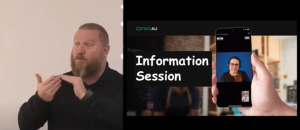
(Screenshot of Kyle, left and PowerPoint on right)
[Kyle signs for interpreter]
“Thank you for inviting me, Janet.
So, it’s really great, to know, where I’ve come from to get here today. My name is Kyle Miers. I’m the CEO of Convo Australia. It was a new service being set up last year. So, September last year, until now. We offer interpreters online from 8:00 in the morning until 11:00 p.m., Sunday to Saturday, every day. So, 7 days a week. Soon, we will be opening 24/7, so we’ll have access to interpreters at any time of the day or night.
So, why have we actually set up Convo in Australia? So, it was related to NDIS. So, we’re getting a lot of demand from interpreting, people wanting interpreters, in community so meaning that deaf people wanting to have access in the community, but we didn’t have enough interpreters out there to be able to cover the needs.
So, deaf people needing interpreters, they, were blocked, they couldn’t actually access the interpreters, they couldn’t book an interpreter. So, just through their everyday life events and things like that, were happening, and they just couldn’t access the interpreters because there wasn’t enough.
So, our role, so I’m the CEO of, I was previously the CEO of Deaf Australia, a peak advocating body, and we worked in line with Deafblind Australia as well. David Murray, yep, he was CEO of Deafblind Australia, so, we work quite closely together. So, and then, I moved away from Deaf Australia to start working for Convo.
So, if you have any questions or anything like that, I’m actually happy for you to either email me directly, or throughout the presentation you have any questions, that would be great as well.
So, Convo Australia, so, first I’d like to acknowledge the Aboriginal people from past present and emerging, and have the opportunity to be able to meet on their lands and learn
something new from their community as well.
Here we go, so the video doesn’t work, but that’s okay, it’s a deafblind Aboriginal woman signing the acknowledgement to country. So, but I’m Kyle Miers, I’m the CEO.
So, Convo, we cover 4 important things. We’re a deaf owned, and operated company deaf lead. So, it’s led by deaf
people so, it’s part of global Convo Global. So, it was originally set up in America 12 years ago. It was set up in Canada as well about 4 years ago, and just recently there was another interpreting service in the UK, that just been set up. So, that’s in the UK in England.
So, we’re the 4th company in a global company in Australia now. The global Convo Global is also led by a deaf person as well in America and the UK. So, at all the high levels of management, all organizations across the world, they’re all deaf.
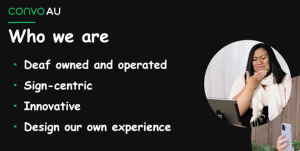
(Screenshot of powerpoint slide)
So, we use sign language, it’s sign-centric, our resources are in Auslan as well. For example, all the terms and conditions are all signed, to make sure that the deaf person actually understands our services, and the terms and conditions for our service. So, making sure that it is in their language.
So, we use new technology and innovation to have that integrated into our systems. So, we have about 25 different programs, whereas apps, and things like that, we’ve actually merged together, for our services to actually work here in Australia. There’s been a lot of work in the background to be able to make sure that deaf people can actually access it through video, for what they need.
Our philosophy is, ‘functional platform.’ Hearing people have it, deaf people should be able to have the same, that functional platform. We don’t want anything that’s lesser. We want to be able to have exactly the same, and how we can actually function for work and things like that, making sure that there’s less pressure on that deaf person to be able to make sure that they’re at the same level as hearing people.
So, we can actually have the right access for deaf and hearing people. You see the challenges that we have to get through to make sure that the back-end is actually working appropriately. So, for example, Zoom. I’m sure you’ve all been working on Zoom and every now and then there’s those few barriers that we have, that people can sort of match to make sure that we have a better experience.
So, we have SMS messenger, we have, there’s different ways to be able to, making sure the communication is smooth and actually works well with us.
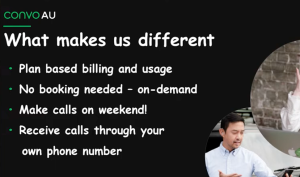
(Screenshot of powerpoint slide)
So, what makes us different? So, obviously so we’re an interpreted booking service, but we’re different to
that. So, you go through our services, so with your NDIS plan, it maybe, or EAF, Employment Assistant Fund, so businesses to businesses. For example, in the past, with the Federal Government elections, so Ace Australia, AEC, sorry Australia, made sure that there was full access for deaf people to be able to vote.
So, through the pre-election polling as well as on the day. So, and, we actually charged them. So, AEC actually paid for the interpreters for the polling. So, there’s different companies like, banks, maybe Microsoft, as an example, Apple. So, we’ve negotiated with those companies to make sure that deaf people actually have access to their services without that demand and that charge, going towards deaf people. So, they’re actually taking up the cost. So, we think that’s fair.
So, our plans are based on individual needs. So, if a person only needs 2 hours, so, up to 12 hours interpreting, so it depends on their needs. We use a lot of interpreting service, so sometimes I might use the service that goes for 12 hours, for a period of time, but it may be just 2 hours at a time, but it’s the person that’s using the service, it’s their choice, and at the end of the day making sure that they have enough funding in their NDIS plan to cover those costs.
So, you don’t need to book. You click on your phone and the interpreter is there. That’s it. So, we have interpreters, a band of interpreters, and they work from 8:00am in the morning until 11:00pm at night. Obviously rotating, so they’re actually ready to offer the service at any time. So, you can make calls on the weekend. So, give an example where a deaf person may use this service. So, you may have deaf parents, and they may have a hearing child that’s been in a bit of trouble, so they need to have a serious conversation with that child. So, making sure that that conversation is equal.
Two weeks ago we had, ‘Sorry Day.’ So, we had a deaf person that was on the street. They wanted to know what the Aboriginal person was talking about, because it was Sorry Day. So, they never actually had access to that information, so they got up on their phone, and they got interpreter on their phone, and they were talking to an Aboriginal person on the street about the issues that they have in relation to Sorry Day. That is where we have equal access.
One other unique thing that we have. We actually use our own phone number. So, the phone number is actually coming to that person. So, we have about 500 different phone numbers, and they’re all in individuals. So, you can actually give your phone number to another person, to the GP, and they will actually ring you directly. So, once the that person comes through Convo, then that person is rung through their phone number. So, it’s not, “please ring a 1300 number, and then give this code,” to try and access the hearing person, and the hearing person usually doesn’t understand that system, how that works, so you just give my phone number. There you go, done. So, you ring me, and there the interpreters up on the phone. So, that’s actually the first time in the world that deaf people have been able to access that.
(Screenshot of powerpoint slide)
So, how’s it work? So, there’s different options. You can use an app, that’s Apple based, also used for Android. We use Windows, we can use Mac, and Web app.
So, for the Electoral Commission we use the Web app, and deaf people just clicked on that, and they got an interpreter, just like that.

(Screenshot of Kyle, holding up phone)
So, the app is on my phone, it’s just here.
I’ll explain a little bit more what’s included, but you just touch that, and you have access to an interpreter at any time. So, it’s an accessible directory. So, with AEC you had a list of names and it’s all accessible and it’s free to any deaf people to be able to use that service.
A deaf ecosystem. So, it’s encouraging deaf people to be able to use other deaf people’s businesses. So, they can actually encourage deaf people, to be able to have their own small business and then they’ll actually use that service. So, they can have deaf people using other deaf people services.
Customer service. So straight away, you’re actually using your language. So, we may need an interpreter and then goes through a phone number and then sometimes they even talk with the interpreter’s phone number, it doesn’t work like that, you use the deaf person’s phone number.
Are there any questions before we go on?
Yes, James.
[AI voice speaks]
“What was the app called?
[Kyle signs to interpreter]
C o n v o Au.
[Indistinct voice from an audience member]
[Kyle signs to interpreter]
No worries. Thanks James.
[Pause while interpreter swaps]

(Screenshot of powerpoint slide)
So, it’s really a straightforward Service. So, we have the hashtag #neverthought. That’s part of our campaign, to raise awareness for people to be able to use this service. So, in the past, for an example, parents may use that to punish their children, so they can get exactly a clear understanding of what’s actually happened in their family situation. So, some people maybe want to go to a church service. There’s no interpreter, so they can actually use the interpreter at the church service, to understand what the priest is saying.
So, they also had interpreters for the Tamworth floods. So, they couldn’t access the interpreter, because of the travel and the floods, and they couldn’t access that area, and so they used it to access 24/7, to try to get interpreters in that area, so there was, different areas that needed interpreters. So, there was actually, there’s actually really no limit to what you can actually do. So, the sky is whatever we can make it. So, sometimes it might be a small thing that they may be able to get access to, or it may be quite a big event that they may need access to. It depends on the potential.
(Screenshot of powerpoint slide, right hand side is cut off on the screen.)
So, how it actually works. So, the back end, we have a Video Interpreting Service, we call that VRI. So, Video Interpreting Service, and Video Interpreting, no, V, so Video Interpreting, Remote Interpreting, sorry I couldn’t think!
So, we’ve got 2 key terms that we use. So, VRS is the Video [Relay] Service, where we have a deaf person actually ringing a doctor, for example, and using the interpreter in the middle.
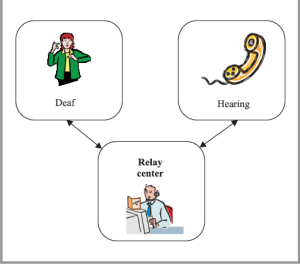
(image from researchgate.net)
So, it goes to an interpreter-
-the interpreter speaks,
-and then goes back to the deaf person,
and that’s using VRS.
So, if the deaf person wants to contact their family, or whatever it might be, they have the National Relay Service, and that’s through VRS. So, you might have it for a GP appointment, but you can’t use that, the NRS is very limited [in] what they can actually do, and what they can actually offer.
So, people actually are ordering pizza. So, they can make a phone call, there might be no phone number, so they’ll find out they’ve really had a look about, what we can actually do with our service, even as far as ordering pizza. We have VRI, Video Remote Interpreting. So, the interpreter is in the same, so they have a computer screen, the interpreter has a computer screen, and they’re in the same room as the deaf person. So, we provide the service around Australia, they connect to those services, and they actually book an interpreter, but our service is different we actually don’t have a booking system. It is on demand. So, you press it on your phone. I’ll just show you here.
So, I use a dial pad, and the app’s already there, because I’ve already downloaded it, and I just click on the video connection, and they will let me know when the Interpreter is available. So, it says that there’s no people waiting in a queue, to get an interpreter. Hmm. Maybe they would know that it’s me ringing them [Laughter] …mmm. So, you can wait sometimes for a few minutes, depending on how busy they are. When we have more people signing up with this, then the demand will be bigger, but at the same time we’ll have more of a pool of interpreters.
So, it’s telling me to wait. So, this is an example of, on demand. So, I go to the GP, and usually there’s a bit of time where you wait, so maybe you would ring 5 minutes before, while you’re in the waiting room and the interpreter is ready. So, as soon as you go into that appointment, you’re not having to wait with the GP, wasting his time, waiting for the GP.
So, there we go we, have an interpreter.
[Kyle addresses interpreter on phone]
“Hello,”
[Kyle speaks to audience and online viewers]
So, the interpreter is there.
[Kyle addresses interpreter on phone again]
Hello. How are you? So, I’m giving a presentation about Convo to a deafblind group. Thank you.
[Kyle speaks to audience and online viewers]
There she is.
[Kyle addresses interpreter on phone]
Thanks. See you.
[Kyle continues presentation]
So, and then I just hang up and that’s it. The interpreter is there. It’s straightforward.
We have a question from James.
[live interpreter addresses audience]
“Just a second. I just have to move so I can interpret.”
[AI voice speaks]
“This is really cool. Would you mind if I give your information out to all the advocacy networks I’ve got?”
[Kyle speaks]
Yeah, I’ve got a card that I can give you.
[Audience member speaks]
“Excellent, thank you. The other question is…”
[AI voice speaks]
“…as a self- Advocate, if I am talking to somebody who’s deaf, am I able to get a subscription? Or how would that work, when I’m only talking to a deaf person occasionally?”
[Kyle speaks]
“So, that type of service, we would use as a Business Directory Service, as an example. So, you would register your company as a service provider. We, would send you an invoice directly, and you pay for that service, whenever you use that service as an example. That’s for a business arrangement, and that information you can give to anyone, so anyone can use that service, if that makes sense?”
[AI voice speaks]
“What if the organization I work with is not registered with NDIS or NDIA?”
[Kyle speaks]
“Yeah, you can be Self, it can be an organization, there’s just one person. It can be a group of deafblind people, say, for example. So, Deafblind Australia can actually set up an account with us, and then that direct, that account will be sent directly to you for that service.”
[AI voice speaks]
“I’m having a hard time following. I’m going to explain more. I’m involved with a group that’s an advocacy group, and we advocate on behalf of other people with disabilities. Our funding mainly stems from government grants, so not registered under NDIS or NDIA, but as a standalone advocacy group, and we have multiple advocates. My question is, will the advocates under the organizations banner, be able to individually access your service, instead of having to go into multiple contracts?”
[Kyle speaks]
“So, how we would look at that is, say for example, I will use the AEC, the Australian Electoral Commission as an example. So, when we had a conversation with them, so we’ve got the contact information on my phone. So, access registration. So, this is the electoral commission, up on my phone, and if I click on that, that means a deaf person can use that. They can actually access that, with the account holder, whoever the account holder is, for AEC, so they can actually go to you. So, you would need to have that password to another person to be able to access that person, to receive that phone call, and you can use that with Video Relaying Interpreting.
So, if you want to, in that way, you’ll be able to have a conversation with that deafblind person directly.
(Screenshot of powerpoint slide, right hand side is cut off on the screen.)
Great. You can use the service for multiple situations. So, I actually use it for the Harley Davidson group, ‘cause I ride a motorbike. I enjoy riding a motorbike. So, there’s only 1 or 2 other deaf people that I’m aware of, that drive that a Harley Davidson. So, sometimes there may be like 40 of us, all in a group, and we might all go for a ride somewhere, just to show off our bikes and things like that, and then I’m actually with a hearing group, and I can actually use my phone to have a conversation with the people that are in that group. So, then I can have a conversation. They might be talking about the particular engine of the Harley Davidson, and then I can actually have full access to that information. So, in the past I never had this, so there it is.
Yep got a question?”
[AI voice speaks]
“One of the challenges, the Harley-Davidson example was the perfect one, what happens when there are really challenging industry terms? So, for example if you’re having a conversation about a motorbike, it might be something quite technical about the engine. The poor interpreter at the other end, may know nothing about motorbikes. So, it makes it very challenging. More applicable to our situation is, you’ve got a business and you’ve got people participating in the conversation. There are lots of acronyms, there are lots of Industry terms, do you find that you can still work well with that?”
[Kyle speaks]
“Excellent question. So, it’s hard to find interpreters that know, be all, and end all, of everything. So, in our system, so in the platform that we use, we can actually filter which interpreter has particular skills. So, they may have interpreters with a legal background, so then it will be referred to that interpreter with that legal background. We can also filter for a medical background, so an interpreter that is proficient in medical area, so and that’s actually also in the system. So, and at the moment we only have a small filtering system, but once we get bigger and bigger, using more and more interpreters, that strength in the filter will become really important.
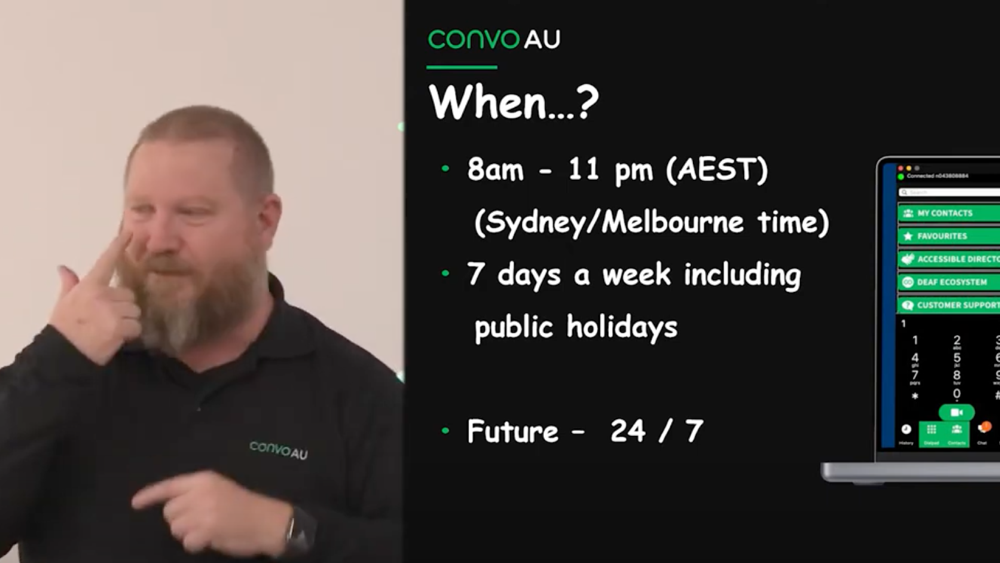
(Screenshot of powerpoint slide, right hand side is cut off on the screen.)
So, this is Glenda Judd. She’s a deafblind interpreter. So, we also have another interpreter that is proficient working with deafblind. So, and it’s really important that the interpreters have a blue background, to make sure that there’s no contrast in colours, for that deafblind person. So, all interpreters have exactly the same background, that blue background. So, I know that some deafblind prefer a lot darker, and so some for some deafblind people, there might be too much of a contrast. So, say for example you might have the white background, it will be more harder to see. So, that’s why we’ve come up with an option that blue has the less issue with contrast of colour for a deafblind person to actually understand on a computer. That’s why we’ve picked that blue background.
So, hopefully in the future, we’ll be 24/7, but at the moment we follow Sydney and Melbourne time, from 8:00am till 11:00pm, and that’s all the way through and we also follow Adelaide time, as do Adelaide as well as Cairns and Far North Queensland. So, there’ll be some interpreters [that] will have a little bit of a slightly different dialect, because their signing is a little bit different, to say, for example, Cairns and Melbourne, but we are encouraging our interpreters to make sure that they have some of those dialect differences in their vocab.
In the future hopefully, next month will be 24/7. So, I haven’t got the date, but it’s next month. All good?
Janet, do you want me to keep going?
[Janet speaking]
“5 minutes to a break, yep.”
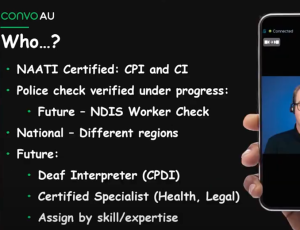
(Screenshot of powerpoint slide, right hand side is cut off on the screen.)
[Kyle speaks]
The interpreters. We’re quite strict on, they must be qualified interpreters through NAATI. Our process is making sure that we get the right interpreters. Many organizations say, “oh, you’ve got your qualification, great, in you go.” We actually interview our interpreters. We interview the interpreters, making sure that they feel at-one with the community, making sure that it’s the right fit for our services.
Then we do a video assessment of that interpreter. We may call them, and we’ll have a chat. For example, “so how would you manage this particular situation? So, if you heard this… how would you manage this type of situation?” So, then it goes to an independent person, and they assess that video, and they assess their linguistic ability.
So, they give us that feedback. If it’s good, great, they come on board. If not, we give that interpreter feedback. So, they can actually improve their skills and we don’t say see you later. We actually give them those skills, to try to get up to that right level, so to match our philosophy.
So, if an interpreter comes to Convo they will leave Convo as a better interpreter, having that feedback, and they can access training, professional development, peer support, a mentoring program, so they can get up to the right standard that we are requiring.
So, all of our interpreters have a police check, and also NDIS, they have their screening worker screening checks as well. So, these are quite new. We’re making sure that the interpreters have their NDIS worker checks as well. We also have deaf interpreters, that work alongside hearing interpreters. This may be a good situation for a deaf person to be an interpreter. So, they may have a deaf person that has very, low literacy in English, but they can communicate okay in Auslan, or they may be a deaf migrant and their Auslan is not sufficient for an interpreter to understand, but they can use a deaf interpreter to actually understand what’s happening, because their language is not Auslan.
So, we actually have deaf interpreters working with hearing interpreters, and to answer your question, Ross as well we have the certified specialist in health and legal, so and they have particular emphasis on working in that particular area.
Any questions before we have a break?
[AI voice speaks]
“Thank you for being such an innovative service. My name is Ming. I’m a NDIS Local Area Coordinator. Sorry, if my questions are too NDIS specific.”
[Kyle speaks]
“No all good.”
[AI voice speaks]
“So, the first one is about whether your services will be available offline as well? So, I can imagine some participants
who are service users, are happy with some of the interpreting service from the interpreter, and then they would like to book it offline face-to-face.”
[Kyle speaks]
“Eventually, that’s one of the options for later on, but at the moment it’s an online service. So, we’re actually focusing on growing the number of interpreters online because we’re only 9 months old, at this stage. So, if we look from where we’ve come from 9 months ago, we’ve come a long way. So, we’re providing that online service at the moment, but we already have interpreting services provided by other organizations that provide that face-to-face service.
So, and that’s their area of expertise. We are working, we may be working with other agencies to be able to refer to them for that face-to-face booking. The most important is, that some people prefer us, because of the billing System, but they also prefer that because it’s on demand as well. So, but depends on the appointment that they have.”
[Audience member speaks]
“Thank you.”
[Kyle speaks]
“So, talking about billing. It will be in the next couple of slides, you’ve just jumped a little bit [ahead], but all good, and I’ll answer that question in a couple of minutes.
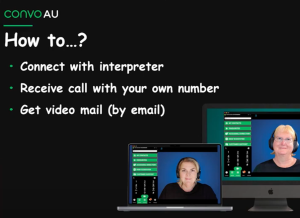
(Screenshot of powerpoint slide.)
The other unique part of our service is video mail. Quite often a hearing person will ring a deaf person, and can’t answer the video mail. So, now we actually have video mail, so if you give me the phone number, and then if you’re busy they can’t answer, the interpreter will actually sign to the person, and say, “this is a video mail,” and it’s the first for deaf people to be able to receive a video mail. It’s very simple and straightforward. The deaf person gives the phone number to Convo, and if the person doesn’t answer, then they receive that video mail as a message.
I’ve jumped, so you run another call, and or the person didn’t
answer that call, or the app, they’re not logged into the app, it will the interpreter will say, will sign that you have a video mail, and it will be sent to your email that’s registered.
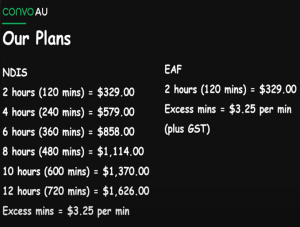
(Screenshot of powerpoint slide.)
This is our pricing. You’ll see it might be a little bit expensive. The NDIS have their, I think, their cap is $129.50 per hour with a 2hour minimum. So, it’s $350 or $326, so, you’ve got the app, so if you go back a bit, before we had NDIS, we couldn’t have a subscription model. You had to pay for that service that you used, and then we’ve been negotiating with NDIS. Convo Australia been negotiating with NDIS to provide this type of billing model, and it has been finally ratified, and we’ve been able to negotiate that with NDIS to be able to get this type of subscription model.
So, you can pay 1 month in advance and you can use it how however many times, for those hours that you would want. So, it might be 10 minutes, it might be 15 minutes, might be 20 minutes. Altogether that’s 2 hours, and you pay the $329 for the 2 hours. But the 2 hours may be 15 minutes, 10 minutes, 20 minutes, and another 20 minutes, and that’s your 2 hours.
Does that answer your question?
So, say for example, for a month, they will send the invoice, for 1 month in advance, and then it will be in advance every month, we will send that invoice to them, for 12-month agreement subscription. If the client wants 12 hours, there’ll be $1,626 for that 12 hours, and then the next month there will be another $1600, so as long as they have enough money in their NDIS plan, for that. So, it’s about, altogether, it’s about $5,000 for a whole 12 months.
So, every month, if you’re using 2 hours a month, altogether it’s about $5,000 for that 12-month period. The EAF, there’s only one plan, because they have a cap of $6,000 for a year, that EAF will pay interpreting costs for their work environment. So, EAF have a cap of $6,000 for a year, but NDIS, it depends on the individual’s budget, if they have a higher level of interpreting funding or if they have a lower level of interpreting funding, per their plan.
So, with NDIS, so there’s about 10,000 deaf people, with core funding in their plan. So, and the average is about $7,000. So, most of them will fit this 2hour bracket. So, if they have any left-over, then they may be able to use for face-to-face interpreting, if they would prefer that through another service.
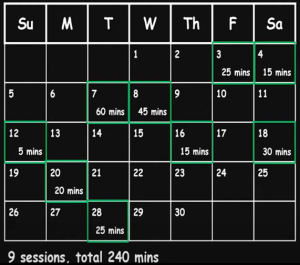
(Screenshot of powerpoint slide)
So, I’ll give you an example, with a phone call, for particular times. So, on the-
-Friday they’ve got 25 minutes, and then on the
-Saturday 15 minutes and then
-60 Minutes.
Altogether, in one calendar month there’s 9 sessions that they’ve used.
Then, altogether that’s 4 hours, that they’ve used.
So, they actually pay for 4 hours of use for that month.
That’s the long answer.
So, if we compare with a normal booking service, the price difference. For Convo Australia, we have $579, and you can ring 9 times altogether, for that 4 hours.
So, if you have 9 bookings that will actually charge you $2,250 for those 9 separate bookings over that month. So, we’re only charging you $579. So, it’s actually saving the government a lot of money by deaf people using our service.
So, it’s a saving of $1,671. So, we’re actually saving, you’re getting value for money through NDIS, so that’s why the NDIS are actually liking our model, because they can use our service, as opposed to the online service. We’re also getting the interpreter on demand, and there’s no cues, to actually waiting for an on-site booking.”
“Yeah, James.”
[AI voice]
So, if you’ve never used the service before, are there any tutorials you might be able to watch, to be able to start on Convo. Or what instruction can you get to be able to maximize your interpretation minutes?”
[Kyle speaks]
“On our website- www.com/tips we have a video. There’s a series of videos on how to use Convo Australia. It could be how you use your password, what your password is used for, how to use relay interpreters. There’s about, I think 15 different videos, and they’re all different tutorials about our website, and how to use our service. Does that make sense?”
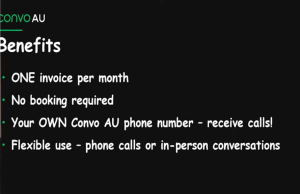
(Screenshot of powerpoint slide)
So, one benefit with Convo, you’re sent the invoice and it’s only 1 invoice for that whole month, regardless of how many times you’ve used the interpreter. So, it’s easy, less
paperwork, and less stress, and anxiety, about making sure that you’ve paid everything up. So, sometimes the deaf person says, “I didn’t use the interpreter this month, can I extend that to the next month?”
No, you can’t. So, it’s the same use as if you would use for your mobile phone plan. So, you didn’t use your mobile phone, or you didn’t use your data, for that month, you get new lot of data for the next month. Our interpreting service is exactly the same. If you don’t use the interpreter that month, then you get charged for that month, because the interpreters are actually still on standby waiting for
those calls to come through to interpret.
So, it could be $125, for NDIS, and then actually we’ve got 2 lines. So, we’ve got the interpreting service, and the cost that goes at that expense so, and they go together for you to actually pay for that one month. So, and also obviously the use of the app as well, so and altogether that’s $32-$79. That’s the arrangement that we have, and you’ve got the terms and conditions that you sign up for. So, $360 roughly for the interpreter. $67 for the cost, or the expenses, and that’s altogether. So, there’s a lot of time trying to work out what the different questions that people would be experiencing as far as billing goes, and that’s why we have the just the 2 lines per invoice, and it’s that invoice for one month.
So, you use your own phone number, and you can use it
anytime. We will be going to 24/7 soon, and you could be able to use an interpreter if you’re overseas. So, there is no barrier, which is lovely for those people that are going overseas. Obviously before COVID, people were going to France or Belgium to, it’s like they wanted to learn how to make their own beer. So, and people actually went over and they actually had to spend quite a lot of money on paying
for the interpreter, and so they couldn’t just sort of book an interpreter, they had to book an interpreter for a certain amount of time, but with us, will be in the next month or so, we’ll be going 24/7.
(Screenshot of powerpoint slide)
We have the Deaf Ecosystem as part of our service and accessibility directory as well, and that’s free, as part of our service. So, it’s deaf people having their own business, so they may be a plan manager business, or they might be a logistics and website, or they might be a dry cleaner, they might be a mechanic, and they can put their list of businesses on our Deaf Ecosystem so other deaf people can actually click on that, and work directly with that deaf person, and their service. Then they don’t need to use Convo Australia. So, they can access that information through the app, and then talk directly with each other, without having to use the interpreter.
So, we also have an accessible directory. So, there’s another organization in Sydney, where they have support workers, and people can actually access that directory through there. So, there might be Deafblind Australia might be on that directory, National Bank might be on the directory, ANZ, that they’re accessible. Anyone that has the app, will actually be in that accessible directory, and that will be also a free service, because that organization pays to be involved in our business.
(Screenshot of powerpoint slide)
So, we have a cap, oh sorry, we have call support, apologies. If you have any issues, or anything like that, you can call the support, and you can communicate via Auslan. You can give feedback as well, in Auslan. We record that information, so we can improve our service. So, if you want to also check how much time is left on your minutes, for your month, so for example you have 120 Minutes as part of your subscription, you can actually click on that, and it will actually let you know how many minutes left you have for that one month. So, maybe it could be 90 minutes left, or 30 minutes left for your 1 month subscription, so we have full transparency.
The sign-up is really easy. We’ve made some improvements with that so our sign-up is quite easily now. So, we can
Sign-up through the website convoaustralia.com and you can fill out all your registration details there, your name, address, and all of that.
So, if you have any NDIS, you click, ‘yes,’ and then it will have the information for NDIS that you need to fill in, or if you want to use it for EAF, for your workplace. So, it will have your EAF number as well. So, you would have 2 invoices. 1 for your EAF and 1 for your NDIS, or EAF, or other workplaces. So, we’re still updating that process as well, making sure it’s easier.
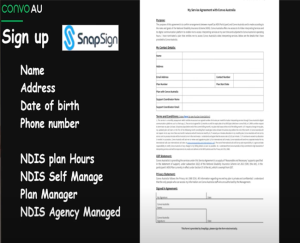
(Screenshot of powerpoint slide.)
So, we also have another form that we have to fill out as well. I’ll just show you up here.
So, this is the service agreement. We’re actually getting rid of this, because you’ll actually do this through the sign-up process. We have a lot of people saying, it arrives in their junk mail, and things like that, so we actually don’t trust that, and then sometimes they say they’re not trusting it, because they may think it’s a scam or something like that. So, we’re actually getting rid of that, and it will actually be part of your sign-up process.
So, the information will be all the terms and conditions, and the service agreement will be there ready for you when you sign up. So, the cancellation period, and things like that, if your NDIS plan changes, anything like that, everything is signed up, quite quickly, through that sign-up process, instead of a separate document.
(Screenshot of powerpoint slide)
So, then I just go back to the document, the sign-up is really quite simple. It’s just got sign-up, at the at the top there, and you can click on a video call.
That’s it. So, it’s trying to match what the deaf people in our community want, and need for their life so there you go. Any questions?”
“I have a question, Janet speaking.
I wanted to know what kind of support devices people need
to hold their phone up, and access an interpreter. So, if you’re in a social situation, obviously signing requires both hands, what does the user need to place their phone on, to position it, so that they are part of, included in the conversation?”
[Kyle speaks]
“Yeah, the device that you may need, it sort of depends on the individual preference. So sometimes people may have a phone holder, or sometimes I have, like, a book that I actually will stand it up against, where I’ve got a thing on the back of my phone, that I can actually stand it up like a book. I can sort of have it vertical, instead of having it horizontal, it actually only works vertical. We’re in the process of trying to change that, so you can actually have it horizontal, if you would like. Sometimes you may just have to hold it, but some people don’t like that, and some people have it in a case. So, it’s really individual preference, what people would like.
So, that means I presented well, if there’s no questions. It’s great.”
“Janet speaking.
I have another question. I’m learning in the deafblind community particularly, that the contrast on the screen is really important for people’s different eye conditions. And it was, from my understanding, that the black background was actually more accessible to more people, but I noted that you decided to go with the blue background. Is there an option to have that changed, or can you have your needs met more personally?”
[Kyle speaks]
“We could, but, our system, when you go through and you click on, ‘The Interpreter,’ and, ‘The Interpreter,’ comes up, you actually don’t know which interpreter you’re going to get. If that interpreter has finished, then they go to the bottom of the list, and do a rotation system, so we need to ensure that interpreters have enough breaks, in between each booking that comes through, on the phone.
So, you actually won’t know which interpreter you will get, so but we can add information on the sheet, to let the person know, that the person calling is deafblind. So, the interpreter may have to get closer to the screen, to make sure that the deafblind person access to the interpreter. Or, they may be on a PC, as opposed to a laptop, or they may be on a Windows screen, as opposed to a Mac, where they can change the screen font.
So, they may be able to change that, and adjust that, on their own device, but the screen colour will depend, because you can’t pick and choose which interpreter you’re going to get.
So, I can ask the deafblind person to wait, to be able to change the background, but we’re still trying to work out how we could manage that.
This project is funded by the Australian Government Department of Social Services go to dss.gov.au
Description: Title appears: “Seen and Heard Project” Presented by Dmitry Levin, KISA Phone 2022. Dmitry appears wearing a bright blue shirt, presenting with blonde hair and a beard. An interpreter with dark brown hair signs on the right, later swapping with another interpreter who has short, light brown hair.
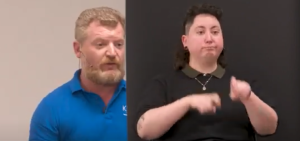
(Screenshot of Dmitry Levin on left and interpreter on right)
[Dmitry speaks]
“Hi everyone.
My name is Dmitri, and I’m the co-founder of company called KISA. KISA, stands for, Keep It Simple Always. You might have heard of the principle; ‘Keep It Simple Stupid.’ We try to make it into positive, keep it simple always. The whole thing started just over 10 years ago now. When my wife’s
grandfather, who lived perfect life, was very into sports, and he was delivering newspapers, the same route for over a decade, and at some point, unfortunately dementia started to set in, and he got lost, and there was no way for us to
contact him.
He had a smartphone with him. We spent countless hours teaching him how to use a smartphone, but the reality was he just, he couldn’t grasp it. We’ve called him multiple times. He was able to answer the phone call once. We tried to speak to him, the call ended, and it gave us a hell of a scare.
I had to jump in the car. I had to drive around try to find him. It was extremely stressful situation. I’ve learned that it’s more stressful once you have kids, ‘cause I got kids, and I figured out that’s worse. Scared me more, but that was the trigger point for me, or for my wife, she started to search for something that was simple enough that he would be able to use.
A lot of people embrace smartphones, and in fact, nowadays, when you say, ‘mobile phone,’ you don’t think of a smartphone as a name, a mobile phone by default as a smartphone nowadays. That’s what everyone defaults too. But, a lot, are a lot of individuals who are unable to use those smartphones or smart devices. So, that was the trigger point? We tried to find, and we couldn’t find anything that was simple enough, that they could use, or in fact my wife’s grandfather could use.
I was really, really, lucky to have two really good friends of mine that I managed to convince, and go,
“guys how about we reinvent the wheel? How about we’ll figure out something that people would be able to use.”
And so, it happens, that both of my business partners, they have very similar situation where, in their family, they also had individuals who were not able to use smartphones
successfully.
So, that’s how the idea of the KISA phone was born. We came up with the name through a lot of struggles, trying to come up with something that would make sense to people, or to individuals that we were trying to help. That’s how the name KISA arose.
So, the idea behind KISA phone was to remove any assumptions about the end user, the person that uses the actual phone. So, remove the assumption that they have
understanding of menus. Remove the assumptions that they able to read. Remove the assumption that they able to use touchscreen.
So, the only two assumptions that we make about KISA phone is, the person who uses;
So, those are the only 2 assumptions. The rest is just noise, to the individual who’s trying to use the phone. So, the way we’ve gone about make, removing all of those assumptions is, ‘how do you make something super, super, simple for the person?’ And the only way we can do it is, make each phone to order. Make it specifically for each individual.
So, each KISA phone is made to order. There is no screen, and there’s no keypad. We have mechanical buttons on the front
of the phone, so if the person needs to reach out, all they need to do is press one button, and they will call one person. The clear limitation, the very clear limitation, of this device, they can call maximum of 10 people. Okay. If they need to call more than 10, and if they have ability to call more than 10, that means most likely they are able to use other devices. They’re comfortable with using other devices, and we’re not trying to help them, because there are other devices they can use. We are trying to help individuals who cannot use anything else.
So, as I mentioned, the clear limitation, are number of mechanical buttons on the front of the phone.
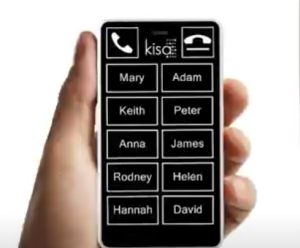
(Screenshot of the screen of a KISA phone)
So, when the person chooses what they’d like to have, they, so the whole process is done online, it’s done through our website, so there is an ordering process to complete.
First;
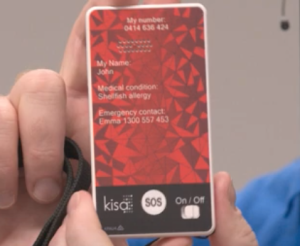
(screenshot of Dmitry holding up back of phone)
Whatever is deemed suitable, by the person who’s ordering the phone, they can put in this information, there is a limit to the room that we can, how much space you’ve got, to put information, but once it’s there, that’s what we’re going to put on the back of the phone.
Some of the colours are prettier and if the person, if they eyesight allows them, they can choose multitude of colours.
So, there’s 12 different designs to choose from. If the eyesight is reduced, we have, the highest contrast is yellow and black. You would have seen the high contrast keyboards or other means of displaying information. So, yellow and black is the highest contrast, we have a reverse of as well.
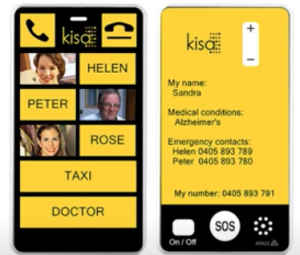
(Screenshot of phone screen in yellow and black)
So, they can choose the right design for individual, if they need to read the names. After they’ve chosen, all the tedious stuff, of providing information in terms of the account holder, and information that’s a given, no matter what you are ordering, but that’s where the device ordering stops, the actual device design.
So, once we receive the order, we will manufacture [the] device exactly the way it’s ordered, and we will send it out, ready to use, out of the box. There are a number of different options that come into play down the track, but the idea is, the use of this device should be as simple as possible for the person who this device is intended for.
Now, the complexity of the actual device itself, doesn’t disappear. So, most of you would have either, smartphones or other mobile phones, and you would remember, you need to charge the phone. Why do you remember it? Because it’s now built into us, either before you go to sleep, or during the day, you plug it in to charge. What we tried to do is, we built a device that, all of this complexity of using regular devices, it doesn’t disappear.
So, what we try to do is, we put this complexity, we removed it from the person who’s using the phone, and we can put it on the carers of family members. The way we’ve done it is, with the battery, when the battery gets low, we don’t want to notify the end user themselves, because that could, either disrupt their day, it could confuse them, it could do all sorts
of things. So, we’ve built a very simple setting in the phone.
The phone itself will send an SMS to another number to
let that number know that the battery dropped to a certain level, and you can choose at which level that starts, and
you can choose who it goes to, and you can choose the text that they receive. [It] could say-
“John’s KISA phone battery getting low.
Please contact, or please charge it,”
(whatever, you choose).
So, then it is extremely customized for the individual and it goes to the right person. This setting can be adjusted. So, in fact there are over 100 different settings on the KISA phone, and all of those settings, we can control remotely. So, it’s not something that needs to come back to our office. It’s something that we can control remotely. Some of the obvious questions that people have is, “Will I have a name on the phone? What if, that, I have a name on the phone?” And let’s say, a number, that person’s number has changed, what do I do?
Really simple. You contact KISA, you let us know what the new number is, we’ll push it out to the phone remotely. Nothing else you need to do. There’s no cost to it, there’s nothing, it’s very straightforward. If the person who’s supporting the end user technology, say they can log into KISA portal and do it themselves, but we have an office here in Melbourne. You contact us during the business hours, you ask us, this is what we need done and we’ll do it for you.
There are 100 different settings that I’ve just mentioned to you before. We don’t list them anywhere, and there’s a reason for it, because they get very complex, how they work in conjunction with other things. So, what we prefer to do is, to help. So, people come to us and say, “Okay I’ve got a KISA phone and I have this problem.” Most likely, we would have 2 maybe 3 different options [of] how we might be able to help, and we can try them out over time and see how it actually helps the person who’s using the phone.
To give you an idea, how it works, because KISA phone has mechanical buttons on the front, if you put it in your back pocket and you sit on it, you’re going to end up calling someone, and it happens day in, day out. So, we’ve built a couple different options.
Option number 1. We can make it so you have to press the same button multiple times to dial this person, and you can make it up to 5 presses of that same button to dial them. What if it’s not suitable? What if the person doesn’t understand that it takes multiple presses?
[Option 2], Well, we have a small pouch, you can put the phone into a small pouch, and hopefully this will prevent it. What if the small pouch is not cool enough for them?
[Option 3], Well again, we built another option.
That do you remember when the old time, with phones before there were screens, that were hardwire. You would pick up the phone before you dialled anyone. We followed the same logic, you need to press the answer button first, and then you press one of the contacts.
So, those are the sort of things, we take a lot of feedback from our customers and from the professionals in the field like, occupational therapists, speech pathologists and those who work with our customers. We take a lot of feedback and we constantly improve the functionality of this device.
So, this is just to give you a small idea of some of the
functions. Now, to go back to the device itself, to cover off some of the features of it, we have on the back of the phone, we have an SOS button. The purpose of this is, every mobile phone in Australia, must have ability to dial Emergency Services. We built a mechanical button specifically for that.
When this mechanical button pressed 4 times it would first sound loud siren to draw attention to the person if they need help. Then it will dial emergency services and switch to a speaker phone.
This is also a speaker phone, so if it’s on the ground next to the person, they will be able to converse with Emergency Services. The issue arises is, if the person who’s using the phone is dialling Emergency Services, no one else knows about it, because they’ve dialled Emergency Services, they’re talking to Emergency Services, so what we’ve built, is ability for the phone, to send an SMS at the same time to another number, to let that number know that SOS has been activated.
If it’s not appropriate, for the person to be able to dial Emergency Services, because there are situations when they shouldn’t be dialling: either because of intellectual limitations, or because of physical location where they are, they don’t need to call Emergency Services. We can have SOS redirected to a different number. So, that when you activate SOS function, it simply calls a different number instead of Emergency Services, and if it’s there, and if this is not appropriate, we can switch it off as well.
For both of those options, we would need a written instruction from the account holder almost like a Stat. Dec. [Statutory Declaration] advising us, this is what needs to be done, because then we’re allowed to make this change due to Australian regulations.
(Screenshot of phone screen displayed)
There’s an on and off switch, on the back of the phone. This is for the entire phone, so when you switch it off, the phone is off. It’s not going to charge, when it’s off, because, that’s
big thing people think, ‘I’ll switch it off and I’ll just put it on the charge.’ It, will not charge.
The reason we built the, ‘on and off,’ switch into the phone, is because if someone needs to fly, when you boarding the plane, you must have [the] ability to demonstrate to the flight crew that the phone is either, in flight mode, or switched off, otherwise they can refuse you flying the plane, or not flying, being on board of the plane. Hopefully you’re not flying the plane! So, that’s why we built the, ‘on and off,’ switch.
It’s not always useful, unfortunately, there are individuals who should not see it. So, you can put a small sticker over the top and just cover, ‘on and off,’ switch. If the person tends to play with things, it comes into play, and if they don’t see it, they don’t tend to switch it, ‘on and off,’ because, if they switch it off, we get to switch it back on. The phone is useless to them.
(Screenshot of Dmitry showing the volume controls)
There are volume controls on the side of the phone, and in ‘standby’ you can control the loudness of the ringtone. During conversation you can control the loudness of the receiver, and you can also switch the phone to a speaker phone. There are a couple of different ways we can do it, but during the ‘speaker phone’ it will control the loudness of the speaker phone itself.
We help a lot of individuals who have, either they are on autistic scale, or they have, they shouldn’t be exposed to loud noises. So, what we’ve built, is, we built different layers for the loudness, that we can again control remotely, if it’s not suitable for this individual to experience audio shock to them, because the ringtone might be a bit too loud.
The receiver itself, is the one you bring to your ear, is limited the loudness of it is limited to Australian standards. Australian Standards are somewhat more conservative than you would get throughout other parts of the world. So, there are individuals that find it very difficult to hear it sometimes.
The way we go around to help those individuals is, we have a speaker phone that’s built in, and when this speaker phone is on there’s not much privacy in that conversation. Everyone in this room, would hear the conversation on the phone. So, it is quite loud. If this is not suitable for the individual, if they have hearing aids, the phone has a telecoil.
So, if the hearing aids, and most of the hearing aids nowadays, have telecoil detectors built in, so they will be able to hear it. But, on top of it, we also have Bluetooth capability. So, we can link up with hearing aids that are Bluetooth compatible as well. So, there’s a number of things we can do. We can dig through it. Bluetooth is the only option the we cannot control remotely, due to security protocols within Bluetooth, it needs to come back to our office for us to pair it up with hearing aids.
That’s the only time the phone needs to come back, this is the only setting that we cannot control remotely on the phone. We are working on it, but there’s only so much we, don’t want to jeopardize security of the device. Having said that, there’s not much, you’re not doing internet banking on one of those devices, I’ll be questioning how, but so the that’s the idea behind it. It’s to make it as simple as possible for each individual, how they’re using the phone.
On top of it, we have number of different services that we can provide with the KISA phone. So, what we recognized when we were starting the company, nice and early, is simply manufacturing one of those devices and selling it to the person, it’s, not going to do any justice, because they might not even know what the SIM card is, how to set it up and how to go about getting the whole thing.
So, KISA became a telco company. So, we have wholesale relationship with both Telstra and Vodaphone, and we can provide coverage on both of those networks. So, the service is provided by KISA, but we use those networks. To provide the service, customer tells us which SIM card they’d like to use, which network they’d like to use, and we provide this service ongoing by KISA.
Each KISA phone is also a GPS tracker. So, if you opt in to use it as a GPS tracker, the way it would work is, phone itself will gather the information where it is, and, we take GPS for
granted, it is one of the most complex bits of technology any one of us have, in our pockets, the calculation that it does is simply mind boggling, but the phone itself will calculate location where it is, and send this information to KISA secure servers.
We do not share this information with external parties, the only people that have access to this information are either account holder, or those who account holder has
shared the login details with and that’s for security.
1 service that we recently launched, is called KISA
Reminders. The way it works is, you type in the text and you say let’s say,
“Good morning, Miss Johnson. Please don’t forget to take your morning medication.”
You tell us the time when you’ like for this to go through as a reminder. We take the text and we generate it as a voice call.
So, it’s automated call that goes out to the phone at a predetermined time to notify the person of action they need to take, or to remind them to do something, either to take medication, go exercise, go for a walk, drink water, eat on time, so those are the sort of things. So, that’s when we stop relying on an alarm clock, or a calendar stuck on the fridge somewhere. It relies on electronic means it goes through person, picks up the phone, hears it, goes, “ah, okay it’s a reminder to do something.”
So, there’s couple different levels we’ve set up with this. We call them KISA Reminders, and you can have up to 5 reminders per day, or up to 10 reminders per day, so those are 2 different options, and all the prices on our website, they listed happy to go through some of them. I don’t remember every single figure in my head.
Another service that we are about to launch with testing, it actively right now is what we call a, KISA Shield. The idea is to shield the person from unwanted phone calls. So, the way we’ve done it is, the person or the way we’re working through it right now is, the person who sets up the account can provide us the list of calls numbers that can call through, or they can provide us a list of numbers they don’t want to call through.
We also have a separate database that we maintain of known spam numbers, and that’s the way we make sure that unwanted phone calls will not get through to the person who’s using the phone. It sounds simple, but as everything the, devil is in detail, when you’re setting this up.
If you have any questions while I’m talking, please ask away, because that helps for this to be more of a conversation rather than one way.
Some of the examples where this phone has been simply incredible? We have a family that came to us, unfortunately they came to us after this happened. The person worked at Waverley Industries, and he was traveling home and he missed his bus. He was located I think about 16 hours later somehow, at the airport bus stop. No one knows how he got to the airport. Police were able to locate him. Family had a hell of a scare from this. Once they’ve got KISA phone, it just removed anxiety completely.
They gave this person more independence. He was able to travel by himself, not that he wasn’t able to do it previously, but the family were taking a leap of faith, every single time he stepped out of the door, hoping that everything would go right, and that’s, you know, those moments when things go wrong are the ones they were scared of.
So, that’s when this device became available to them and they are some of the biggest advocates for us right now.
The examples are multiple. Sorry?”
[Man off-camera speaks]
“Is the phone water resistant or waterproof?”
[Dmitry speaks]
“Really good question. We looked at making it water resistant but the cost of making it water resistant almost doubled the cost of the device. So, at the moment it’s not, and the way we go about it, if it gets water damaged, contact us, we will work something out. We will help out. We can’t do it for free, but our customers, we will look after them, and we’ll find a way, to either repair device, or replace device, at the best possible price that we can do. So, if it was weighing up between doubling the cost, or keeping the cost down, and helping out customers when they run into this problem.
To add on top of it, the reason I’ve said, it’s very good question. Is we helped one individual. He had, unfortunately, the phone was getting wet, and he went through something like seven devices in 18 months. So, what we found is very simple solution on eBay. For $10 you buy waterproof pouch that’s it, solved it. Never had a problem, you don’t need to take the phone out from the pouch to speak, because the actual volume the volume was enough to go through the plastic, and you can converse and vice versa. the he back and he’s never had any problems we haven’t had any problems with him getting the phone wet again.
So, it was much cheaper option to get something for $10 from eBay, than to double the price of the device.
Does it make sense? Good. Alright.
When you buy KISA phone, not just the device is ready to use out of the box, but what you get in the box is a cradle to charge the phone. So, it’s very straightforward. Each
one comes with a simple cradle. When you pop the phone onto it, it starts charging. Now, it’s not going to charge by itself, you need to plug it in. So, the cable does come with it, and the charger you plug into the wall socket also comes with it, unlike some of the biggest companies in the world that remove the charges.
It also comes with a lanyard. So, each one comes with a lanyard because why not. If it makes someone’s life easier, we include it. If it’s not needed, I’m sure they can use it for the keys or something else, but the lanyard is also included.
So, the way we help some individuals, that let’s say, they are unable to see the device clearly, their eyesight is either extremely poor, or not there at all, is we can we manufacture
The…of course I didn’t bring it…we can make each phone a braille, so they can read it.
Now in our experience braille has been able to help people for a short period of time, to build up their confidence, so then they can move onto a Smartphone, because, from what we’ve seen, people that are either born blind, learn to navigate this world through a smartphone, or if they were, if they got blind later in their life, they might not be able to adjust to learning braille. So, braille helps people within very short period of time, but it is not for everyone.
What we can do is, and after this presentation, if you want to come over and touch and feel any of those phones they’re here, we can do simple rubber bumps, so then it can be stuck directly onto the phone and it helps individuals to identify where they need to press.
(Screenshot of Dmitry pointing to rubber bumps on lower part of phone screen)
Some of the best people we’ve experienced, that the way they set it up, is very clever. They use-
So, the person can identify rubber bumps, can also be made in different shapes to really help individual with the tactile identification, what button they’re pressing, how they need to hold it because there’s also upside down. You can accidentally hold upside down, so those identifications on the phone, really help individuals to utilize this phone.
I’ve mentioned before that each KISA phone has got a speaker in it. We can have the phone automatically go to loudspeaker if the person who’s using the phone doesn’t have physical ability to hold the phone to the ear.
So, one person that we’re helping, she’s got severe MS. So, she cannot exert any force. Make it plain simple, she cannot press any buttons using her fingers. It’s just not in her physical ability. So, the way she uses the phone, it sits around her neck and all she needs to do is, press the button. If there is an incoming call, we can activate, so any button answers an incoming call. So, all she needs to do is press the, ‘on,’ the phone, it will answer the call, and she can converse on the phone with the person on the other side, without holding into their ear, because it already switched to speaker phone, and she pressed any button to answer an incoming call. Does that make sense?
So, what we try to do is, not only that we manufacture the device itself for the individual, we work with the professionals that are helping this person, to then work out the settings that we need to adjust on the phone, so it works for this individual, and the needs change over time as well. They might need something right now, and it might change down the track. That’s what we’re here to help, regardless we will adjust settings as required, and if required.
Some other questions you might have is, “What’s the standby time of the battery?” We normally anticipate between 2 to 3 days, little bit better than your regular smartphone, because it doesn’t have a touch screen, but it still uses up the battery because it constantly communicates with the cellular signal
around.
If you have a person that lives inside a home that has really poor mobile reception, what we are now able to do is provide Wi-Fi calling. So, if there’s Wi-Fi within the facility where they live, within the home, we can connect this to the Wi-Fi network, enable Wi-Fi calling, and they don’t care about how bad or how good reception outside is, because inside they’re going to always have perfect reception on their phone.
Please ask questions. If you can, otherwise I’m talking one way. Yes?”
[AI voice speaks]
“Does it have a vibration function?”
[Dmitry speaks]
“Yes, of course, that’s a very good question as well. There are no strange questions. When the phone rings, it vibrates. It plays a ringtone, and there are 4 LED lights that will light up on the front of the phone. So, we try to appeal to all three senses.
Now, everyone is different, and those senses might change over time, as well, so we try to adjust with the ringtone. So, we have 3 different ringtones that we can circle through, and we can choose them remotely. We can try out for each person depends on the frequency that might be more suitable to their hearing. So, it does vibrate as well. It’s not earth shattering, but it’s enough for the person to feel it if it’s sitting in their pocket, or if it’s in their hand. Yes?”
[AI voice speaks]
“Is there any function to notify the owner who is calling?”
[Dmitry speaks]
“We’ve, played with this idea. What we looked at doing is
recording a different ringtones, for each content and what we try to do is, like, let’s say you’re calling your brother and you say,
“Hey brother, this is me, can you answer the phone?”
Unfortunately, the way that the individuals we’re trying to help, it actually does more bad, than good for them. You confusing the person who’s receiving the call, and you measuring and there’s nothing wrong with this idea, it’s was fantastic idea. We played with it, because we thought it was really good idea.
What we found is actually, people went backwards. We confused them. We presented something that they are not used to, and that means we try to measure them by the same technology ability that we have, and it’s as scary as it sounds, it’s really easy to think, but why can’t they use touchscreen? Why can’t they use smartphones? Those are the sort of things that we constantly at KISA trying to stop ourselves from doing.
Unfortunately, it’s not a progress for these people. We need to help them, the way they are, and we, if we trying to improve, it has to be in small incremental steps. If we throw too much at them, in one go they, we’ve only seen steps back, we haven’t seen progress. Can we do it? Yeah, we can do it, but we have to be very specific in who we help with this, and if it’s actually going to help.
(because) One of the things that we toyed with is, how about the phone itself, we’ll let you know that the battery is dropping? The person who’s using the phone, something starts talking at them that the battery is getting low, does not help.
I’ll give you actually really interesting example. We had a customer that called us and said,
“KISA phone is making a noise constantly.”
“What sort of noise?”
“It’s an alarm noise.”
“Okay, it doesn’t have an alarm noise.”
They were adamant that there’s a noise coming from the phone. So, we ended up calling the person on a different phone, while they had KISA phone with them, and we hear the noise, but it’s not coming from the KISA phone. So, we said,
“Okay.”
It took quite a while trying to figure it out. I said,
“Can you pick up KISA phone and the phone you’re talking on and can you walk into a different room?”
When they walked into a different room the noise disappeared.
It was an alarm clock that the KISA phone sitting next to. It was making the noise. So, can you imagine trying to explain to this person, when the phone is talking at them? Those are the sort of problems that we’re trying to avoid every single time. So, we’ve learned no matter what we do, it has to be simple. If it’s not simple, it goes against our motto. Our company’s motto. Yes?”
[AI voice speaks]
“Do you remember the Nokia 1100?”
[Dmitry speaks]
“Yes, I remember it.”
[AI voice speaks]
“Unbreakable.”
[Dmitry speaks]
“Yes, I’ve seen it, uses brake pads on some cars as a joke.
[AI voice speaks]
“You could throw it at a wall, and it would break into three pieces, and you could put them back together and it would work. How indestructible is the KISA phone?”
[Dmitry speaks]
“I know you might not be able to see it, but if, I’ll drop this phone right now, it, yes, it’s concrete floor. Yes, it’s not a concrete, but there’s no screen to break. So, what happens is, very similar to the Nokia you described. The back panel might come off. The battery might come out, and that is it. There are 3 parts, apart from taking the SIM card out, that’s inside the phone, so it’s identical from this perspective.
Now, I’ve seen the video where one of those Nokias was, as a joke, made into Thor’s hammer. The KISA wouldn’t be able to do that, so we tried to follow the same logic. The phone itself, when I finish [the] presentation, when you come over and feel them, you’ll feel they’re extremely light.
So, we only use plastic as part of the body, there are no metal substances as components to it. So, we try to make it as light as possible there were two purposes. Number 1, to increase robustness, because anything metallic adds weight. Weight means, when you drop it, it hits harder, and tends to
Break. Number 2, the person who’s carrying this phone. we didn’t want them to feel burdened because a lot of them
have limited ability with how much weight they’ll feel on their body, before they uncomfortable. So, that’s why we made it as light as possible. So, robustness of the device is one of the main things for us, short of making it waterproof as you mentioned before.
One thing that I haven’t mentioned yet is there’s also a headphone jack. Unlike a lot of other well-known devices, the way, this is probably even more important in this particular group, is for the individuals that have limited hearing ability. Australian standards does, they do not cover how loud we can make the headphones because it is up to each individual.
So, we are able to punch way more sound through the headphone jack. So, if you have the wired earbuds, or if you have bigger head phones, you will be able to hear through this, even when the hearing is reduced. Especially for the people that either unable, or afraid, of using hearing aids, because hearing aids nowadays are extremely tiny.
They are fantastic, but they’re extremely tiny and usually people that they are designed for, again not technically minded, so they have particular struggles with those hearing AIDS, and the hearing aids are amazing. We have worked with number of hearing aid manufacturers.
So, I know you asked one question, I ended up answering another 30. Yes?”
[AI voice speaks}
“What would you expect the lifespan to be of the KISA phone?”
[Dmitry speaks]
“We had a customer, to answer this question directly. I ended up going on our system and I’ve looked for the customer that’s been with us the longest, and I found a customer that has been using the same phone for seven years, and he lives just outside of Geelong. I still haven’t seen him personally yet, but I’ve gone,
“Do you know what, after seven years, can I give you a gift? I’m just going to upgrade you for free.”
So, the longest customer with us, I think he is 98 and just blew me away, and I ended up, I was wasn’t talking to him directly, I was talking to his son, and his son just said,
“You don’t understand. He takes KISA with him everywhere, and he shows it to everyone,”
[audience laughter]
…and that’s when I’ve gone-
“Hey! And that’s why I’m doing this.”
So, the feeling that I get at the end of the day, when I hear these sort of stories, is why I’m doing this. It is incredible
to see the change that we make in people’s lives.
I’ll give you another example. This one boy, that we’ve been helping for quite a period of time, he has intellectual limitations and because he became an adult, he had to move out of his house, and start living at a different facility,
specifically with individuals similar to himself. And because this facility was more than half an hour away from his home, his mom really embraced KISA phone, and she would call him every single evening. And she actually called me. So, she called the office. She asked for me personally, because I think we interacted at one of the expo’s before, and she said-
“I really wanted to thank you, because after half a year of him using the phone, he was able to say, “love you Mom,” at the end of the call,” (and, she said), “you will not be able to understand how that makes me feel.” And I, yes, I couldn’t understand this part, but the way it made me feel was incredible.
So, we make impacts in people’s lives directly because it’s something that they are able to use now, because they were not able to use anything else previously. But, to do full circle and reiterate. This device is not for everyone. We are not trying to replace smartphones. We are not trying to replace emergency buttons. We’re trying to give ability to individuals that need it, and the professionals in this field like occupational therapists, speech therapists, like other professionals, similar to the ones in this room, are the
ones that we rely on, every single day. Again, you ask one question, I give you another 30 back.”
[AI voice speaks]
“Does it come with a warranty?”
[Dmitry speaks]
“Yes, of course. So, in Australia, every device that you purchase, now electronic or any goods that you purchase, they must have warranty. We make a 12 months warranty
available to our customers, but that doesn’t mean that if you come to us 13 month later and something goes wrong, that we won’t be able to help you if it’s a manufacturing fault. We will stand by this device, no matter what.
I’ll give you an example. What happens most of the time, and it sort of circles back onto the question you asked before, about longevity of this device, the only thing that usually gives way, is the battery. Now, it is a lithium-ion battery, and as any lithium-ion battery, the chemical reaction that happens inside, happens, whether you use it or not.
So, there’s a shelf-life to any lithium-ion battery, even if it’s called Tesla.
So, the way we’ve done it is, we had a customer that reached out to us 4 years after purchasing the phone, and said, “the battery is going.” We asked them just to pay for postage and we gave them a battery free of charge. So, that’s sort of answers only on top of the 12 months warranty.”
[AI voice speaks]
“How much do the plans cost?”
[Dmitry speaks]
“So, the idea is, and I’ll break into to 3 parts. I’ll answer it in 3 parts.
Option number 1, are for NDIS participants.
[indistinct question from live audience]
Doesn’t matter, agency managed, plan managed, self-managed.
We set up a 1 annual lump sum, where they get a phone. They get 12 months-worth of usage, and 12 months-worth of GPS tracking, as a lump sum.
Now, the question some people might ask is, ‘under NDIS rules, this could be considered as an everyday expense.’ I was on the call with Dr Lloyd Walker, he’s the director of assistive technology NDIS, and he’s the one that writes the policy. He audited everything that we’re doing with this device, and the reason it is approved, and it was signed off by Dr Lloyd Walker, is because this device is closer to an emergency button, through which he still making a phone call. Rather than a smartphone, for which you watch YouTube or you do Instagram, or you do whatever you do with the smartphone.
That’s why it’s much closer, so that’s why it is approved and the cost of it is under $1,000. So, it’s I think at the moment it’s $924. That includes postage and handling. That includes all the optional extras, like the rubber bumps, it includes
optional extras like the pouch, everything else.
There’s one more thing that I’m going to show in a second, but it includes everything the device, and one year worth of service from us.
The second year, and I’m going to stick to NDIS at the moment, I’m going to jump on other 2. The second year, it’s exactly the same amount, and the reason it’s exactly the same amount, if the device needs to be replaced because of whatever happened through the use the funds already there, and we will replace the device, if the device doesn’t need to be replaced instead of 12 months, they get something like 16 months out of it, just longer use. So, instead of getting invoice in 12 months-time, they get in 16 months, or whatever it works out to be. I can’t remember the exact figure.
2nd option when you purchase KISA phone.
Is to buy it with BYO Sim. So, we sell KISA phone from Australia, but we sell it globally, and we won’t be able to provide SIM cards in other countries outside of Australia, not at the moment at least. So, if they need to buy it, and they live overseas, they need to buy it as a, BYO Sim. So, when they buy it as BYO Sim, they provide all the same information. We send the phone out to them, they open it, they put the SIM card into it, they close it and off they go. The price of the phone is, by memory, it’s under $400. In this instance, just the phone itself.
3rd option.
If there’s a customer in Australia who wants to purchase KISA phone, and use one of our SIM cards, and they are not a NDIS participant, but someone else, we help them out the same way. So, what we do is, we discount the price of the phone. I think the difference is just over $100. We discount it down, when you buy it, with one of our SIM cards. We take a risk, hoping that the customer will stay with us for a period of time, and we’ll recoup that cost.
When you get it with one of our SIM cards, there’s no lock-in contract. Customer can stop at any time, but the phone will stay locked to our network because we discounted it down. If they want to unlock it, and move it to the different network, they pay the difference between the purchase price and we unlock the phone.
If they wanted to come back to other way, they bought a BYO SIM. We had customers that bought it as BYO Sim in Australia. They tried to put their SIM card into it, and then they had a hell of a time trying to switch off Voicemail. Trying to switch off, there are other redirects, that’s usually set up on the SIM card, and they, the company that they purchased from simply did not help them to do it. So, they came to us. We switched them to one of our SIM cards. We set the whole thing up, they walked away smiling, they were happy, so we credited the account with the difference. Yes?
[AI voice speaks]
“Yes, just say you’ve got a KISA phone and you’ve got 3 or 4 children. You buy your first KISA phone for your oldest child, and from there they are able to upgrade into a smartphone or something else, then can those numbers, like you said before, if it’s for an individual, can the numbers be changed for the next child, but what happens if to say, something might happen to the person who wrote the contract, or they want to sell the KISA phone to another family member or something else like this. Me myself, I collect mobile phones. I
don’t throw anything away. My friends get their phones and like my cousins, 5 cousins away, wants a phone. I say, “here you go,” get your own SIM card. Can you do that with a KISA phone as well?”
[Dmitry speaks]
“Yes. You can. The simple answer is yes.
That’s the simple answer. The complex part is, because each KISA phone is made for each individual, it’s not as simple as simply handing it over to the next person, because the name on the back of the phone might be different. The numbers they’d like to call might change. So, what we have is, we have an option it’s called, ‘Change of Ownership,’ and the cost that’s built into it is, remanufacturing the phone for this individual.
So, the phone gets sent back to us we rebuild the phone, both the front and the back of the phone, as per the new requirements, and we send it out again ready to use, out of the box, but this time, it’s made for the next person, because we really believe in recycling. We don’t want it to go to waste, we don’t want it to go to landfill, and which shouldn’t. No electronic components should go to landfill. It’s poisonous. So, yeah, but if you’re collecting mobile phones, good, as to you, you should, because at some point, they’re going to be a relic and you’ll be able to make your own museum.
[laughter from live audience]
No, the Nokias. Nokias are the ones you want to look out for. The old ones, hopefully this answered your question.
So, to elaborate a little bit more, because every question I tend to answer 30 more times. Let’s say you have someone who’s using the phone, and you want to remove one of the names on it, because that person either no longer part of your life, or they not there. Really straightforward, you can put sticker over the name, write a new name on it, give us a call or update the number yourself, we update it.
If you want it to be redone professionally, you send the phone back to KISA, we’re going to charge you mindboggling price of $25. We’ll remanufacture the phone the front of the phone, and $25 already includes postage back. We always send every phone registered, and using Australia Post.
Does it make sense? Cool.
Bit of 15 seconds of Fame please. Check out, I’m not sure if you’re familiar of TV show called, ‘Shark Tank.’ I was on it. It’s on YouTube now. So, check it out. I’m not going to spoil it. Have a look, we would really appreciate any, “thumbs up,” on our social media. Any shout out to us, because that really helps, because that’s when either Google, Facebook, YouTube, they identify you, and they identify that people similar to your interests might be interested in this as well, and it helps us get it out, and let others know about it.
Cool. So yeah, when you’re ready, if you want, please come over, have a look at the devices, try feel and touch them. See if of an interest to you. More than happy to answer any more questions as well. Yes?”
[AI voice speaks]
“You do phones, are there any other technology things you do?”
[Dmitry speaks]
“Ah, we thought about it, we thought about it.”
[Woman’s voice off-camera speaks]
“Yeah, thanks Demetri. Want to give Demetri a round of applause?”
[applause from live audience]
[Dmitry speaks]
“Thank you.
“It’s a, it’s a dilemma in our company. If we start working on something else, we’re gonna drop focus on this, and if we are not focusing on this, we’re not doing any justice to our customers, those who we’re trying to help. If you have an idea for something that’s outside the box, I’m more than happy to spend bit of time, and help you out, and direct you in the right direction, but the time that I spent on this is more than my wife wants me to…
[laughter from live audience]
…let’s put it this way. So, if something else comes up in my life, something’s gonna give.
This project is funded by the Australian Government Department of Social Services go to dss.gov.au
Deafblind-Led Resources Topics: